

Add tools to a prompt
1
Select a compatible model
Choose an LLM that supports tool calling (function calling). Most modern models from OpenAI, Anthropic, and Google support this feature.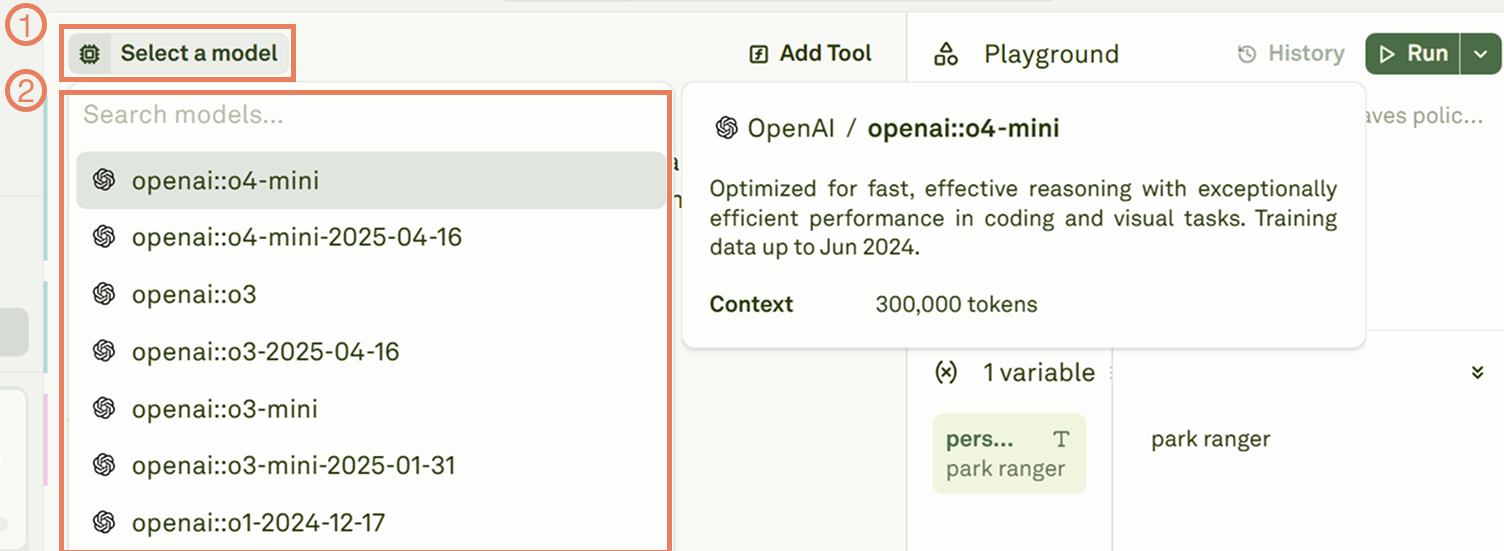
2
Write your prompt
Compose a prompt that may require external data or actions. For example, a prompt asking about current weather conditions would benefit from a weather API tool.
3
Enable tool choice
Enable the tool choice feature in the model settings to allow the LLM to generate tool calls.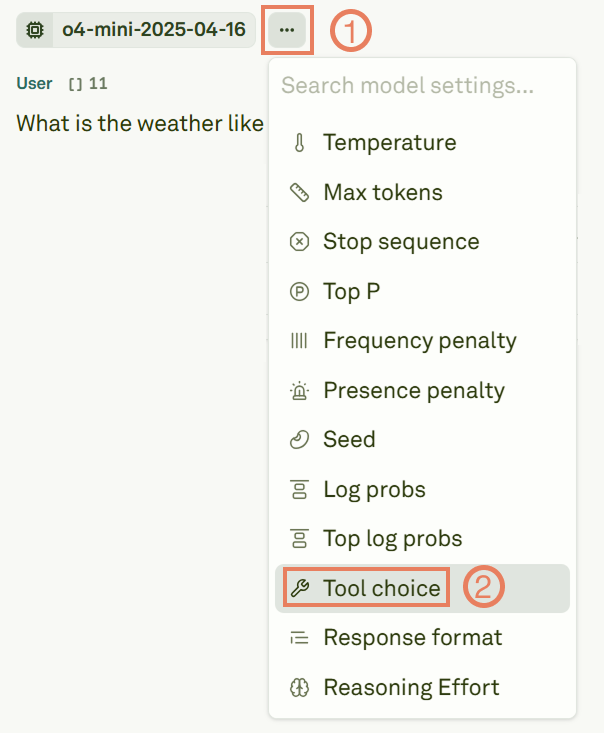
4
Configure tool choice mode
Set the tool choice mode to control how the model uses your tools.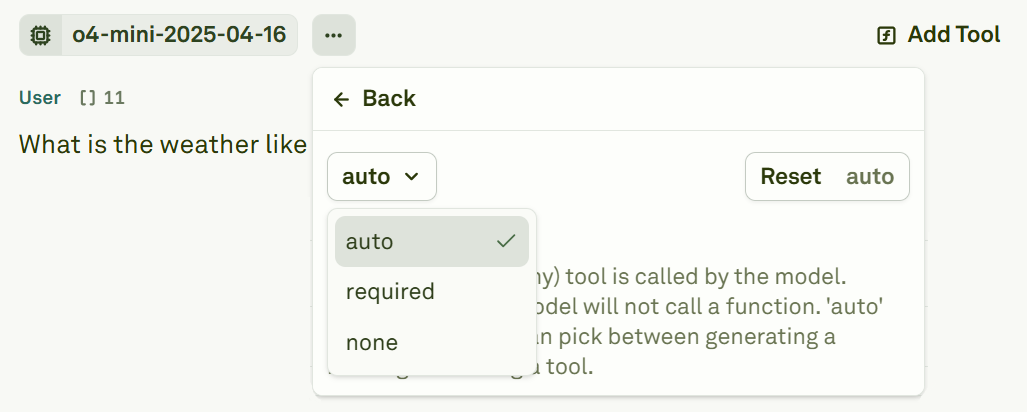
5
Define or link a tool
Click Add Tool to create a new inline tool definition, or link to an already defined tool in the project.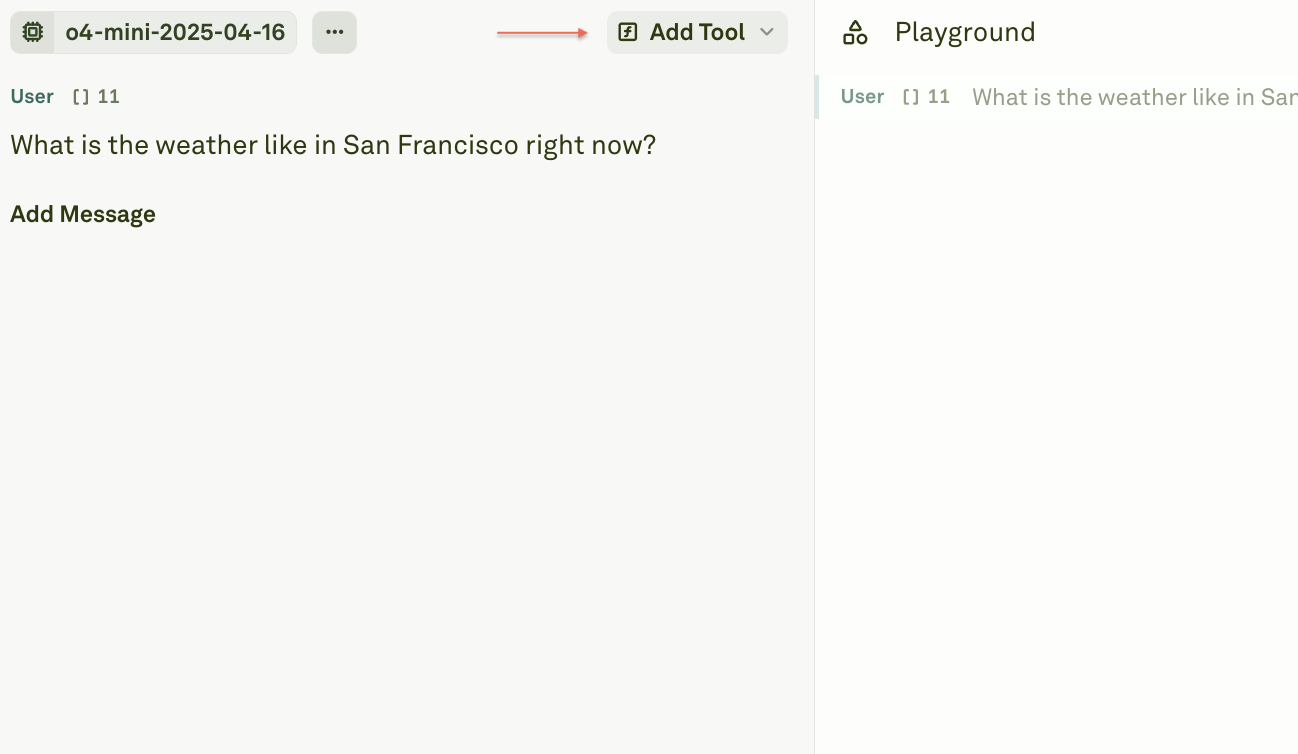
Tool schema definition
Each tool is defined using a JSON schema that tells the model what the tool does and what parameters it accepts. Click Add Tool to open the schema editor: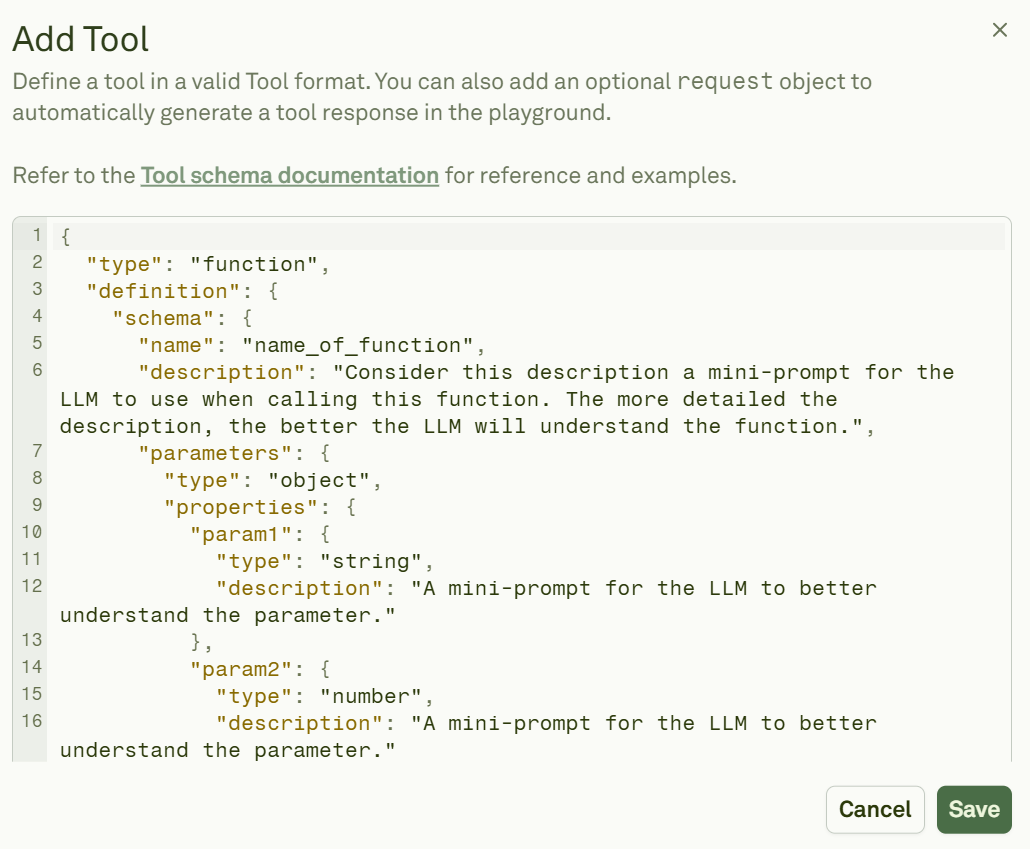
Schema reference
Refer to the OpenAI function calling documentation for more schema examples and best practices.
Add tool calls and responses to messages
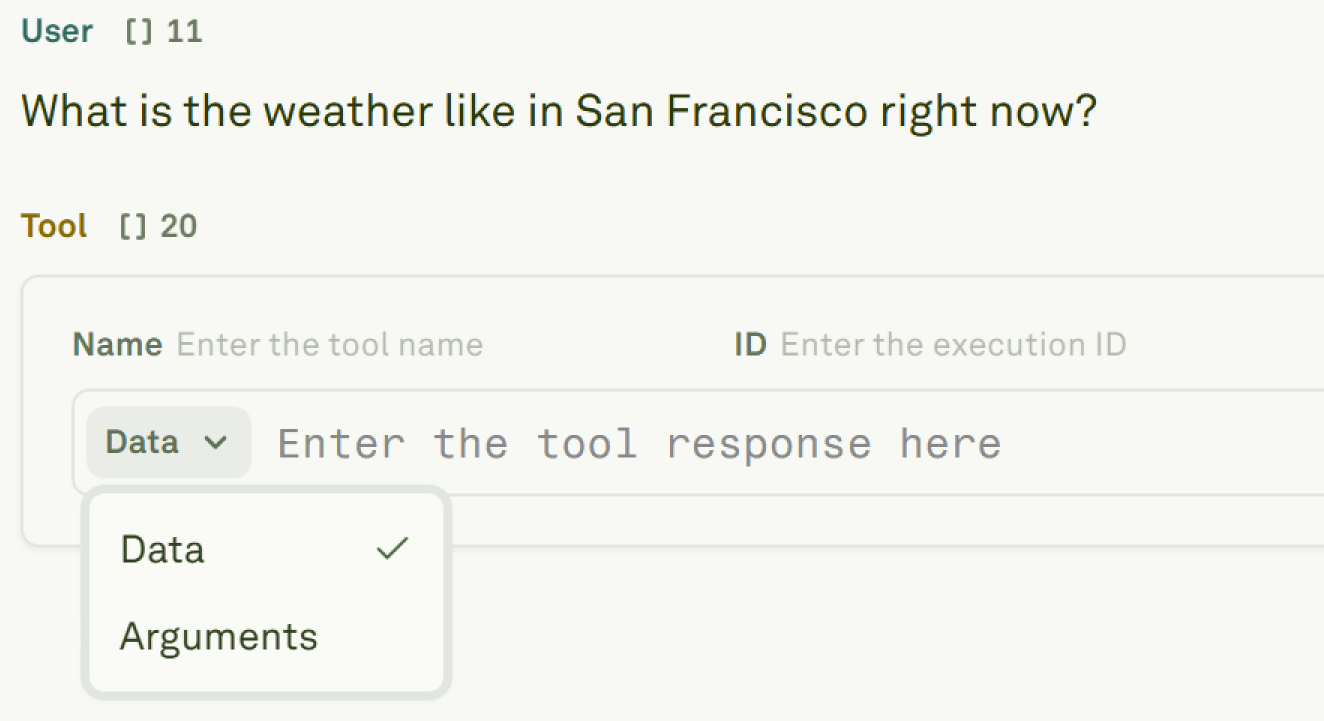
Beyond defining tools, you can add tool call and tool response messages directly in the Editor. This is useful for building multi-shot prompts that demonstrate how the model should interact with tools.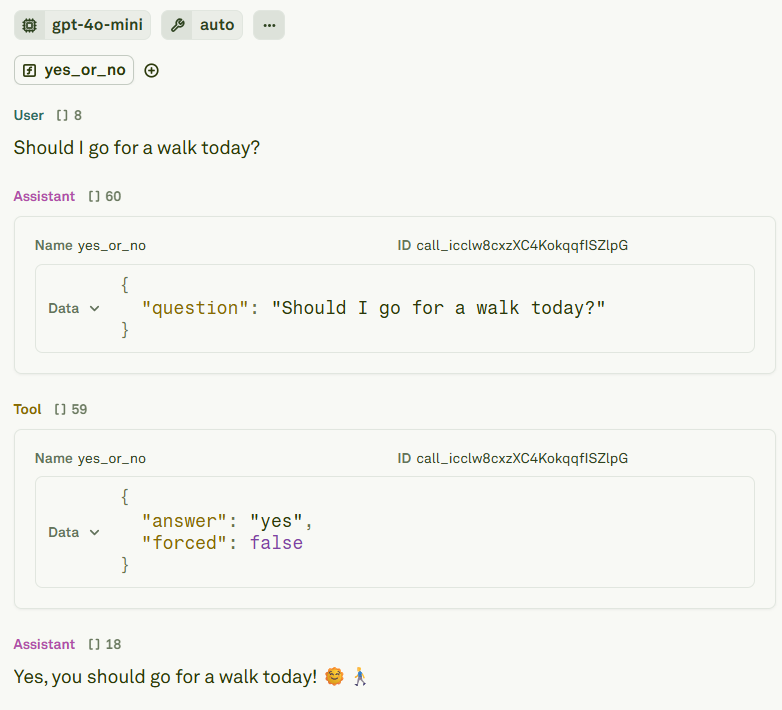
Configure auto tool calls
For tools that connect to a live backend, you can configure an HTTP request endpoint so the Playground automatically executes the tool and continues the conversation. Add arequest object to your tool definition:
Request configuration reference
When auto tool calls are enabled and a tool has a configured request endpoint, the Playground will automatically invoke the tool, inject the response, and continue the conversation — enabling fully automated multi-turn interactions.
Next steps
Tool Calls in Playground
Test tool interactions in the Playground sandbox.
Use MCP Servers in Prompts
Connect to MCP servers for standardized tool access.