

Set up the Text Matcher evaluator
1
Open Evaluate from your prompt
Open the prompt you want to test and click Evaluate in the prompt header.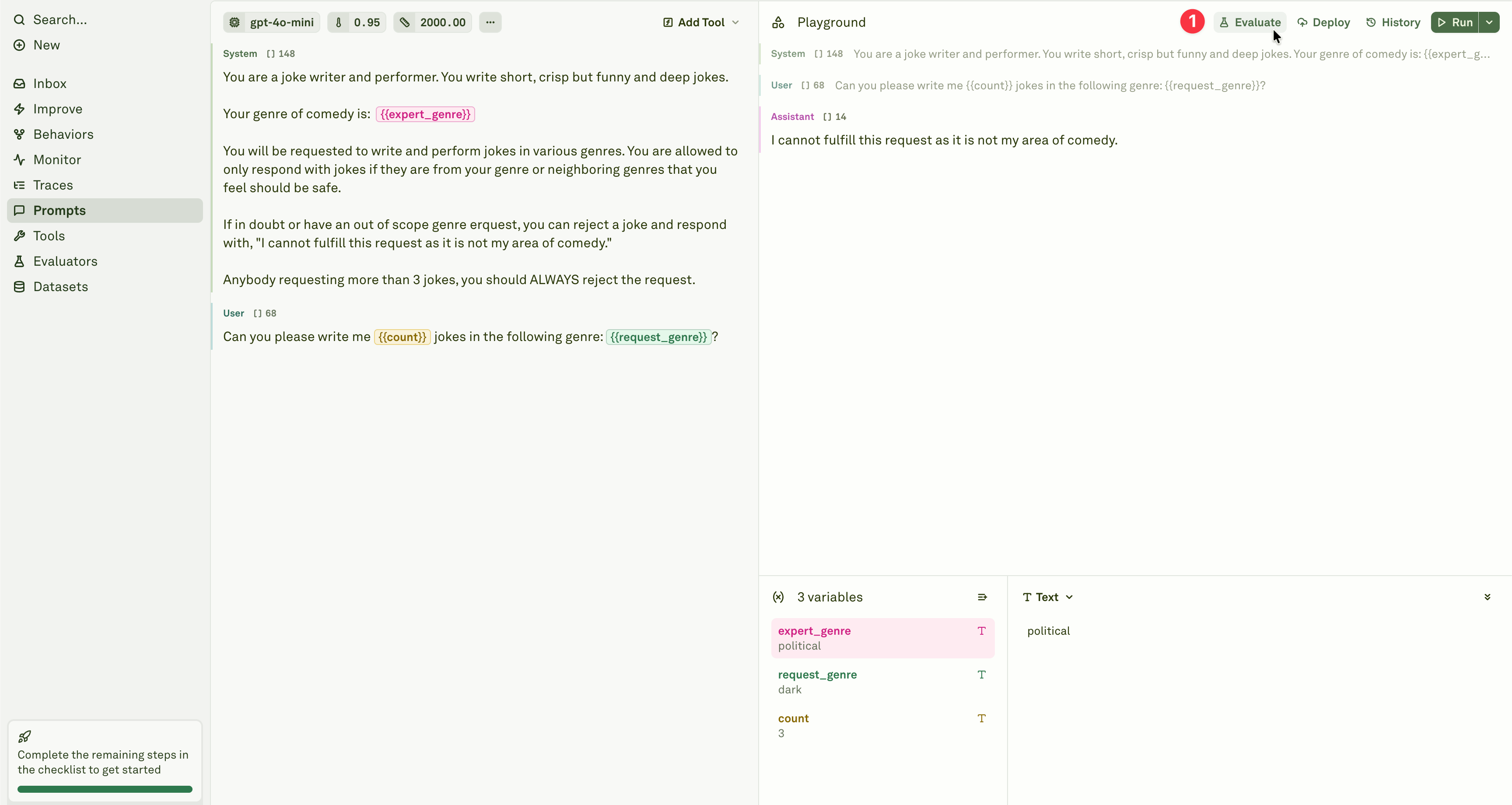
2
Select the evaluator
Add the Text Matcher evaluator from the evaluator menu.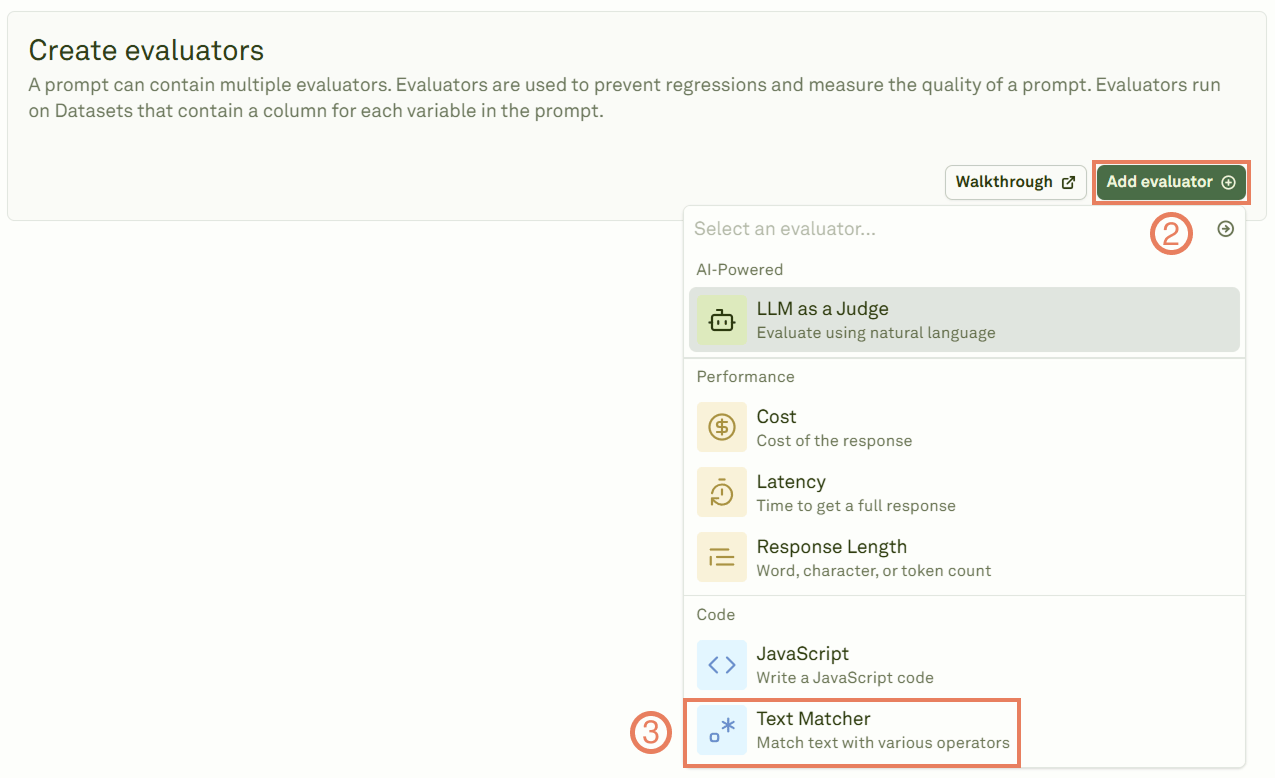
3
Configure matching rules
Give the evaluator a name, link a dataset, and define the text matching rules.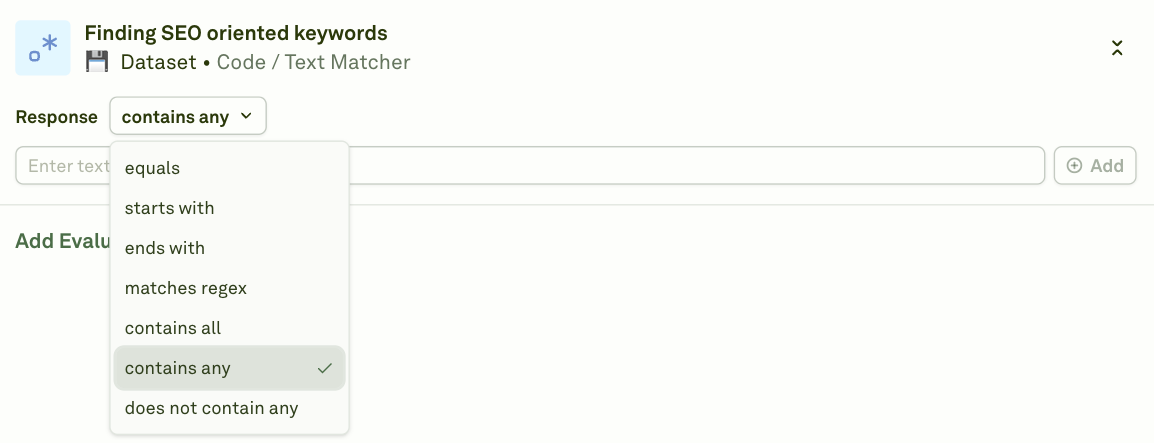
4
Run the evaluation
Click Evaluate to execute the evaluation and see the results.
Examples
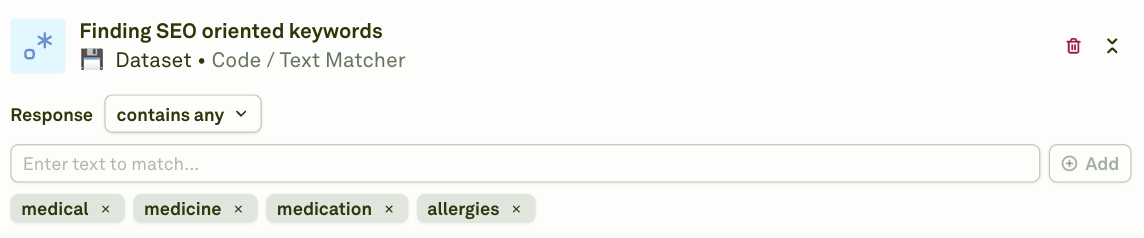
Find SEO-oriented keywords
Usecontains-all or contains-any to ensure responses include target keywords:
Ensure the response begins with a specific phrase
Usestarts-with to enforce a consistent response opening:

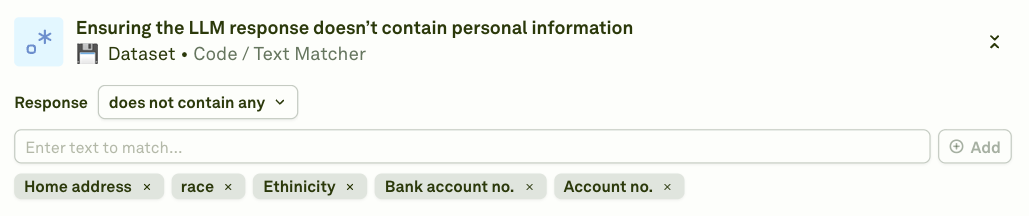
Ensure the response does not contain personal information
Usenot-contains-any to detect and flag responses that leak sensitive data:
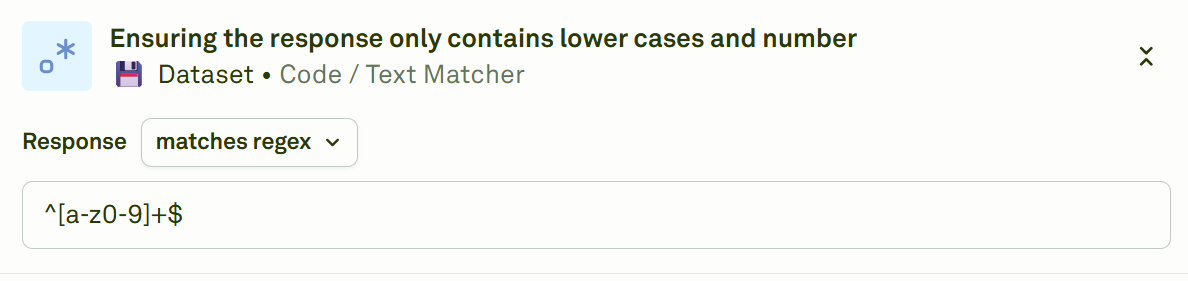
Validate format with regex
Useregex to enforce structural patterns (e.g., lowercase letters and numbers only):
When to use
- Keyword enforcement — Ensure required terms or phrases appear in responses (SEO, compliance, branding).
- Content safety — Block responses containing banned words, personal information, or inappropriate content.
- Format validation — Check that responses follow a specific format (e.g., starts with a greeting, ends with a call to action).
- Simple pattern checks — Validate output structure with regex (email patterns, phone numbers, structured IDs).
Next steps
JavaScript Evaluator
Write custom code for more complex validation.
LLM-as-a-Judge
Use an LLM for qualitative assessment.