

Supported modalities
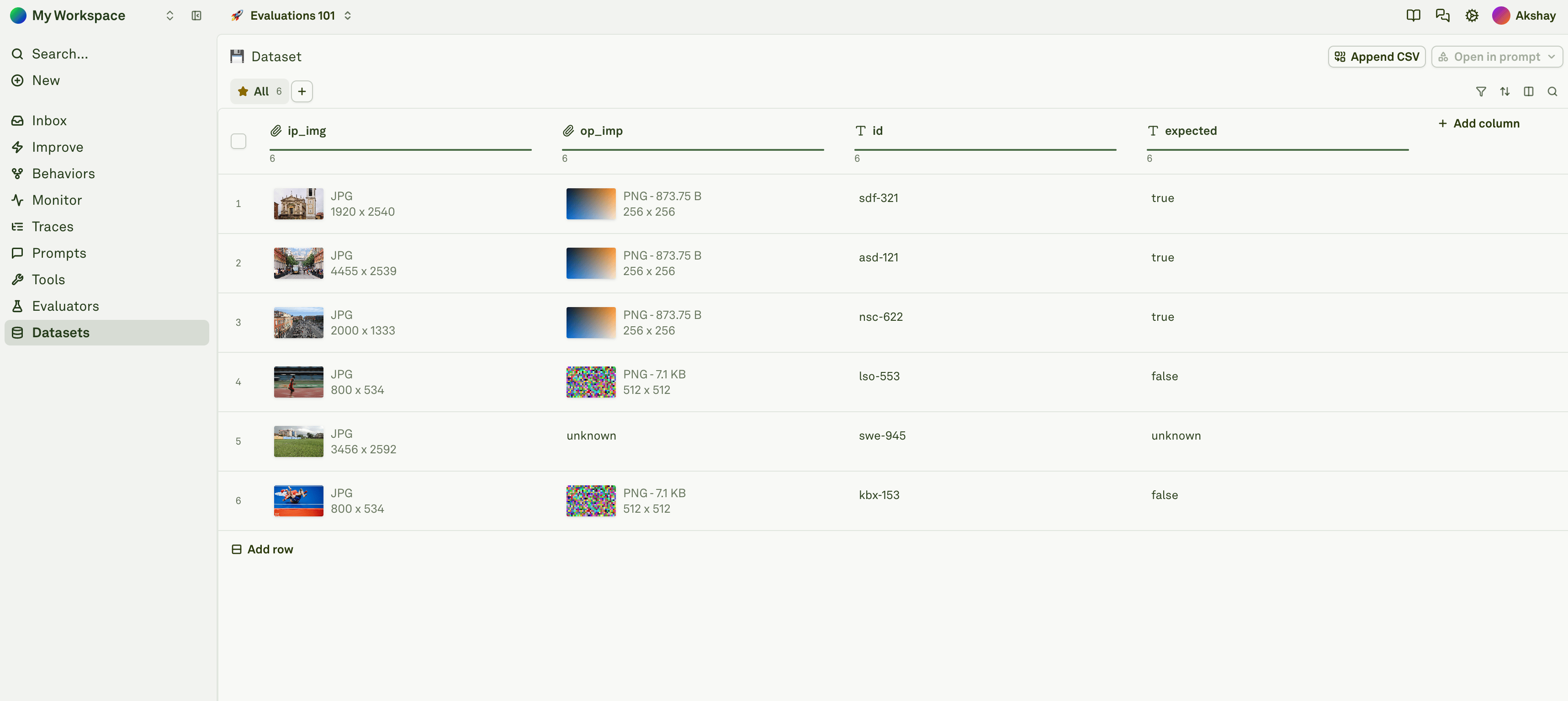
Each cell is independent — you can have a text cell next to an image cell next to a PDF cell in the same row. You can also have different modalities across rows within the same column.
Text
Text is the default modality. Simply click on a cell and type or paste your content. There is no additional configuration needed. For example, if your prompt has a{{user_question}} variable, you would add a user_question column and type the question directly into each cell:
Images
To add an image to a cell, paste one of the following:- A publicly accessible image URL — e.g.,
https://example.com/photos/front.png - A base64-encoded image string — e.g.,
data:image/png;base64,iVBORw0KGgo...
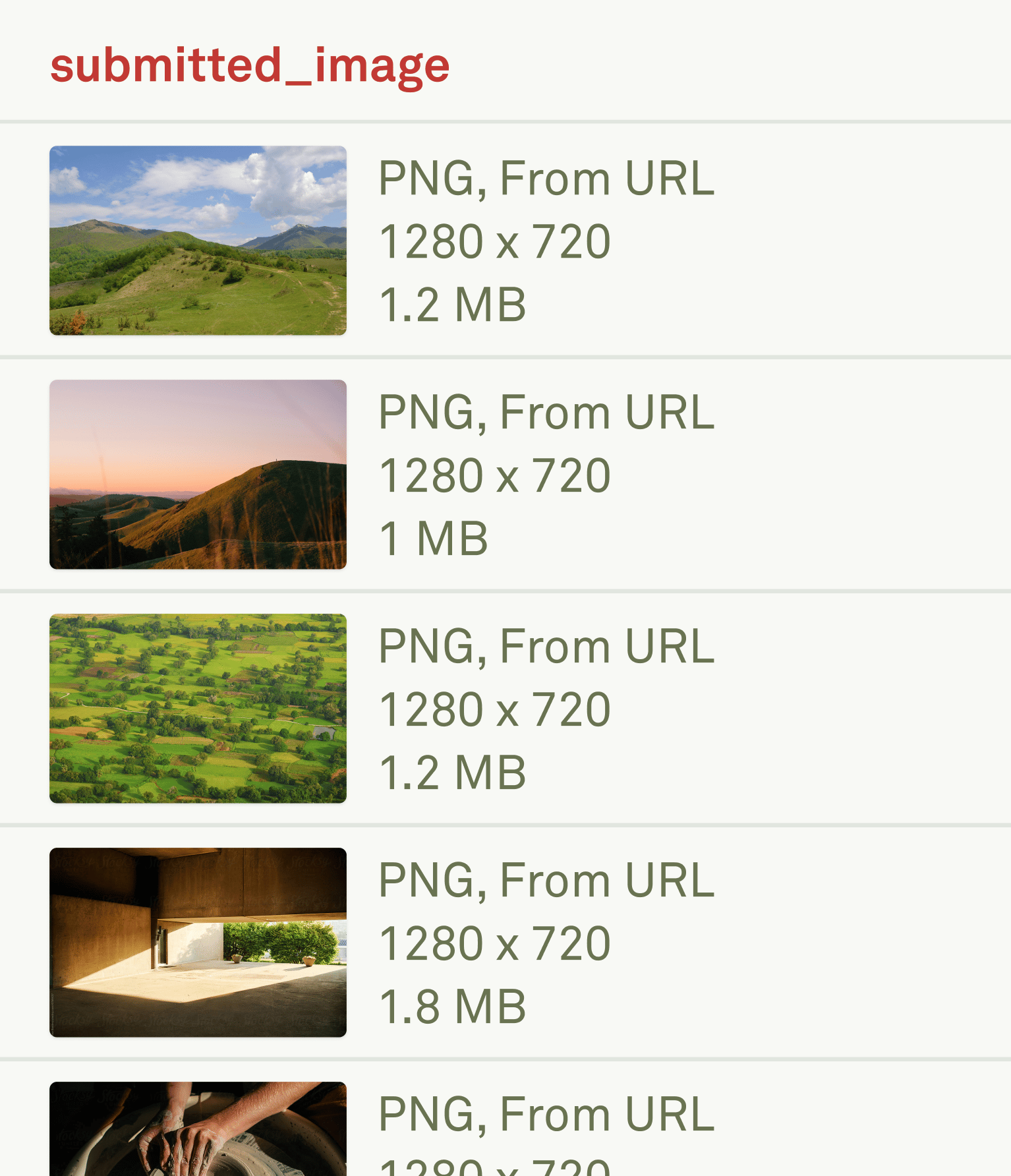
Example: image via URL
Paste a direct link to a publicly hosted image into the cell:Example: image via base64
Paste a base64-encoded image string with the data URI prefix: Maximum image size: 5 MB.Base64 images in datasets are hosted on Adaline storage and can be accessed through the Dataset API.
PDFs
To add a PDF to a cell, paste one of the following:- A publicly accessible PDF URL — e.g.,
https://example.com/docs/report.pdf - A base64-encoded PDF string — e.g.,
data:application/pdf;base64,JVBERjQK...
Example: PDF via URL
Paste a direct link to a publicly hosted PDF into the cell:Example: PDF via base64
Paste a base64-encoded PDF string with the data URI prefix: Maximum PDF size: 10 MB.Base64 PDFs in datasets are hosted on Adaline storage and can be accessed through the Dataset API.
Importing multimodal data via CSV
You can bulk-import multimodal datasets using CSV files. In the CSV, text values are entered as-is, and image or PDF values are entered as their publicly accessible URLs or base64 strings. Adaline automatically detects the modality of each cell based on the value.Text-only CSV
A standard CSV where every cell contains plain text:Mixed modalities CSV (text + images)
A CSV that combines text and image URLs in different columns:Mixed modalities CSV (text + images + PDFs)
A CSV that combines text, image URLs, and PDF URLs across columns:Mixed modalities CSV with base64
You can also include base64-encoded content directly in the CSV. This is useful when your images or PDFs are not publicly hosted:Importing the CSV
Once your CSV is ready, click Upload CSV in the dataset editor to import it. Adaline parses each cell value and automatically detects the modality:- Plain text values are treated as text.
- Values starting with
http://orhttps://pointing to image or PDF files are treated as the corresponding modality. - Values starting with
data:image/ordata:application/pdf;base64,are treated as base64-encoded images or PDFs.
Size limits and storage
Next steps
Setup Dataset
Create datasets and configure columns for evaluation.
Import CSV into Dataset
Bulk-import test cases including multimodal data.
Evaluate Prompts
Run evaluations on your multimodal dataset.
Use Images in Prompt
Learn how to use images in your prompts.