

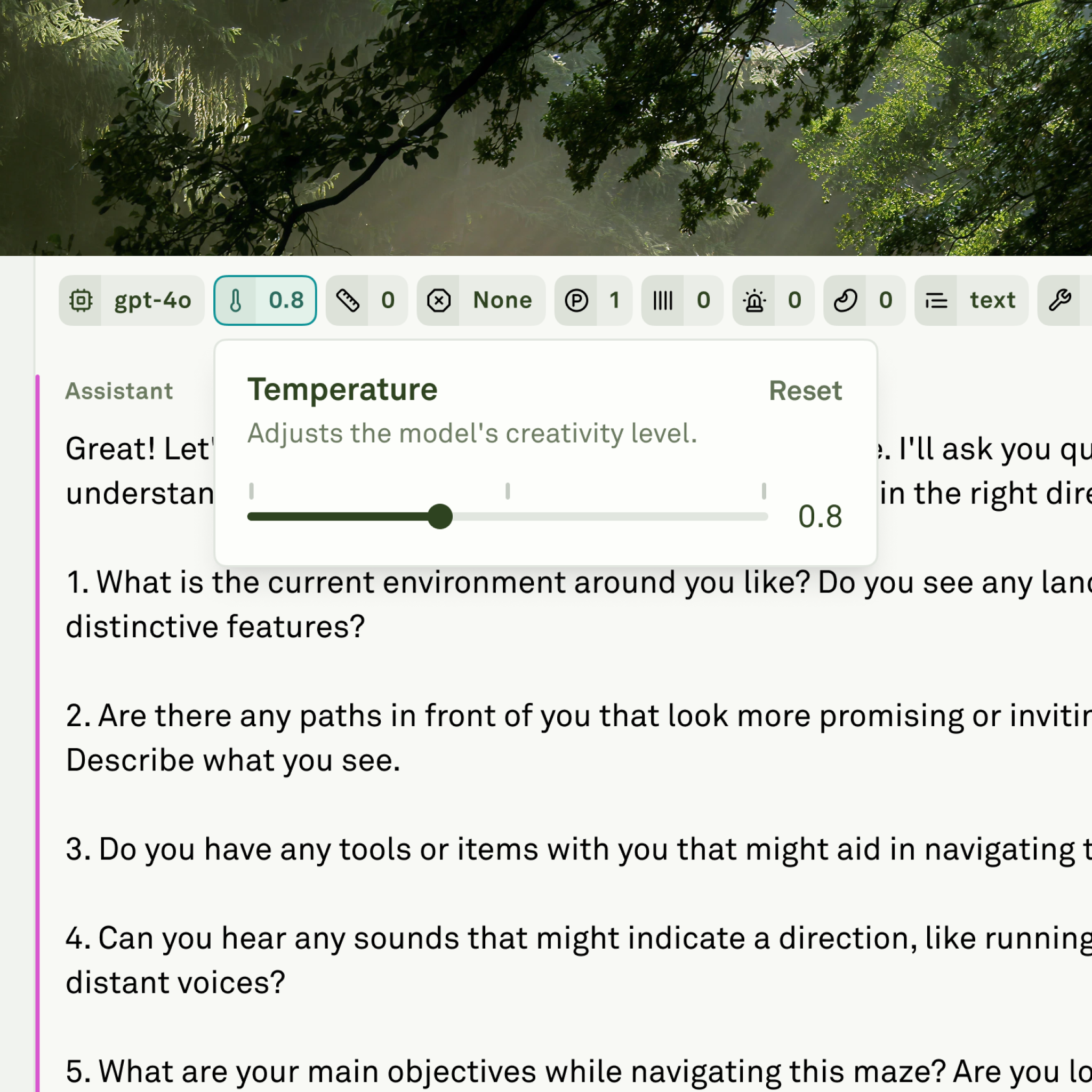
Select an LLM
Adaline’s Editor displays all supported LLMs based on the providers you have configured in your workspace settings. Open the model selector to browse and choose your preferred model: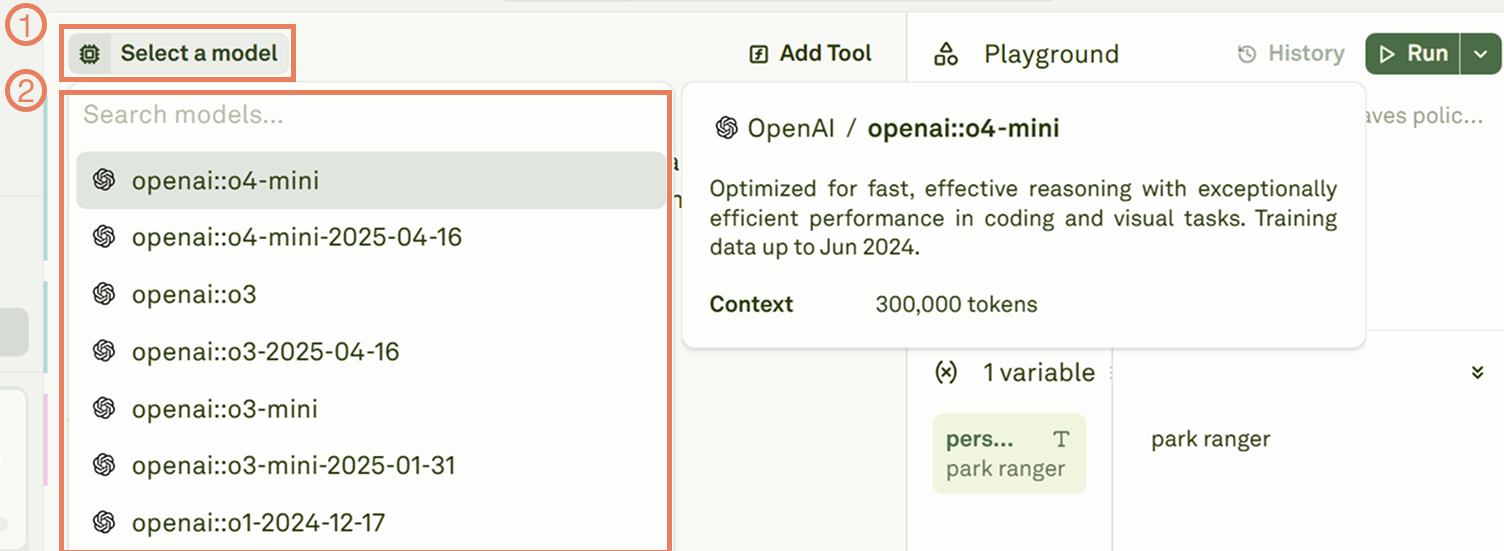
provider::model_name. This prefix helps you distinguish between provider accounts when you have multiple keys configured for the same provider — for example, OpenAI-dev::gpt-4o and OpenAI-prod::gpt-4o.
To add a new AI provider, navigate to your workspace settings. See Configure AI Provider for setup instructions.
Configure generation settings
Click the settings icon next to the model selector to open the configuration panel: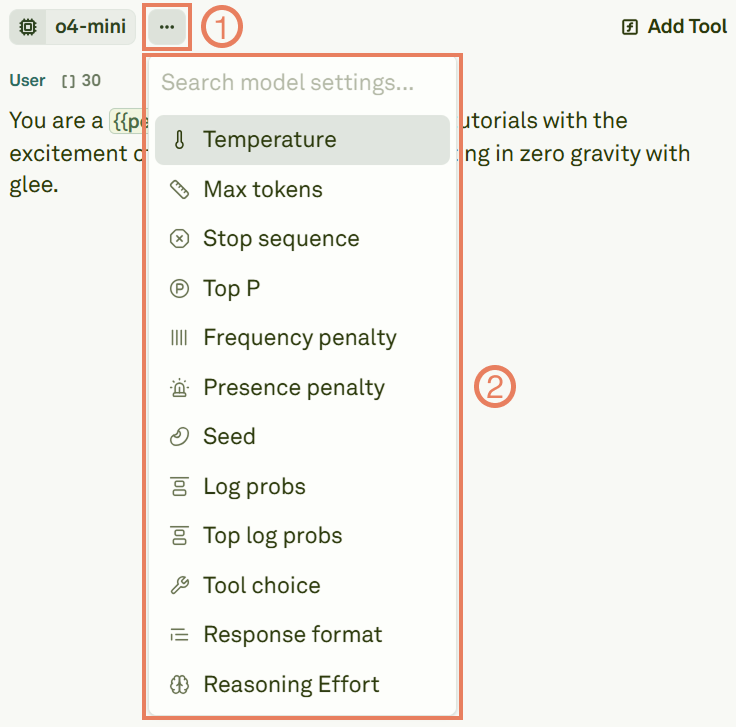
The interface automatically shows only the parameters that are relevant to the model you have selected. Different providers and models support different subsets of these settings.
Configure response format
You can control the structure of the model’s output by configuring the response format. Click on Response format in the settings panel: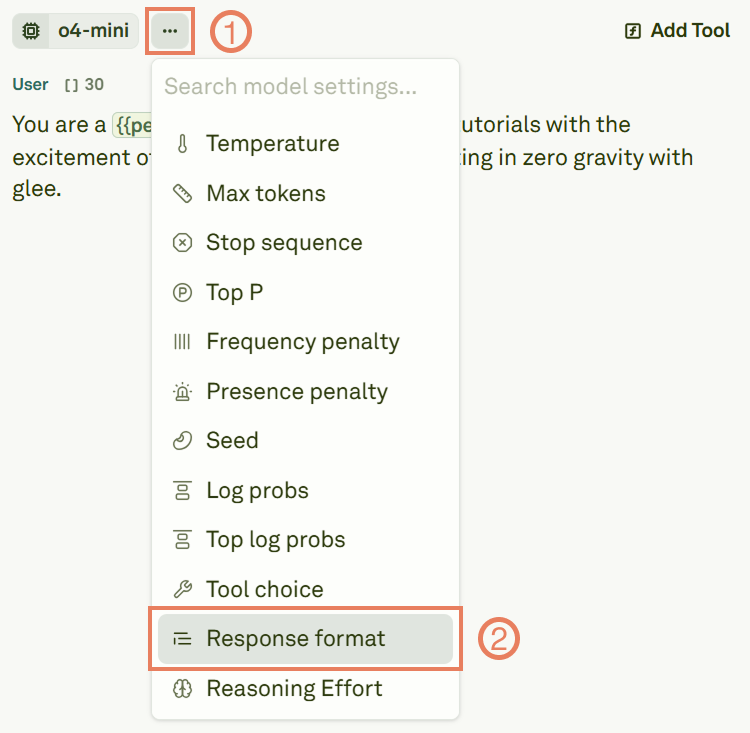
Define a JSON schema
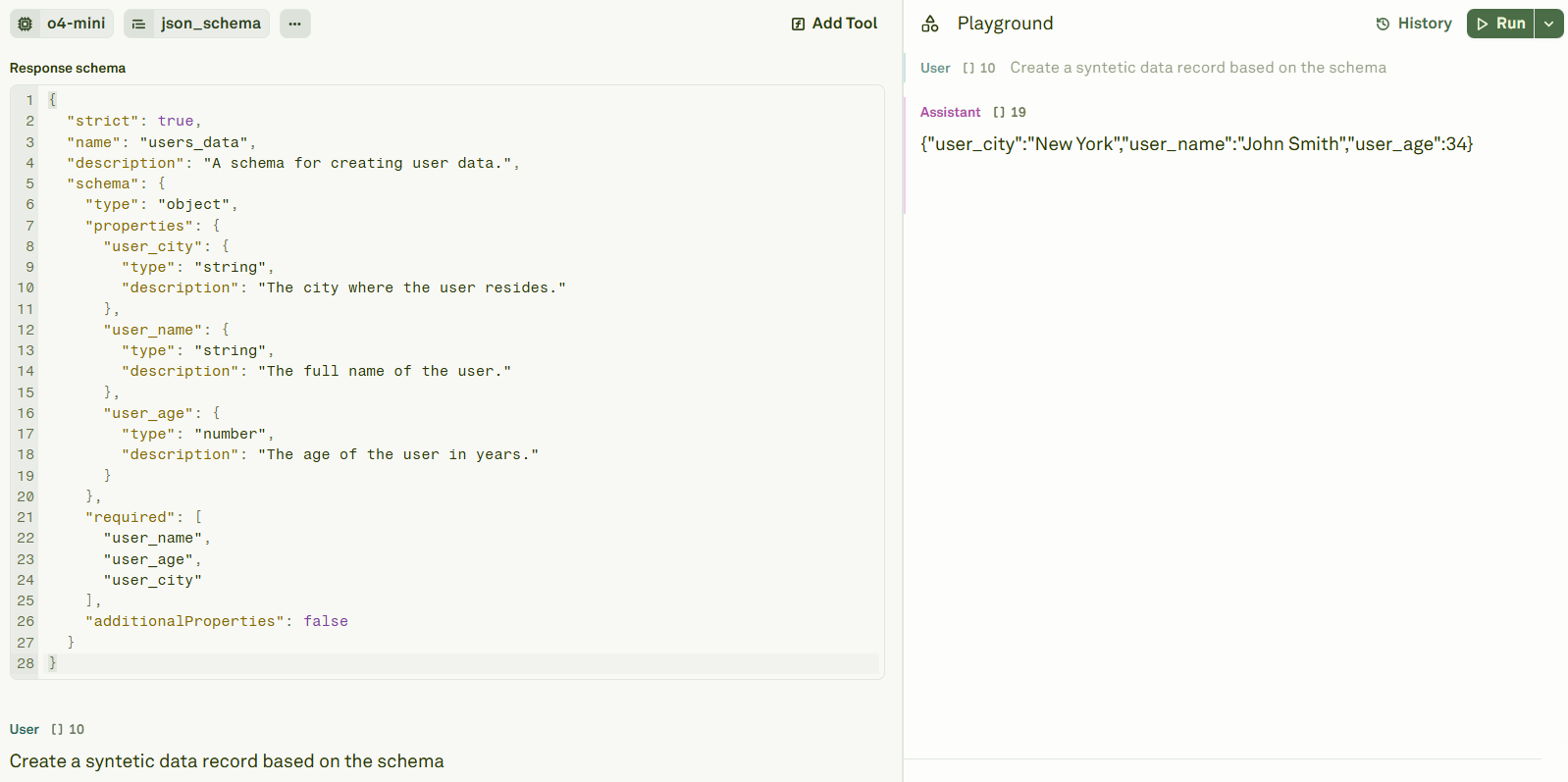
When usingjson_schema, provide a schema definition in the response format editor. Here is an example:
- The
"strict": truefield is mandatory. - The
namefield is mandatory and must use underscores (e.g.,users_data) or camelCase (e.g.,usersData) — no spaces or special characters. - Define the structure inside the
"schema"field using standard JSON Schema syntax.
Next steps
Use Roles in Prompts
Structure prompts with role-based messages and multi-shot techniques.
Use Tools in Prompts
Enable function calling and tool use for your selected model.