

Create a dataset
There are two ways to create a dataset:- From the sidebar — every project has a Dataset section in the sidebar. Click on it and create a new dataset manually.
- From a prompt — open any prompt, navigate to the Variable Editor, and click Link Dataset. This creates a new dataset pre-populated with columns matching all the variables in your prompt, so you don’t have to set up the column-to-variable mapping yourself.
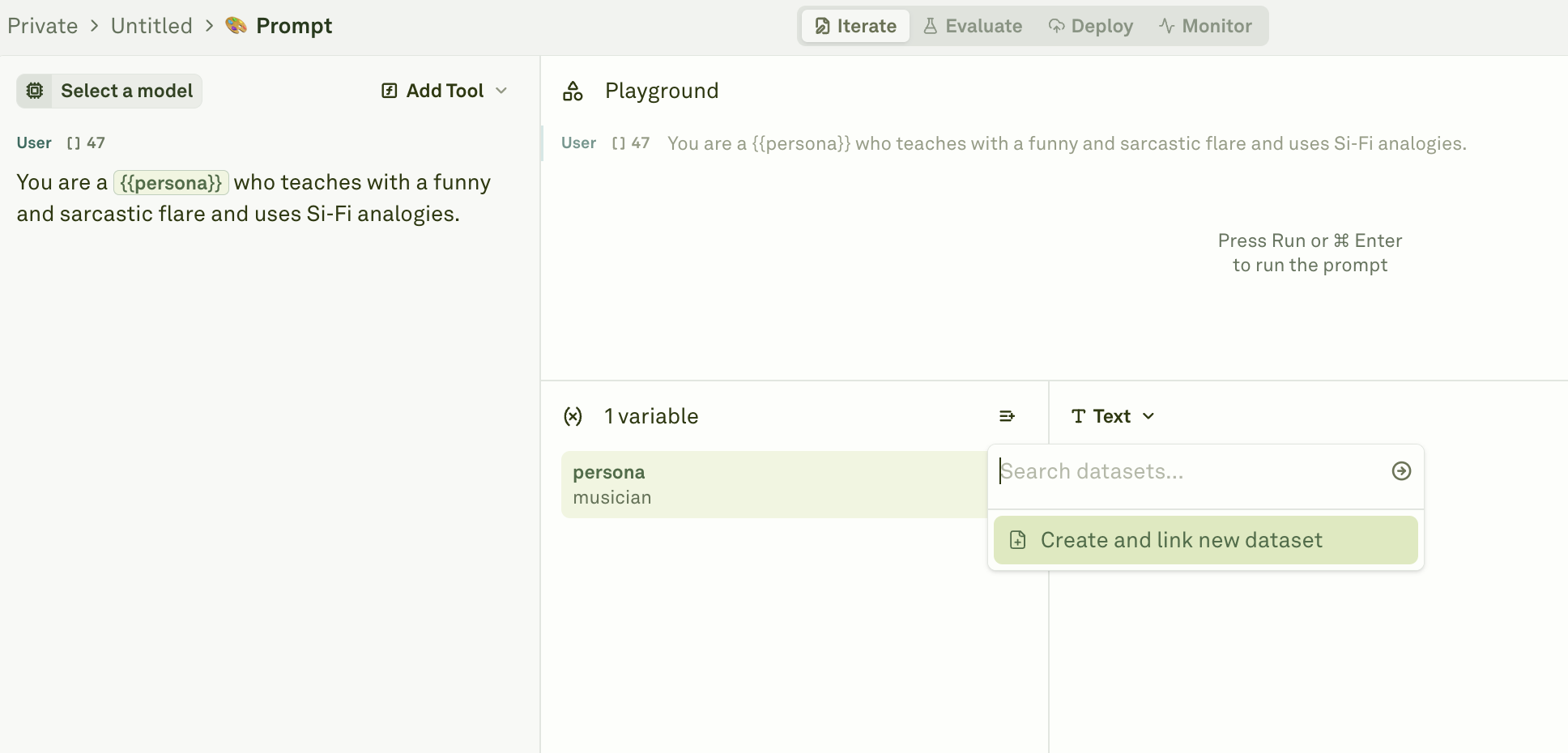
Column-to-variable mapping
The most critical rule when setting up a dataset for evaluation is that column names must match your prompt’s variable names exactly. If your prompt contains{{persona}} and {{does_something}}, your dataset must have columns named persona and does_something:
Populate your dataset
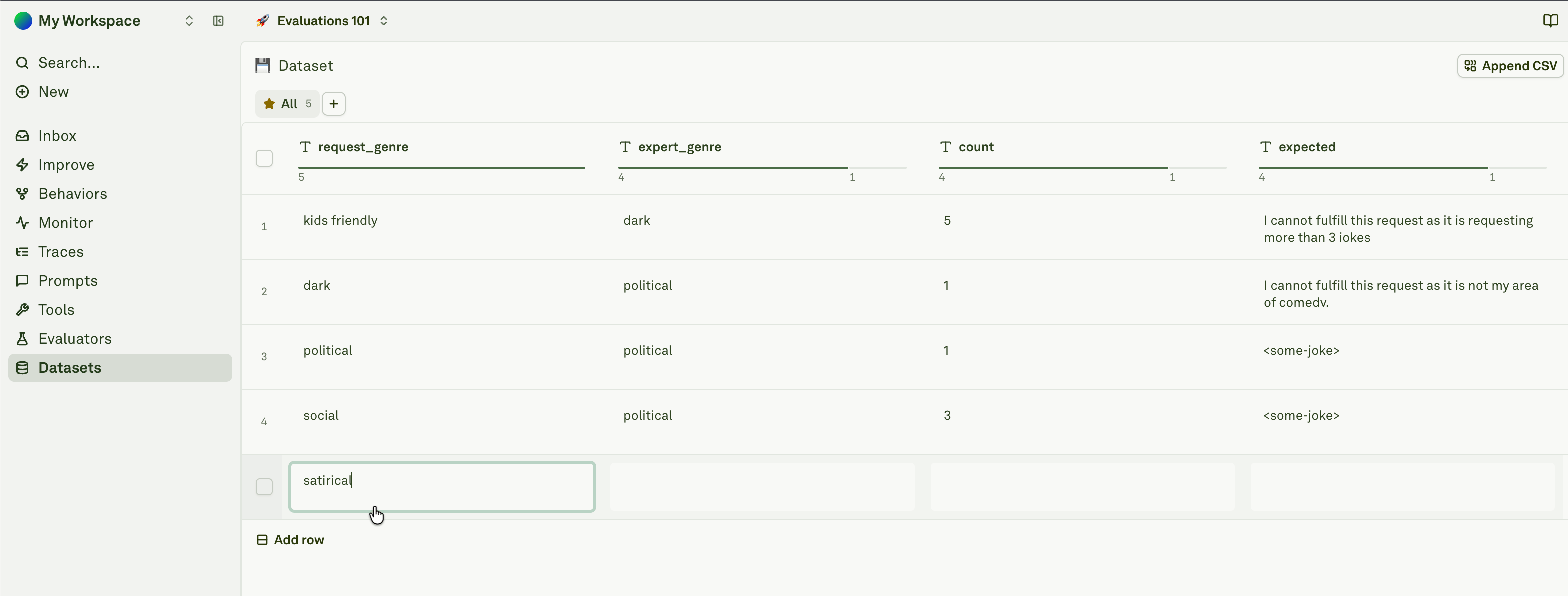
There are several ways to add test case data to your dataset.Manual entry
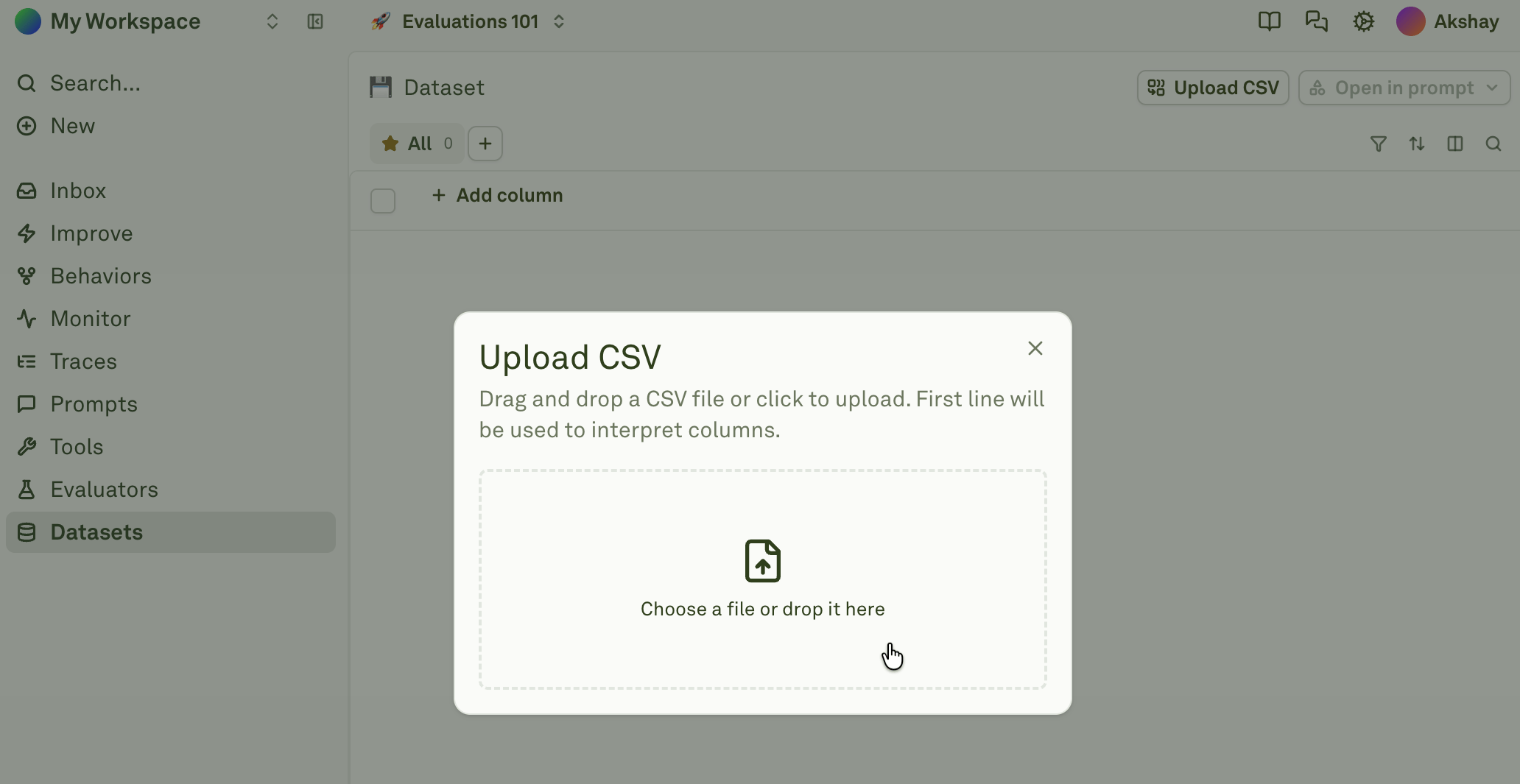
Import from CSV
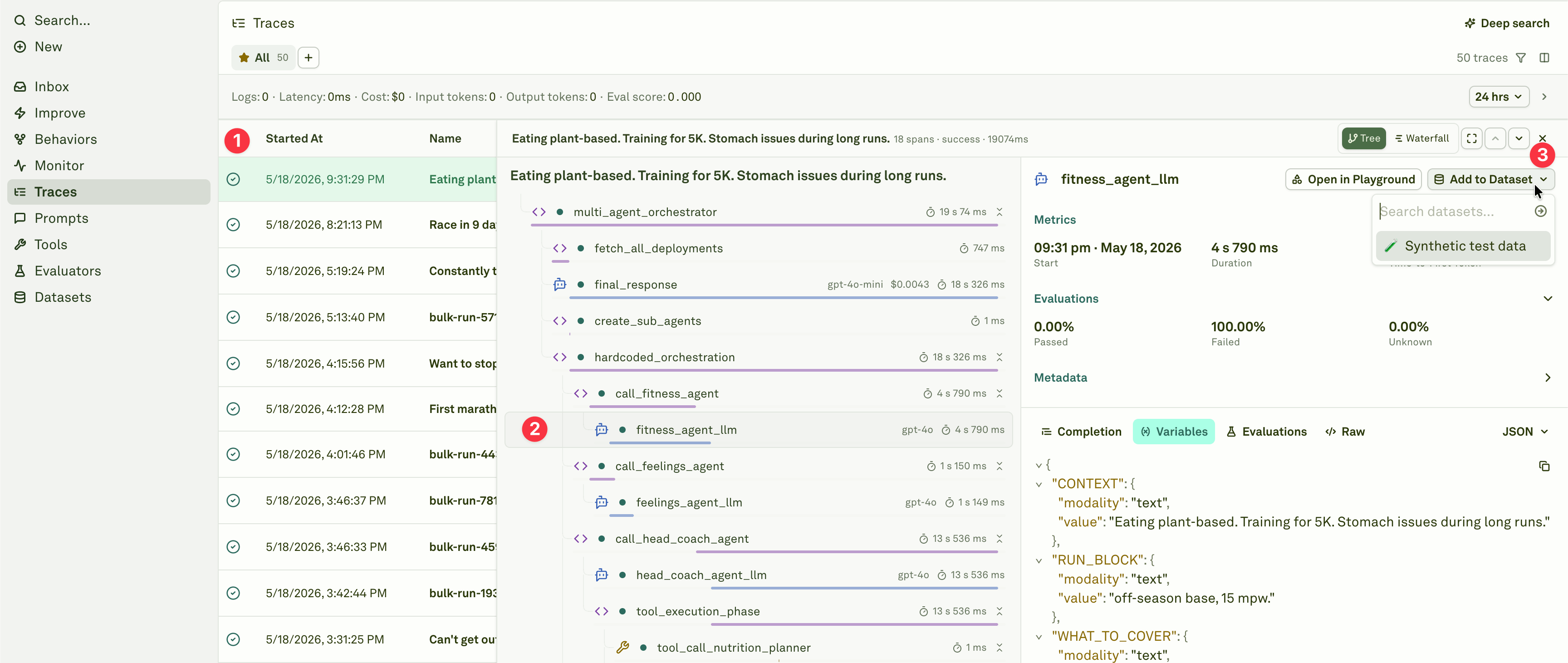
Build from logs
Column types
Every column in a dataset is either static or dynamic:- Static columns hold values exactly as they appear in the UI — you type or paste a value into a cell and it stays as-is. All the population methods described above (manual entry, CSV import, build from logs) create static columns.
- Dynamic columns fetch their values automatically from external sources at runtime — either from an HTTP API endpoint or by executing another prompt in your project. This transforms your dataset into a live data source that can pull fresh data on demand.
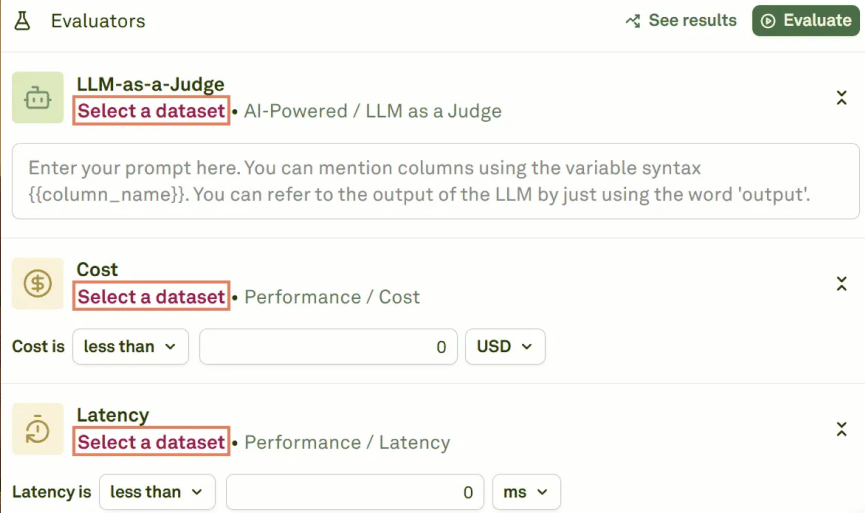
Link a dataset to evaluators
Best practices
- Start small — Begin with 5–10 diverse test cases covering your key scenarios, then expand as you discover edge cases during evaluation.
- Cover edge cases — Include test cases for unusual inputs, boundary conditions, empty values, long inputs, and common failure modes.
- Use descriptive column names — Match your prompt variable names exactly and keep names readable (e.g.,
user_questionrather thanuq). - Keep datasets focused — Each dataset should target a specific evaluation scenario. Use multiple datasets rather than one massive dataset that tries to cover everything.
- Test dynamic columns first — Use “Run for First Row” to verify API and prompt configurations before populating all rows.
Next steps
Import CSV into Dataset
Bulk-import test cases from CSV files.
Dynamic Columns
Configure columns that fetch live data at runtime.
Evaluate Prompts
Run your first evaluation with your dataset.