> ## Documentation Index
> Fetch the complete documentation index at: https://www.adaline.ai/docs/llms.txt
> Use this file to discover all available pages before exploring further.
# View past prompt runs
> Access, compare, and restore the complete history of your prompt executions
The Playground maintains a complete, versioned history of every prompt run. This lets you review past interactions, compare outputs across different configurations, and restore any previous state — so you never lose a good result.
## Access run history
Your run history is saved automatically after every execution. To access it, click **History** in the Playground:
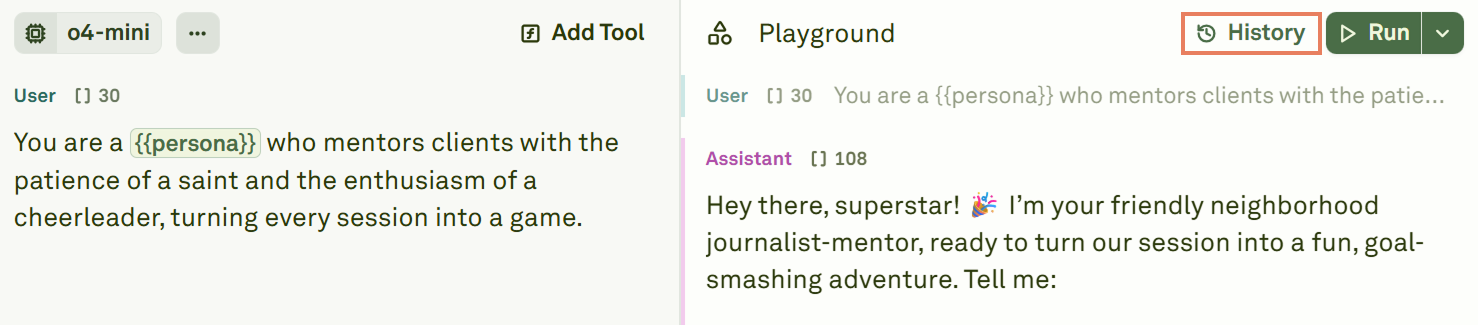 The history panel displays all past runs in chronological order, with the most recent runs at the top:
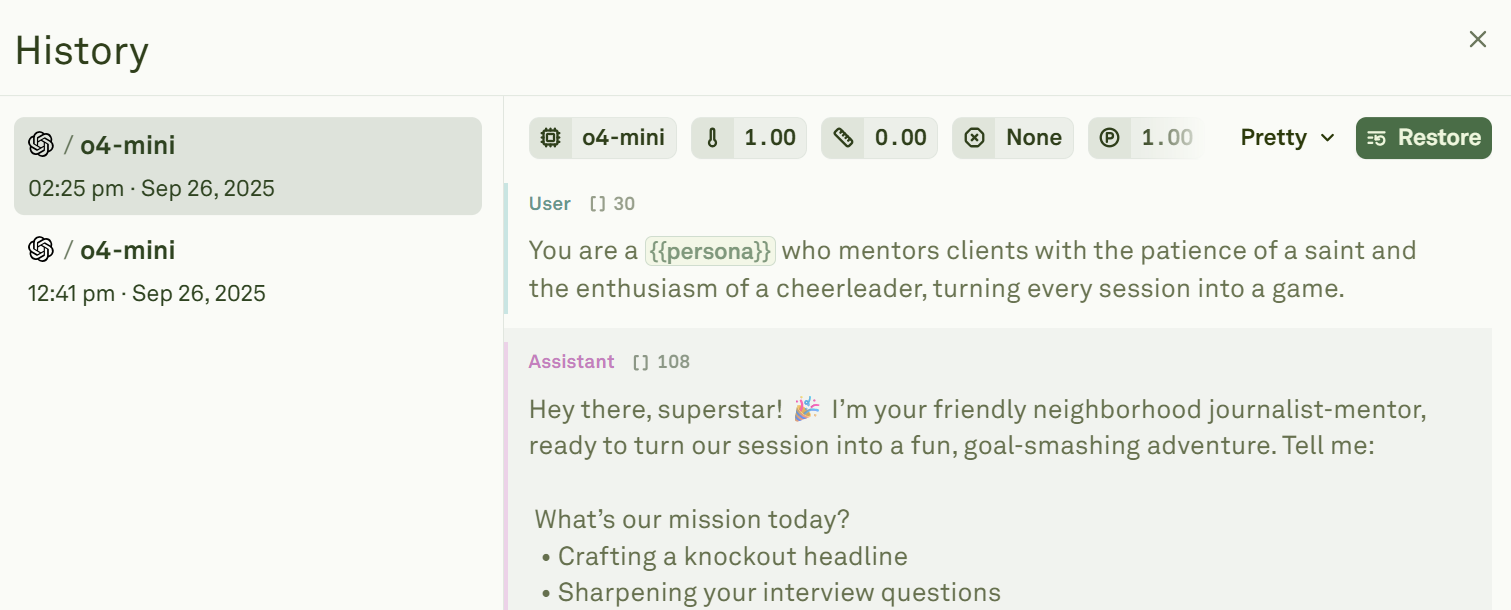 Each history entry captures:
* The prompt configuration at the time of the run (model, parameters, messages)
* Variable values used for that run
* The model's response and metadata
* Token usage and latency metrics
## Restore a previous run
Click **Restore** on any history entry to revert both the Editor and the Playground to that run's exact state. This is useful when a previous version produced better results and you want to continue iterating from that point.
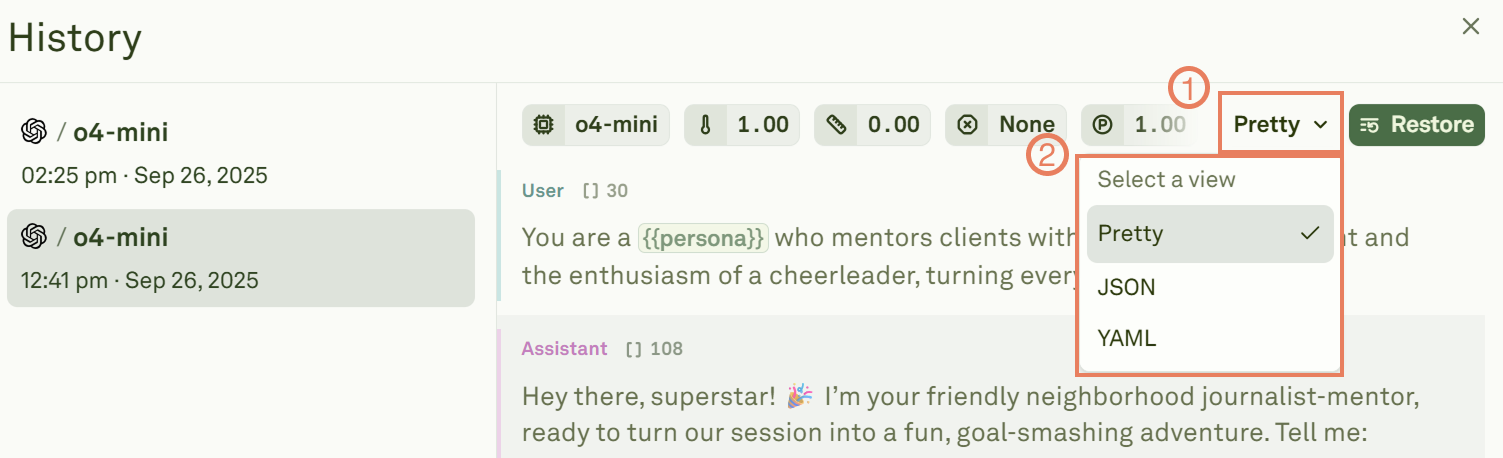
When restoring, you can view the differences between your current prompt and the version you are about to restore. Choose a comparison format:
Each history entry captures:
* The prompt configuration at the time of the run (model, parameters, messages)
* Variable values used for that run
* The model's response and metadata
* Token usage and latency metrics
## Restore a previous run
Click **Restore** on any history entry to revert both the Editor and the Playground to that run's exact state. This is useful when a previous version produced better results and you want to continue iterating from that point.
When restoring, you can view the differences between your current prompt and the version you are about to restore. Choose a comparison format:
 | Format | Description |
| ---------- | -------------------------------------------------------------------------------------------------------------------------- |
| **Pretty** | Shows the differences as a visual, message-by-message diff. Best for quickly spotting changes in natural language prompts. |
| **JSON** | Shows the raw JSON diff between prompt versions. Best for structured prompts and precise parameter comparison. |
| **YAML** | Shows the YAML diff between prompt versions. An alternative structured view for readability. |
## How history works
* **Automatic saving** — Every run is saved automatically. There is nothing to configure or remember.
* **Bi-directional restore** — Restoring a run updates both the Editor (prompt, model settings) and the Playground (conversation state).
* **Non-destructive** — Restoring a previous run does not delete later history entries. You can always go forward again.
## Next steps
Learn about running and iterating on prompts.
Connect datasets to test with multiple variable samples.
| Format | Description |
| ---------- | -------------------------------------------------------------------------------------------------------------------------- |
| **Pretty** | Shows the differences as a visual, message-by-message diff. Best for quickly spotting changes in natural language prompts. |
| **JSON** | Shows the raw JSON diff between prompt versions. Best for structured prompts and precise parameter comparison. |
| **YAML** | Shows the YAML diff between prompt versions. An alternative structured view for readability. |
## How history works
* **Automatic saving** — Every run is saved automatically. There is nothing to configure or remember.
* **Bi-directional restore** — Restoring a run updates both the Editor (prompt, model settings) and the Playground (conversation state).
* **Non-destructive** — Restoring a previous run does not delete later history entries. You can always go forward again.
## Next steps
Learn about running and iterating on prompts.
Connect datasets to test with multiple variable samples.