> ## Documentation Index
> Fetch the complete documentation index at: https://www.adaline.ai/docs/llms.txt
> Use this file to discover all available pages before exploring further.
# Use text in prompts
> Compose text content with variables, comments, and structured formatting
Text is the foundational content type in Adaline prompts. Once you have set up your [roles and message structure](/docs/iterate/use-roles-in-prompt), you can write text directly inside each content block — and enrich it with comments, dynamic variables, and structured formatting.
## Add text to a message
Each message in the Editor contains a content block where you write your text. Select a [role](/docs/iterate/use-roles-in-prompt) for the message, then type directly into the content area.
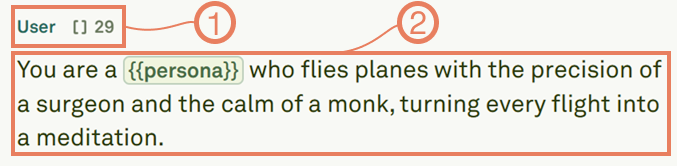 You can add multiple messages to a prompt, each with its own role and text content. The model processes them in order, treating each role according to its purpose — system for instructions, user for inputs, and assistant for example responses.
## Add comments to messages
Comments let you annotate your prompts without affecting the model's behavior. They are visible only in the Editor and are automatically stripped before the prompt is sent to the model.
Use the comment syntax to add notes about design choices, reminders, or explanations for teammates:
```
/* This section provides context about the user's purchase history */
```
You can add multiple messages to a prompt, each with its own role and text content. The model processes them in order, treating each role according to its purpose — system for instructions, user for inputs, and assistant for example responses.
## Add comments to messages
Comments let you annotate your prompts without affecting the model's behavior. They are visible only in the Editor and are automatically stripped before the prompt is sent to the model.
Use the comment syntax to add notes about design choices, reminders, or explanations for teammates:
```
/* This section provides context about the user's purchase history */
```
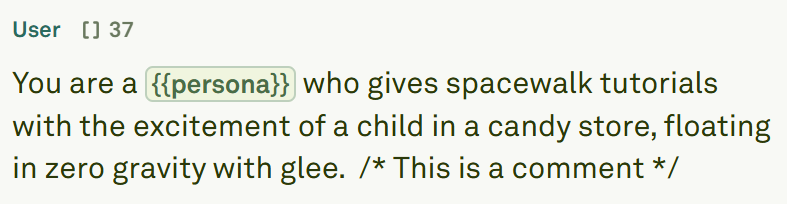 Place comments near complex sections to explain your reasoning. This makes it easy for team members to understand your prompt structure and iterate on it later.
## Use variables in text
Variables make your prompts dynamic and reusable. Instead of creating separate prompts for different scenarios, build one template that adapts based on variable inputs.
Define a variable by wrapping its name in double curly braces anywhere in your message text:
```markdown theme={null}
Write a haiku about {{topic}} that evokes {{emotion}} and includes {{element}}
```
Variables are automatically detected and appear in the [Variable Editor](/docs/iterate/use-variables-in-prompt), where you can set their values before running the prompt.
Place comments near complex sections to explain your reasoning. This makes it easy for team members to understand your prompt structure and iterate on it later.
## Use variables in text
Variables make your prompts dynamic and reusable. Instead of creating separate prompts for different scenarios, build one template that adapts based on variable inputs.
Define a variable by wrapping its name in double curly braces anywhere in your message text:
```markdown theme={null}
Write a haiku about {{topic}} that evokes {{emotion}} and includes {{element}}
```
Variables are automatically detected and appear in the [Variable Editor](/docs/iterate/use-variables-in-prompt), where you can set their values before running the prompt.
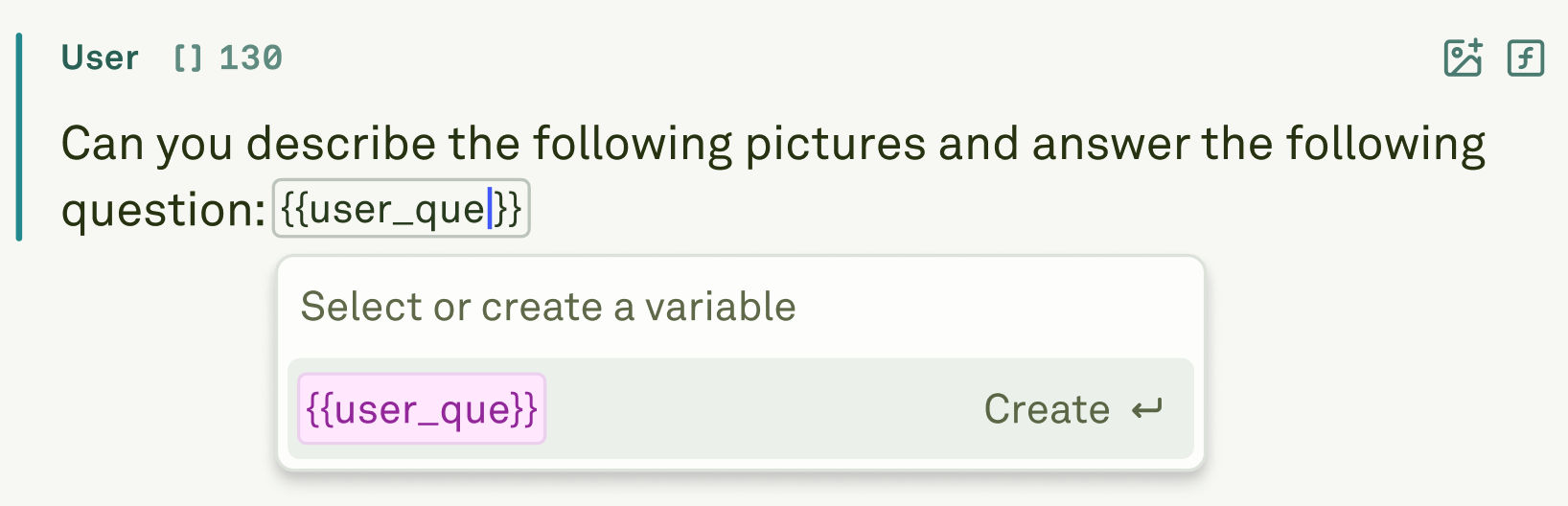 Variable names can only contain letters (`a-z`, `A-Z`), numbers (`0-9`), underscores (`_`), and hyphens (`-`). Spaces, periods, and special characters are not allowed. See [variable naming rules](/docs/iterate/use-variables-in-prompt#variable-name-constraints) for details.
## Next steps
Add image inputs for multi-modal prompts.
Teach the model with example input/output pairs.
Variable names can only contain letters (`a-z`, `A-Z`), numbers (`0-9`), underscores (`_`), and hyphens (`-`). Spaces, periods, and special characters are not allowed. See [variable naming rules](/docs/iterate/use-variables-in-prompt#variable-name-constraints) for details.
## Next steps
Add image inputs for multi-modal prompts.
Teach the model with example input/output pairs.