> ## Documentation Index
> Fetch the complete documentation index at: https://www.adaline.ai/docs/llms.txt
> Use this file to discover all available pages before exploring further.
# Use roles in prompts
> Structure prompts using role-based messages with system, user, assistant, and tool roles
Every prompt in Adaline is built from messages. The Editor provides a structured, role-based interface for composing these messages — giving you precise control over how the model interprets your instructions.
## Roles and content blocks
Each message has two components:
1. **Role** — Specifies who is speaking in the conversation.
2. **Content block** — Contains the actual text, images, or other content.
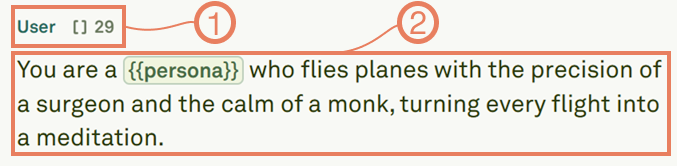 Choose from the following roles:
| Role | Purpose |
| ------------- | ------------------------------------------------------------------------------------------------------------------------------------- |
| **System** | Sets the overall instructions, context, and behavioral guidelines for the model. |
| **User** | Represents end-user inputs — the questions or requests sent to the model. |
| **Assistant** | Defines the model's responses. Use this in [multi-shot prompts](/docs/iterate/multi-shot-prompting) to demonstrate expected output format. |
| **Tool** | Contains tool responses to tool calls. Used when building [prompts with tool interactions](/docs/iterate/use-tools-in-prompt). |
The **role** determines how the model treats the message, while the **content block** holds what is actually sent — whether that is [text](/docs/iterate/use-text-in-prompt), [images](/docs/iterate/use-images-in-prompt), [PDFs](/docs/iterate/use-pdfs-in-prompt), or a combination.
## Next steps
Compose text content with variables, comments, and structured formatting.
Add image inputs for multi-modal prompts.
Choose from the following roles:
| Role | Purpose |
| ------------- | ------------------------------------------------------------------------------------------------------------------------------------- |
| **System** | Sets the overall instructions, context, and behavioral guidelines for the model. |
| **User** | Represents end-user inputs — the questions or requests sent to the model. |
| **Assistant** | Defines the model's responses. Use this in [multi-shot prompts](/docs/iterate/multi-shot-prompting) to demonstrate expected output format. |
| **Tool** | Contains tool responses to tool calls. Used when building [prompts with tool interactions](/docs/iterate/use-tools-in-prompt). |
The **role** determines how the model treats the message, while the **content block** holds what is actually sent — whether that is [text](/docs/iterate/use-text-in-prompt), [images](/docs/iterate/use-images-in-prompt), [PDFs](/docs/iterate/use-pdfs-in-prompt), or a combination.
## Next steps
Compose text content with variables, comments, and structured formatting.
Add image inputs for multi-modal prompts.