> ## Documentation Index
> Fetch the complete documentation index at: https://www.adaline.ai/docs/llms.txt
> Use this file to discover all available pages before exploring further.
# Use PDFs in prompts
> Include PDF documents as context in your prompts for document analysis and extraction
PDFs bring rich document context into your prompts, enabling tasks like summarization, information extraction, contract analysis, and report generation. Adaline lets you attach PDF files directly to messages and supports PDF variables for dynamic document processing.
PDF inputs are currently supported only with **Google's models** (Gemini). Make sure you have a Google provider configured and a compatible model selected.
Keep in mind that large PDFs consume significant context window tokens. For best results, use concise documents or extract the relevant sections before attaching. The model processes the full document content, so multi-hundred-page PDFs may impact latency and cost.
## Add a PDF to a message
Navigate to the message block and click the PDF button . You can upload a PDF from your computer, paste a URL, or retrieve it from a variable.
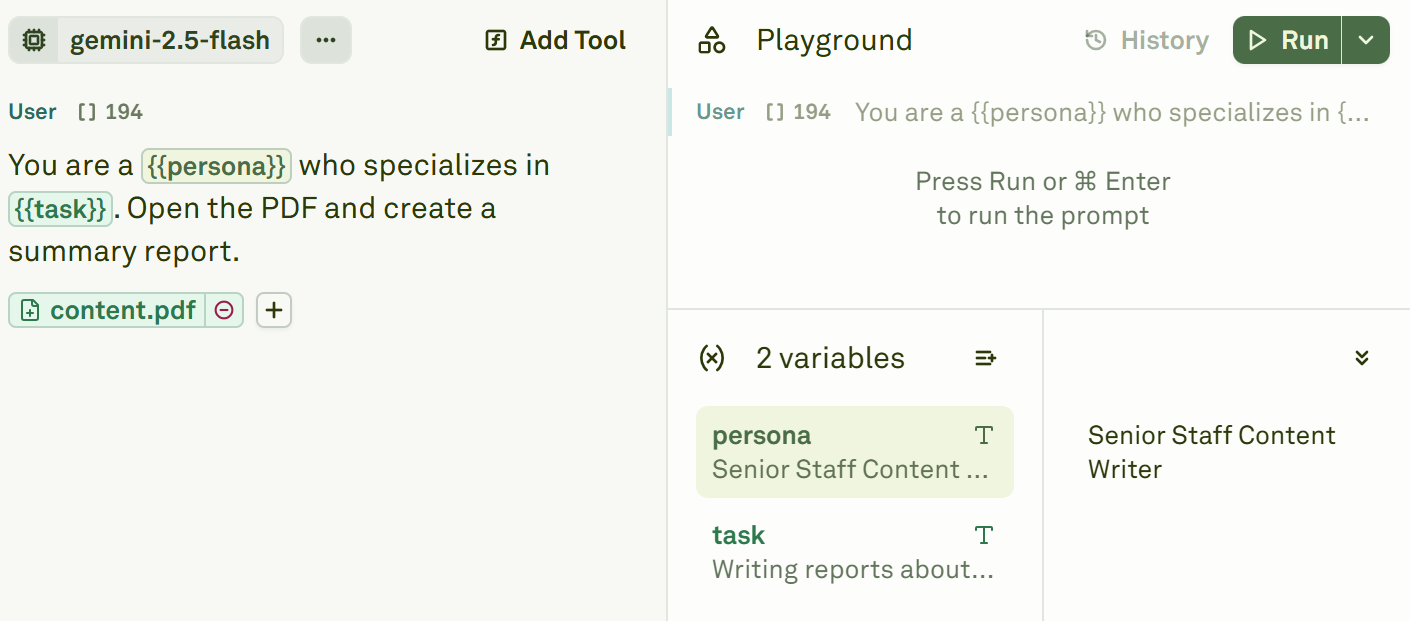
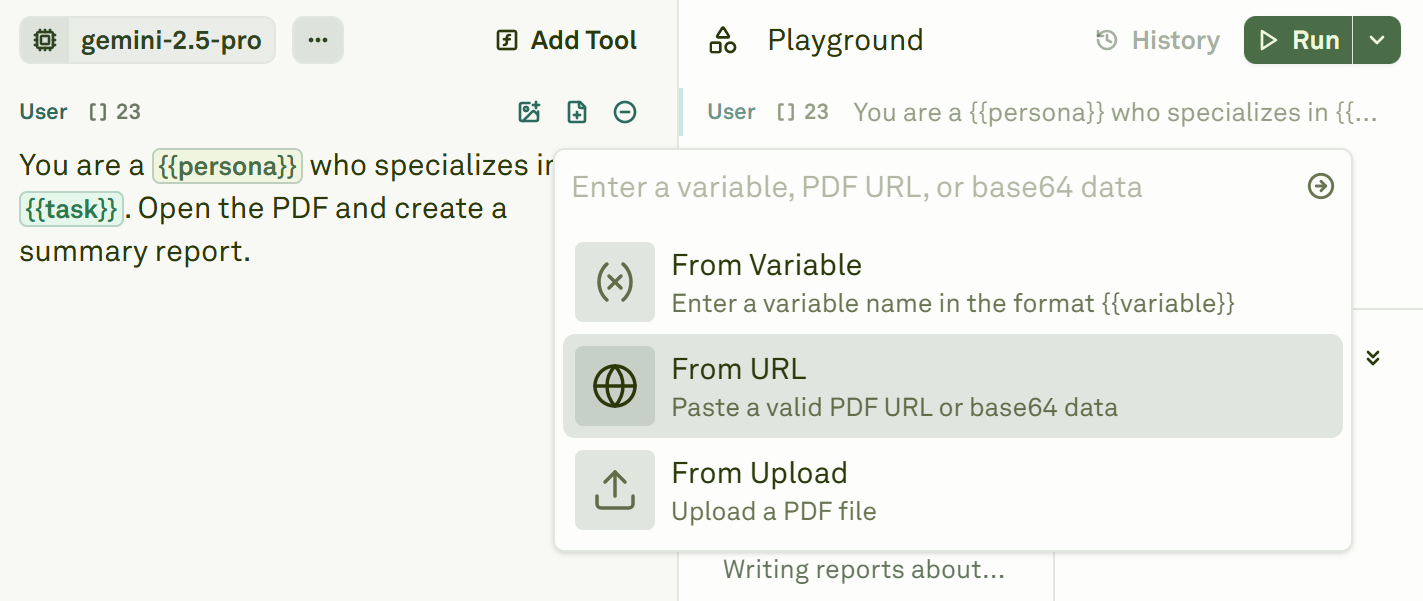 Once the PDF is attached, run the prompt in the [Playground](/docs/iterate/run-prompts-in-playground). The model will process the document content alongside your text instructions.
 ## Use PDF variables
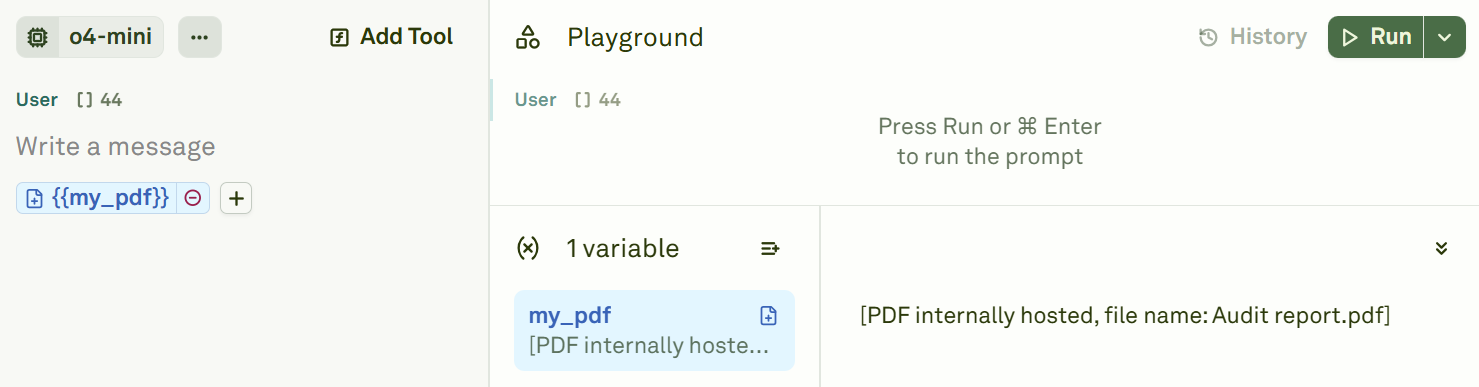
PDF variables let you dynamically swap documents at runtime, which is essential for document processing workflows where you need to run the same analysis across many files.
Click the PDF button in the message block and select **From Variable**.
## Use PDF variables
PDF variables let you dynamically swap documents at runtime, which is essential for document processing workflows where you need to run the same analysis across many files.
Click the PDF button in the message block and select **From Variable**.
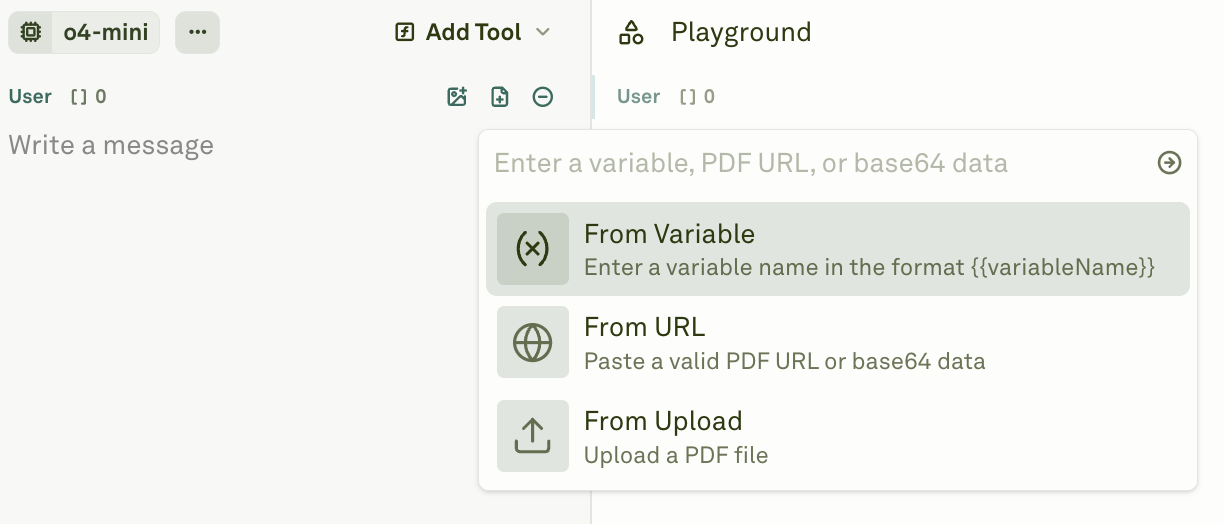 Define a descriptive name for the PDF variable and attach it to the message.
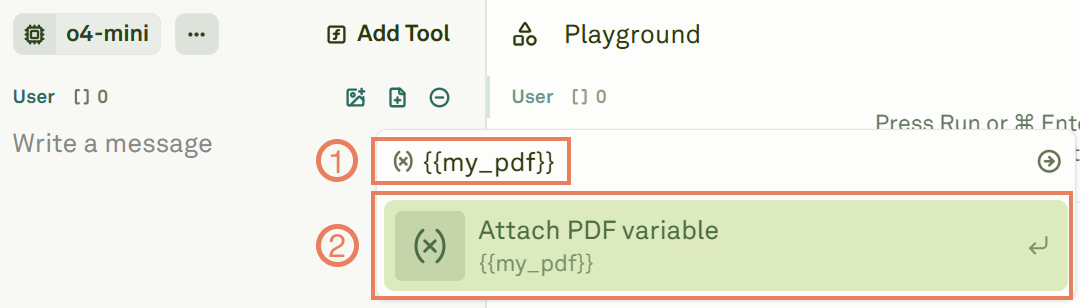 In the Variable Editor, attach the actual PDF to the variable. You can paste a URL, provide a base64-encoded string, or upload a file from your computer.
 ## Use cases
* **Document summarization** — Extract key points and generate concise summaries from lengthy reports.
* **Information extraction** — Pull specific data points, dates, or figures from structured documents.
* **Contract analysis** — Review legal documents and flag key terms, obligations, or risks.
* **Report generation** — Process raw data reports and generate formatted insights.
* **Compliance review** — Check documents against a set of rules or guidelines.
## Next steps
Add image inputs for multi-modal prompts.
Learn about all variable types, including PDF variables.
## Use cases
* **Document summarization** — Extract key points and generate concise summaries from lengthy reports.
* **Information extraction** — Pull specific data points, dates, or figures from structured documents.
* **Contract analysis** — Review legal documents and flag key terms, obligations, or risks.
* **Report generation** — Process raw data reports and generate formatted insights.
* **Compliance review** — Check documents against a set of rules or guidelines.
## Next steps
Add image inputs for multi-modal prompts.
Learn about all variable types, including PDF variables.