> ## Documentation Index
> Fetch the complete documentation index at: https://www.adaline.ai/docs/llms.txt
> Use this file to discover all available pages before exploring further.
# Use MCP servers in prompts
> Connect to Model Context Protocol servers to access external tools and data sources from your prompts
The [Model Context Protocol (MCP)](https://modelcontextprotocol.io/) is an open protocol that enables AI models to securely access external data sources, tools, and resources through a standardized interface. Adaline's Editor lets you connect to remote MCP servers and use their tools directly in your prompts — enabling powerful integrations without custom backend code.
## Enable MCP
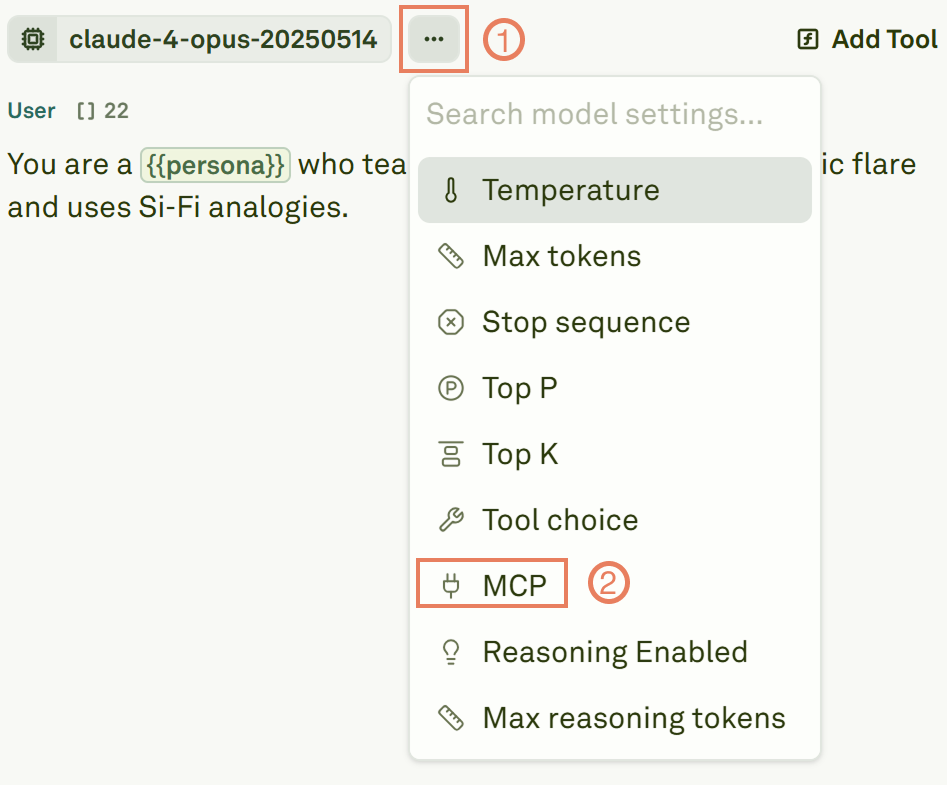
Open the model selector and choose an LLM that supports MCP integration.
MCP integration currently requires selecting an **Anthropic** model. If you need MCP support for other providers, contact [support@adaline.ai](mailto:support@adaline.ai) for a private preview.
In the model settings panel, select **MCP**.
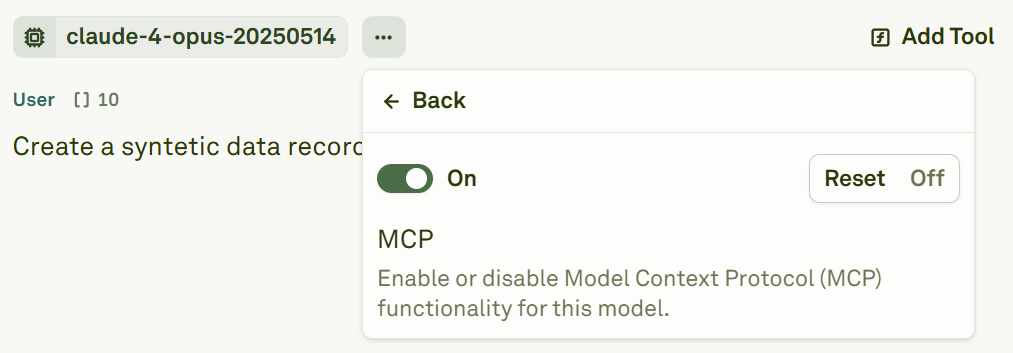
 Set the MCP toggle to **On** to enable the integration.
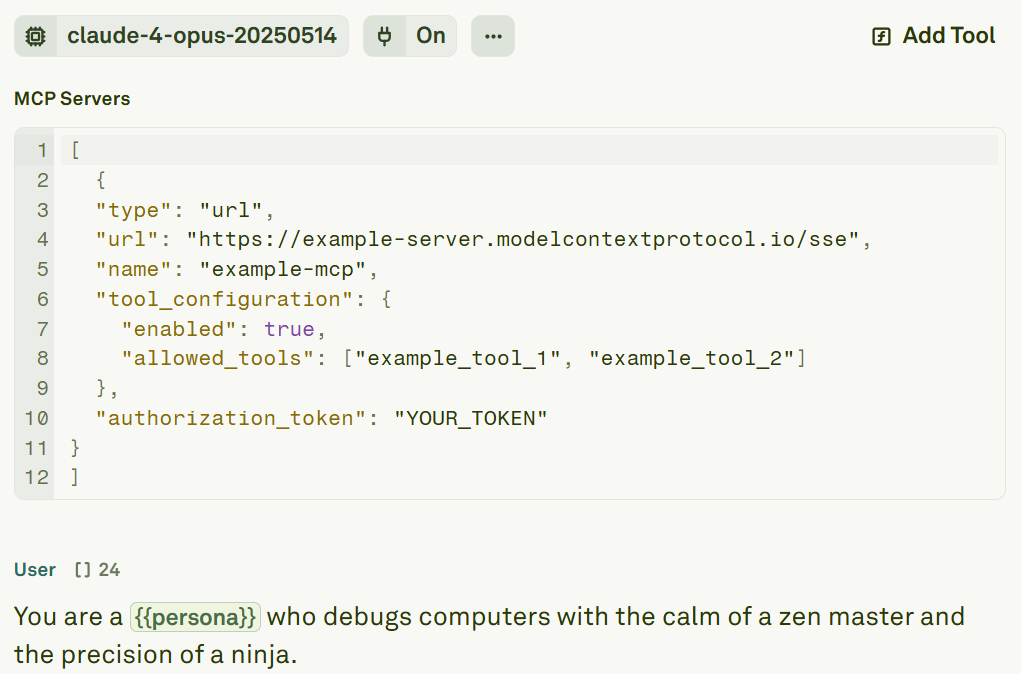
 Once enabled, the Editor displays the MCP configuration panel where you can add your server settings:
 ## Configure an MCP server
Each MCP server requires a JSON configuration object. Here is the complete schema:
```json theme={null}
{
"type": "url",
"url": "https://example-server.modelcontextprotocol.io/sse",
"name": "example-mcp",
"tool_configuration": {
"enabled": true,
"allowed_tools": ["example_tool_1", "example_tool_2"]
},
"authorization_token": "YOUR_TOKEN"
}
```
### Configuration reference
| Field | Type | Required | Description |
| ---------------------------------- | ------- | -------- | ---------------------------------------------------------------------- |
| `type` | String | Yes | Currently only `"url"` is supported. |
| `url` | String | Yes | The MCP server URL. Must start with `https://`. |
| `name` | String | Yes | A unique identifier for the server. Choose a descriptive name. |
| `tool_configuration` | Object | No | Controls which tools from the server are available. |
| `tool_configuration.enabled` | Boolean | No | Whether to enable tools from the server (default: `true`). |
| `tool_configuration.allowed_tools` | Array | No | Restrict which tools are allowed. By default, all tools are available. |
| `authorization_token` | String | No | OAuth authorization token, if required by the server. |
## Connect to multiple servers
You can connect to multiple MCP servers simultaneously by providing an array of server configurations:
```json theme={null}
[
{
"type": "url",
"url": "https://mcp.example1.com/sse",
"name": "mcp-server-1",
"authorization_token": "YOUR_TOKEN_1"
},
{
"type": "url",
"url": "https://mcp.example2.com/sse",
"name": "mcp-server-2",
"authorization_token": "YOUR_TOKEN_2"
}
]
```
Each server's tools become available to the model independently. The model can choose which server's tools to invoke based on the conversation context.
## Authentication
Many MCP servers require OAuth authentication. To obtain an access token:
1. Use the [MCP Inspector](https://modelcontextprotocol.io/docs/tools/inspector) or your server provider's OAuth flow to generate a token.
2. Paste the token into the `authorization_token` field in your server configuration.
Keep your authorization tokens secure. If your MCP server's tokens have an expiry, you will need to refresh them periodically.
## Next steps
Define custom tools with JSON schemas and HTTP backends.
Test MCP-powered and tool-powered prompts in the Playground.
## Configure an MCP server
Each MCP server requires a JSON configuration object. Here is the complete schema:
```json theme={null}
{
"type": "url",
"url": "https://example-server.modelcontextprotocol.io/sse",
"name": "example-mcp",
"tool_configuration": {
"enabled": true,
"allowed_tools": ["example_tool_1", "example_tool_2"]
},
"authorization_token": "YOUR_TOKEN"
}
```
### Configuration reference
| Field | Type | Required | Description |
| ---------------------------------- | ------- | -------- | ---------------------------------------------------------------------- |
| `type` | String | Yes | Currently only `"url"` is supported. |
| `url` | String | Yes | The MCP server URL. Must start with `https://`. |
| `name` | String | Yes | A unique identifier for the server. Choose a descriptive name. |
| `tool_configuration` | Object | No | Controls which tools from the server are available. |
| `tool_configuration.enabled` | Boolean | No | Whether to enable tools from the server (default: `true`). |
| `tool_configuration.allowed_tools` | Array | No | Restrict which tools are allowed. By default, all tools are available. |
| `authorization_token` | String | No | OAuth authorization token, if required by the server. |
## Connect to multiple servers
You can connect to multiple MCP servers simultaneously by providing an array of server configurations:
```json theme={null}
[
{
"type": "url",
"url": "https://mcp.example1.com/sse",
"name": "mcp-server-1",
"authorization_token": "YOUR_TOKEN_1"
},
{
"type": "url",
"url": "https://mcp.example2.com/sse",
"name": "mcp-server-2",
"authorization_token": "YOUR_TOKEN_2"
}
]
```
Each server's tools become available to the model independently. The model can choose which server's tools to invoke based on the conversation context.
## Authentication
Many MCP servers require OAuth authentication. To obtain an access token:
1. Use the [MCP Inspector](https://modelcontextprotocol.io/docs/tools/inspector) or your server provider's OAuth flow to generate a token.
2. Paste the token into the `authorization_token` field in your server configuration.
Keep your authorization tokens secure. If your MCP server's tokens have an expiry, you will need to refresh them periodically.
## Next steps
Define custom tools with JSON schemas and HTTP backends.
Test MCP-powered and tool-powered prompts in the Playground.