> ## Documentation Index
> Fetch the complete documentation index at: https://www.adaline.ai/docs/llms.txt
> Use this file to discover all available pages before exploring further.
# Use images in prompts
> Add image inputs to create multi-modal prompts for vision-capable models
Images bring visual context to your prompts, enabling tasks like image description, visual analysis, diagram interpretation, and more. Adaline lets you embed multiple images per message and supports both static uploads and dynamic image variables.
## Supported models
Image inputs work with vision-capable models, including GPT-4o, Claude 3.5, Gemini Pro, and others that support multi-modal inputs. Select a compatible model in the [model settings](/docs/iterate/use-parameters-in-prompt) before adding images to your prompt.
## Add an image to a message
Navigate to the message block where you want to add an image and click the image button . You can choose to upload an image from your computer, paste a URL, or retrieve the image from a variable.
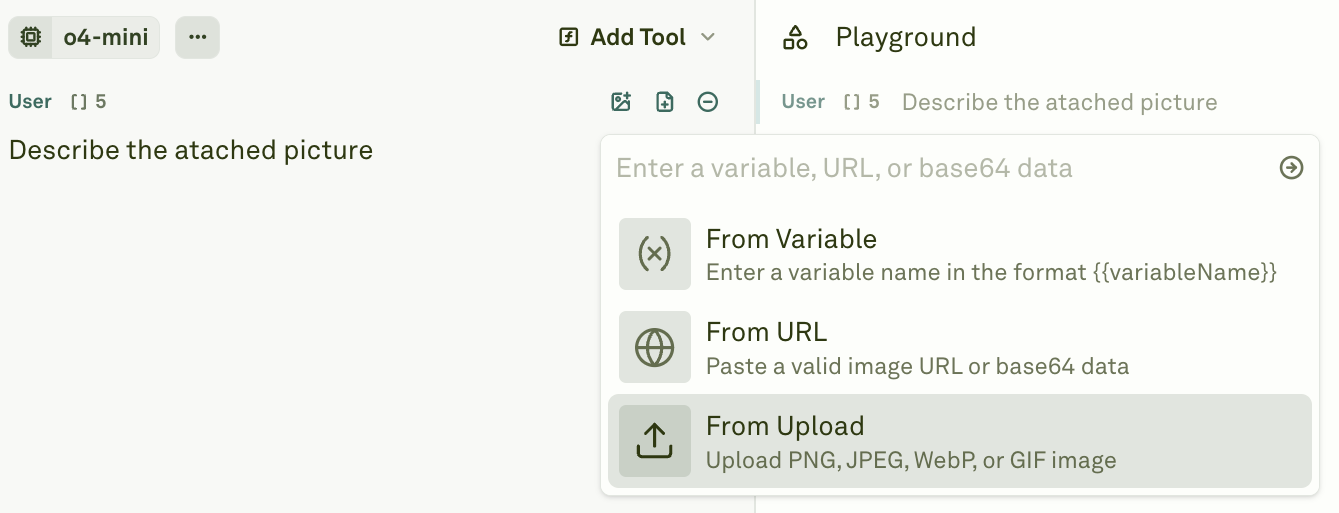 Once attached, the Editor displays a preview of the image within the message block.
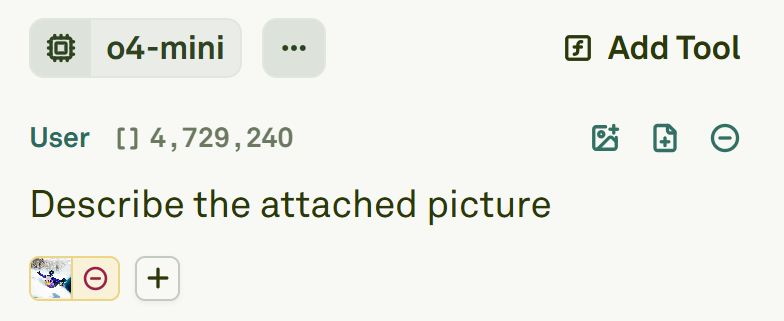 To include additional images in the same message, click the plus button and repeat the previous steps. Each message can contain multiple images.
## Use image variables
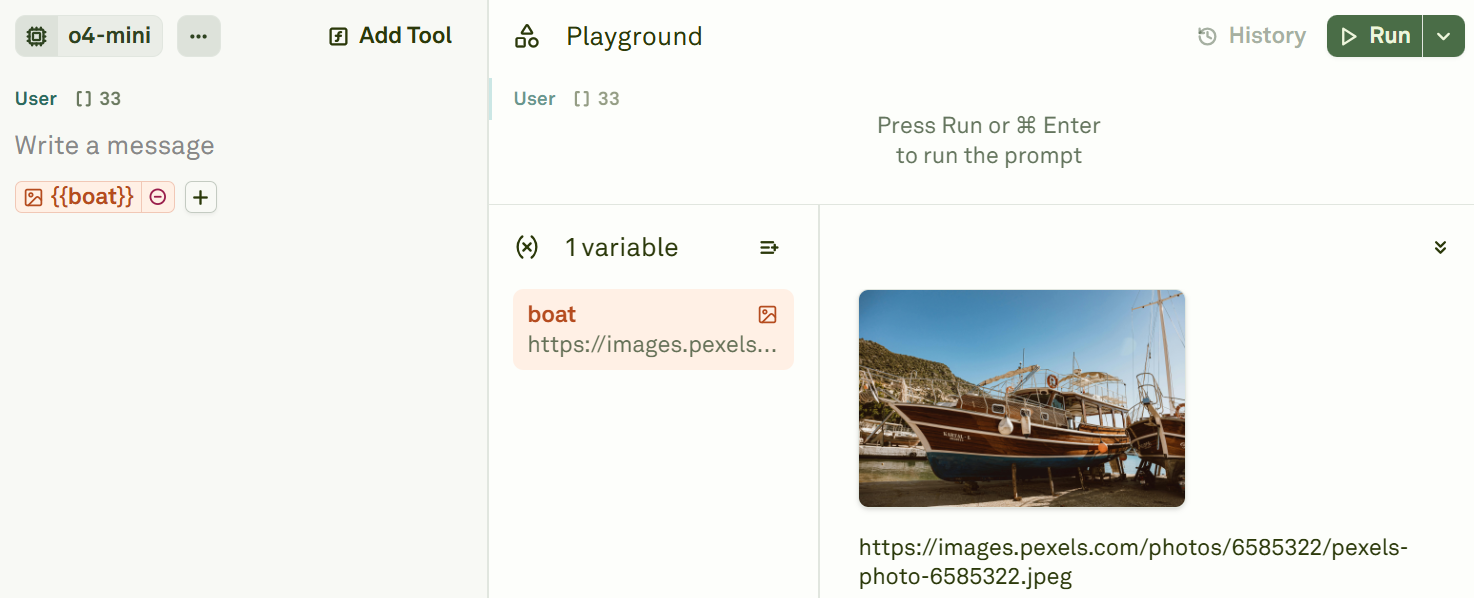
Image variables let you dynamically swap images at runtime without modifying the prompt structure. This is useful for workflows that process different images with the same prompt template.
Click the image button in the message block and select **From Variable**.
To include additional images in the same message, click the plus button and repeat the previous steps. Each message can contain multiple images.
## Use image variables
Image variables let you dynamically swap images at runtime without modifying the prompt structure. This is useful for workflows that process different images with the same prompt template.
Click the image button in the message block and select **From Variable**.
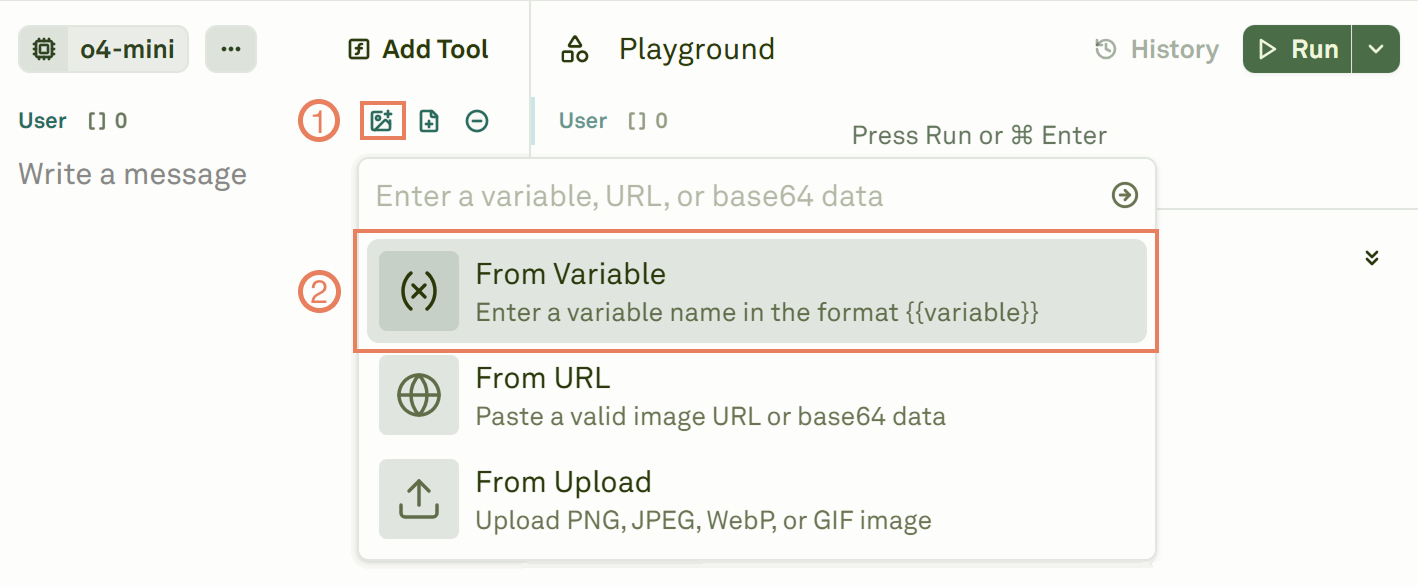 Define a descriptive name for the image variable and attach it to the message.
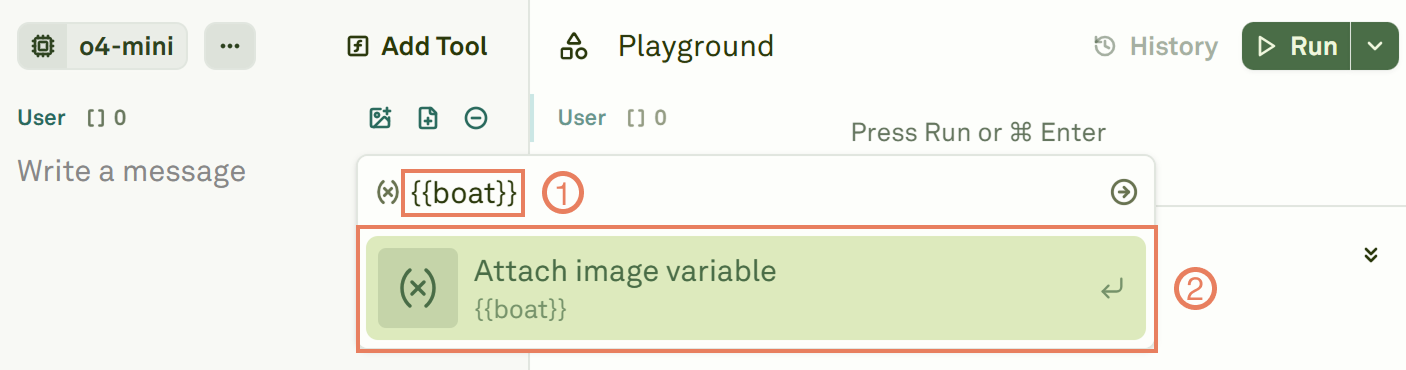 In the Variable Editor, attach the actual image to the variable. You can paste a URL, provide a base64-encoded string, or upload a file from your computer.
 ## Use cases
* **Image classification** — Have the model categorize or tag images based on their content.
* **Visual Q\&A** — Ask questions about the contents of an image and receive detailed answers.
* **Diagram interpretation** — Extract information from charts, flowcharts, or architectural diagrams.
* **Accessibility** — Generate alt text or descriptions for images.
* **Multi-shot visual prompting** — Provide example image/response pairs to teach the model a specific output format. See [creating multi-shot prompts](/docs/iterate/multi-shot-prompting) for a walkthrough.
## Next steps
Add PDF documents as context for analysis tasks.
Learn about all variable types, including image variables.
## Use cases
* **Image classification** — Have the model categorize or tag images based on their content.
* **Visual Q\&A** — Ask questions about the contents of an image and receive detailed answers.
* **Diagram interpretation** — Extract information from charts, flowcharts, or architectural diagrams.
* **Accessibility** — Generate alt text or descriptions for images.
* **Multi-shot visual prompting** — Provide example image/response pairs to teach the model a specific output format. See [creating multi-shot prompts](/docs/iterate/multi-shot-prompting) for a walkthrough.
## Next steps
Add PDF documents as context for analysis tasks.
Learn about all variable types, including image variables.