> ## Documentation Index
> Fetch the complete documentation index at: https://www.adaline.ai/docs/llms.txt
> Use this file to discover all available pages before exploring further.
# Run prompts in Playground
> Test and iterate on your prompts in the interactive Playground environment
The Playground is your interactive testing sandbox for running prompts with real inputs, comparing outputs, and iterating toward the best results. After setting up your prompt in the Editor, the Playground is where you bring it to life.
## Run a prompt
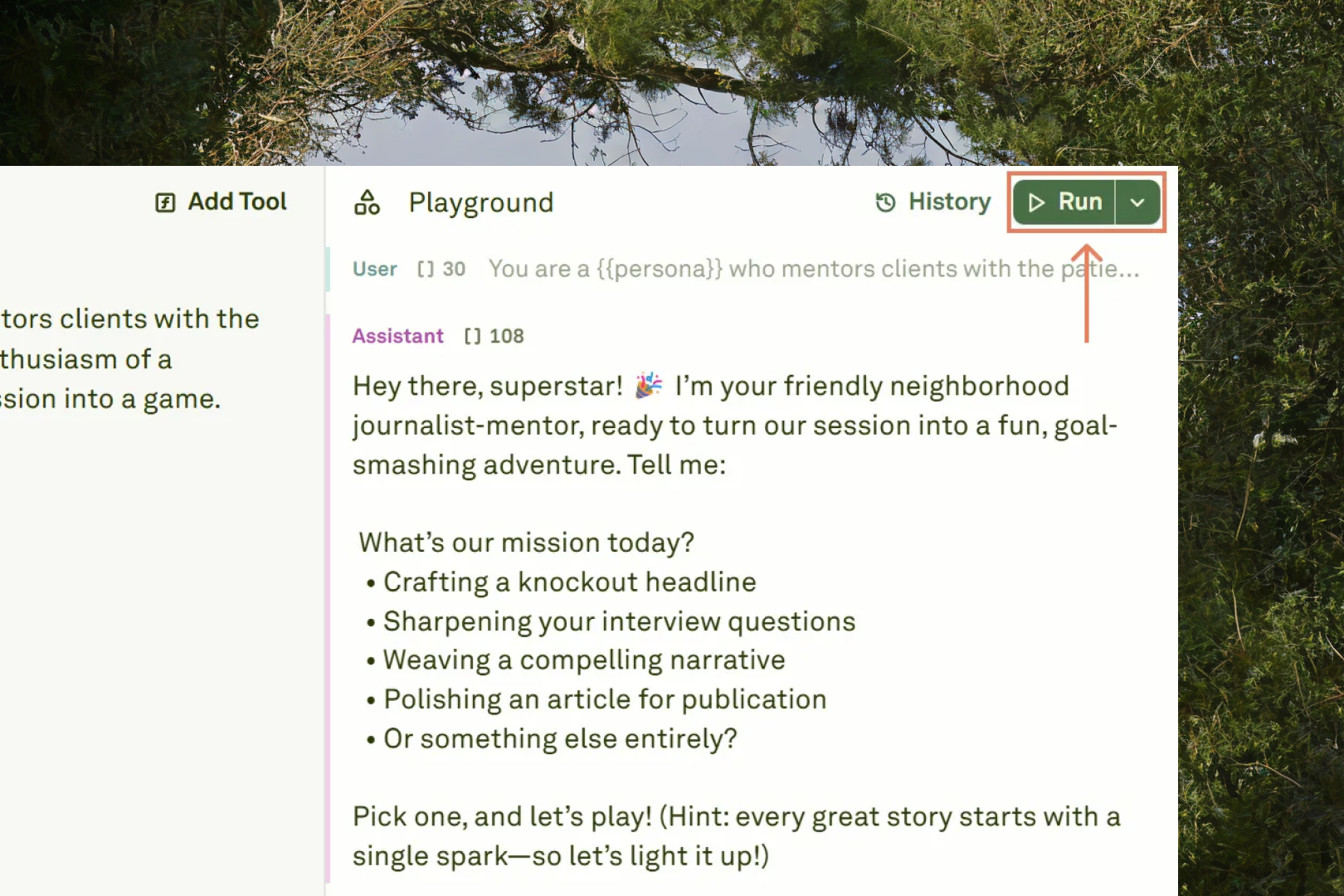
After configuring your prompt in the [Editor](/docs/iterate/overview) and setting variable values in the [Variable Editor](/docs/iterate/use-variables-in-prompt), click **Run** to execute the prompt and see the model's response:
 ## Stop a running prompt
If a prompt is taking too long or you notice an error in your setup, click the **Stop generation** button to immediately terminate the execution:
## Stop a running prompt
If a prompt is taking too long or you notice an error in your setup, click the **Stop generation** button to immediately terminate the execution:
 Stopping a prompt cancels the current execution without saving partial results. The system returns to the state it was in before the run began.
## Execution options
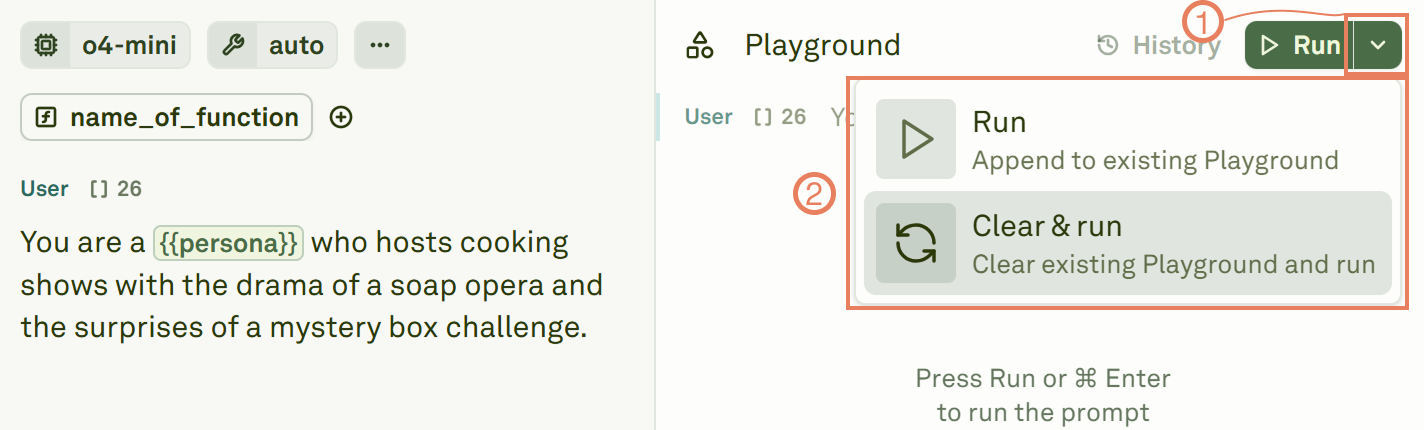
The Playground provides two execution modes for different workflows:
Stopping a prompt cancels the current execution without saving partial results. The system returns to the state it was in before the run began.
## Execution options
The Playground provides two execution modes for different workflows:
 | Option | When to use |
| --------------- | --------------------------------------------------------------------------------------------------------------------------------------------------------------------------------------------------------------------------------- |
| **Run** | Continue the conversation with the model. Use this for initial runs or when adding new messages to an ongoing conversation. |
| **Clear & Run** | Start fresh. This clears all previous interactions and conversation history, resets the context, and runs the prompt as if it were the first interaction. Use this when accumulated context might influence the model's response. |
## Build a conversation thread
You can have multi-turn conversations with the model directly in the Playground. After receiving a response, add a new User message to continue the conversation. The model retains the full context of previous exchanges.
This works the same way as [creating multi-shot prompts](/docs/iterate/multi-shot-prompting) in the Editor, but happens interactively:
1. **Run the prompt** — The model generates a response (shown as an Assistant message).
2. **Add a follow-up** — Type a new User message below the response to continue the conversation.
3. **Run again** — Click **Run** to send the full conversation (including all prior messages) to the model.
4. **Include tool responses** — If the model makes a [tool call](/docs/iterate/tool-calls-in-playground), provide the tool response and run again to see how the model incorporates external data.
The conversation thread is preserved across runs. Use **Clear & Run** when you want to start a fresh conversation without prior context.
## Iterate on your prompt
The Playground is designed for rapid iteration. A typical workflow looks like:
1. **Run** your prompt with initial inputs.
2. **Review** the model's response — check for accuracy, tone, format, and completeness.
3. **Adjust** your prompt in the Editor (refine instructions, add examples, tweak parameters).
4. **Run again** to compare the new output against the previous one.
5. **Repeat** until the output meets your quality bar.
## Next steps
Access your complete run history and restore previous states.
Handle tool calls and auto tool execution.
| Option | When to use |
| --------------- | --------------------------------------------------------------------------------------------------------------------------------------------------------------------------------------------------------------------------------- |
| **Run** | Continue the conversation with the model. Use this for initial runs or when adding new messages to an ongoing conversation. |
| **Clear & Run** | Start fresh. This clears all previous interactions and conversation history, resets the context, and runs the prompt as if it were the first interaction. Use this when accumulated context might influence the model's response. |
## Build a conversation thread
You can have multi-turn conversations with the model directly in the Playground. After receiving a response, add a new User message to continue the conversation. The model retains the full context of previous exchanges.
This works the same way as [creating multi-shot prompts](/docs/iterate/multi-shot-prompting) in the Editor, but happens interactively:
1. **Run the prompt** — The model generates a response (shown as an Assistant message).
2. **Add a follow-up** — Type a new User message below the response to continue the conversation.
3. **Run again** — Click **Run** to send the full conversation (including all prior messages) to the model.
4. **Include tool responses** — If the model makes a [tool call](/docs/iterate/tool-calls-in-playground), provide the tool response and run again to see how the model incorporates external data.
The conversation thread is preserved across runs. Use **Clear & Run** when you want to start a fresh conversation without prior context.
## Iterate on your prompt
The Playground is designed for rapid iteration. A typical workflow looks like:
1. **Run** your prompt with initial inputs.
2. **Review** the model's response — check for accuracy, tone, format, and completeness.
3. **Adjust** your prompt in the Editor (refine instructions, add examples, tweak parameters).
4. **Run again** to compare the new output against the previous one.
5. **Repeat** until the output meets your quality bar.
## Next steps
Access your complete run history and restore previous states.
Handle tool calls and auto tool execution.