> ## Documentation Index
> Fetch the complete documentation index at: https://www.adaline.ai/docs/llms.txt
> Use this file to discover all available pages before exploring further.
# Link datasets in Playground
> Connect datasets to test prompts with structured variable samples at scale
Linking a dataset to the Playground connects your prompt to a structured collection of test cases, enabling scalable testing without manual copy-pasting. Each row in the dataset represents a different set of variable values — select a row and run to test your prompt with that specific combination.
## Quick start
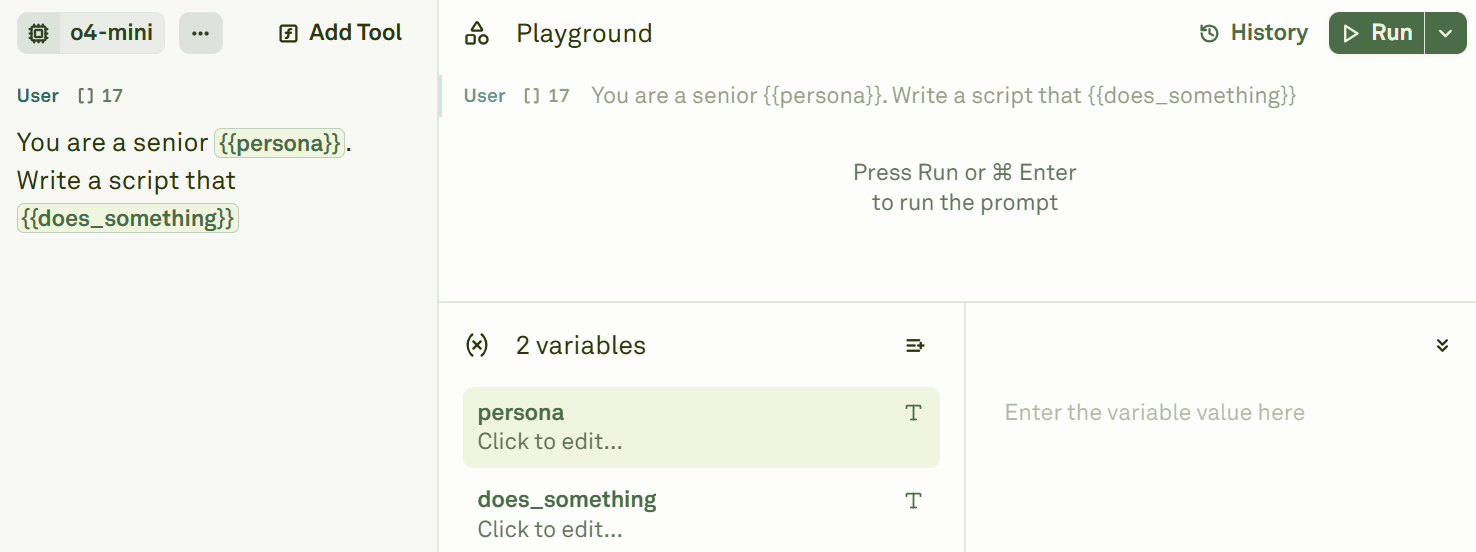
Set up your prompt in the Editor with at least one `{{variable}}` placeholder.
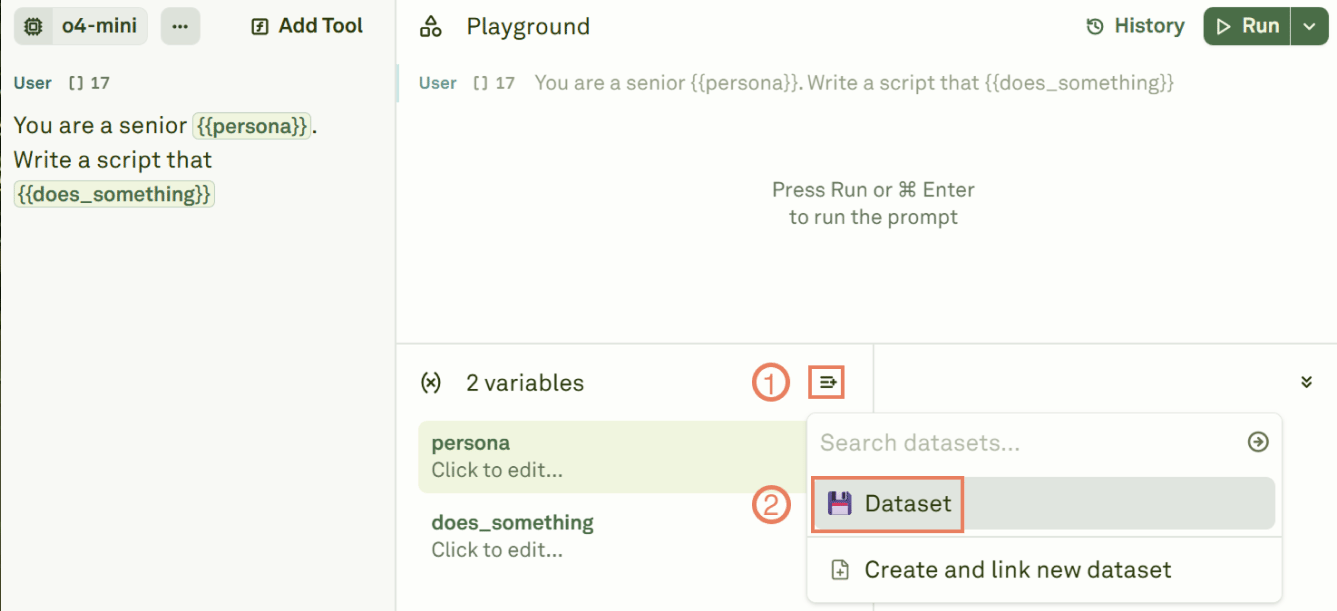
 In the Playground, click **Link Dataset** and select a dataset from your workspace.
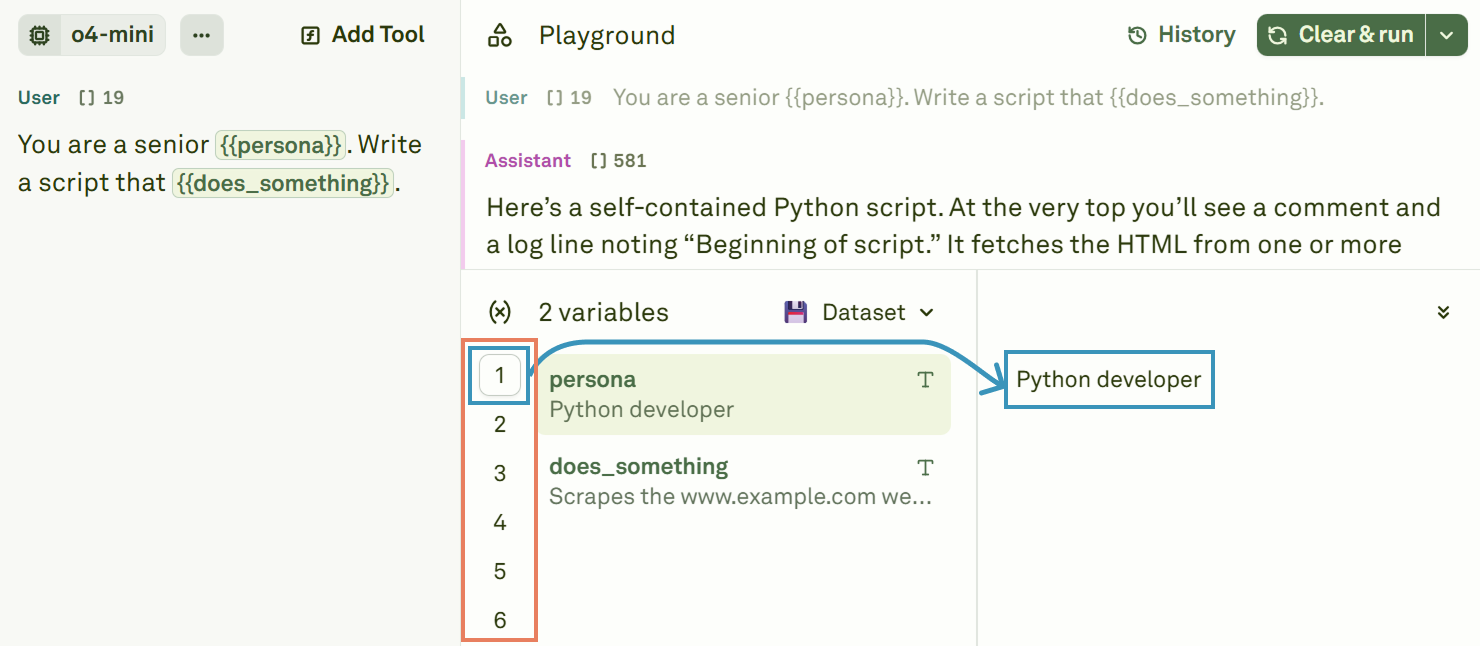
 Browse through dataset rows — selecting a row populates the Variable Editor with that row's values. Click **Run** to execute the prompt with the selected row's inputs.
 ## Key features
* **Full bi-directional sync** — New variables in the Editor automatically create columns in the linked dataset, and vice versa. Same for rows and cells.
* **Column mapping** — Columns map to variables by name. Extra columns are ignored; missing columns fall back to Variable Editor values.
* **[Dynamic columns](/docs/evaluate/dynamic-columns-in-dataset)** — Columns configured as API or Prompt sources are executed at runtime with fresh data.
## Learn more
Build and configure your dataset structure.
Fetch live data at runtime in your datasets.
Execute prompts with linked dataset inputs.
## Key features
* **Full bi-directional sync** — New variables in the Editor automatically create columns in the linked dataset, and vice versa. Same for rows and cells.
* **Column mapping** — Columns map to variables by name. Extra columns are ignored; missing columns fall back to Variable Editor values.
* **[Dynamic columns](/docs/evaluate/dynamic-columns-in-dataset)** — Columns configured as API or Prompt sources are executed at runtime with fresh data.
## Learn more
Build and configure your dataset structure.
Fetch live data at runtime in your datasets.
Execute prompts with linked dataset inputs.