> ## Documentation Index
> Fetch the complete documentation index at: https://www.adaline.ai/docs/llms.txt
> Use this file to discover all available pages before exploring further.
# Setup dataset
> Create and configure datasets with test cases for evaluating your prompts
Datasets are the foundation of evaluation in Adaline. A dataset is a structured table of **test cases** — rows and columns where each column maps to a prompt variable and each row represents a unique set of inputs your prompt will be tested against. When you run an evaluation, the system executes your prompt once for every row in the dataset and scores each response using your configured evaluators.
Every evaluator you configure must be linked to a dataset. The dataset provides the variable values that are injected into your prompt during the evaluation run.
## Create a dataset
There are two ways to create a dataset:
1. **From the sidebar** — every project has a **Dataset** section in the sidebar. Click on it and create a new dataset manually.
2. **From a prompt** — open any prompt, navigate to the **Variable Editor**, and click **Link Dataset**. This creates a new dataset pre-populated with columns matching all the variables in your prompt, so you don't have to set up the column-to-variable mapping yourself.
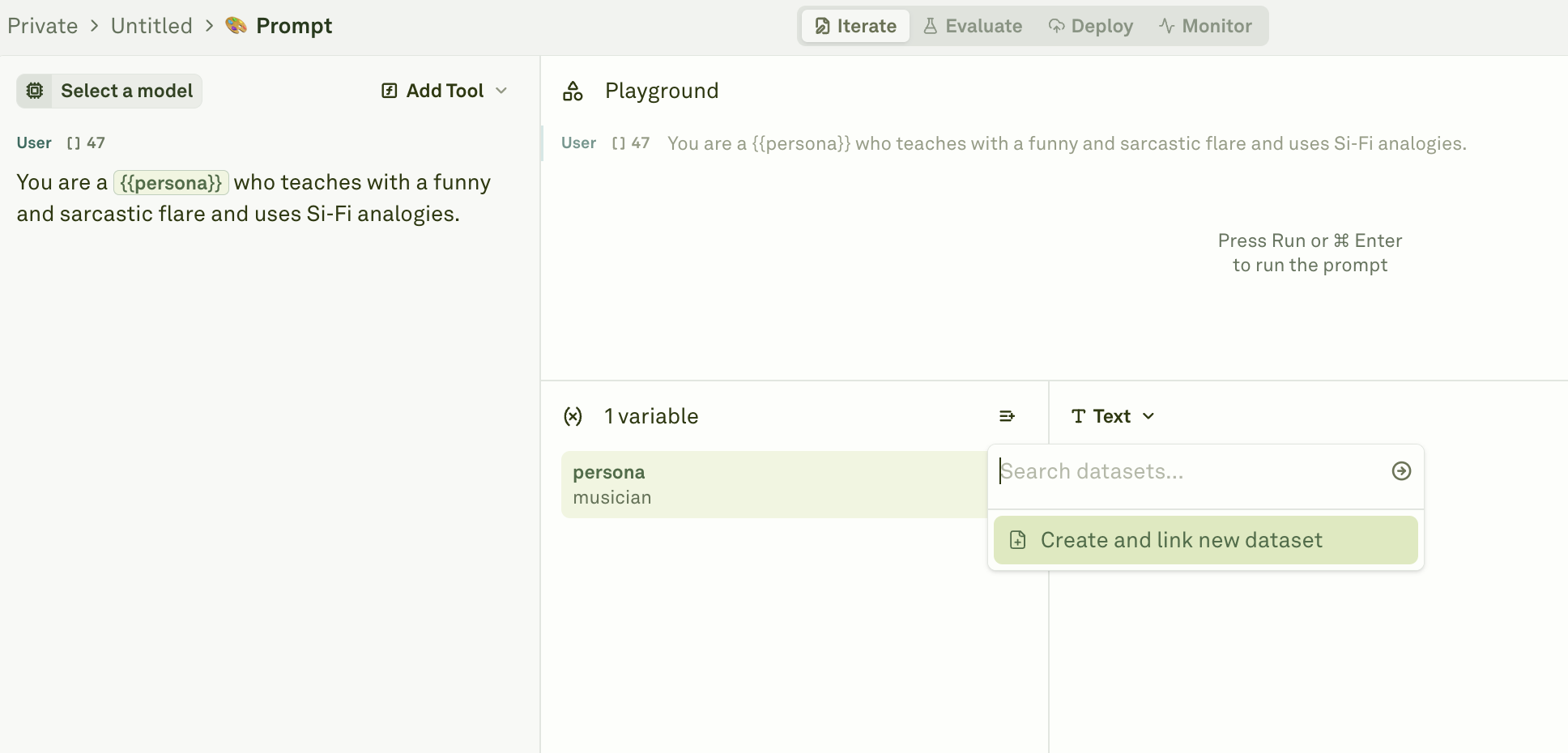 From here you can start building your dataset by adding columns and rows.
## Column-to-variable mapping
The most critical rule when setting up a dataset for evaluation is that **column names must match your prompt's variable names exactly**.
If your prompt contains `{{persona}}` and `{{does_something}}`, your dataset must have columns named `persona` and `does_something`:
| Rule | Description |
| ------------------------------------------ | ------------------------------------------------------------------------------------------------------------------------------------------------------------------------------------------ |
| **Column names must match variable names** | Each column name must correspond exactly to a variable in your prompt (e.g., a `{{user_question}}` variable requires a `user_question` column). |
| **Each column needs at least one row** | Every variable must have at least one test case value. Empty columns will cause the evaluation to fail. |
| **Extra columns are ignored** | A dataset can have more columns than your prompt has variables. The extra columns are skipped during evaluation, so you can include metadata or context columns without affecting results. |
If a column name does not match any variable in the prompt, that column is silently ignored during evaluation. If a prompt variable has no matching column, the evaluation will fail. Always verify that your column names match your prompt variables before running an evaluation.
## Populate your dataset
There are several ways to add test case data to your dataset.
### Manual entry
From here you can start building your dataset by adding columns and rows.
## Column-to-variable mapping
The most critical rule when setting up a dataset for evaluation is that **column names must match your prompt's variable names exactly**.
If your prompt contains `{{persona}}` and `{{does_something}}`, your dataset must have columns named `persona` and `does_something`:
| Rule | Description |
| ------------------------------------------ | ------------------------------------------------------------------------------------------------------------------------------------------------------------------------------------------ |
| **Column names must match variable names** | Each column name must correspond exactly to a variable in your prompt (e.g., a `{{user_question}}` variable requires a `user_question` column). |
| **Each column needs at least one row** | Every variable must have at least one test case value. Empty columns will cause the evaluation to fail. |
| **Extra columns are ignored** | A dataset can have more columns than your prompt has variables. The extra columns are skipped during evaluation, so you can include metadata or context columns without affecting results. |
If a column name does not match any variable in the prompt, that column is silently ignored during evaluation. If a prompt variable has no matching column, the evaluation will fail. Always verify that your column names match your prompt variables before running an evaluation.
## Populate your dataset
There are several ways to add test case data to your dataset.
### Manual entry
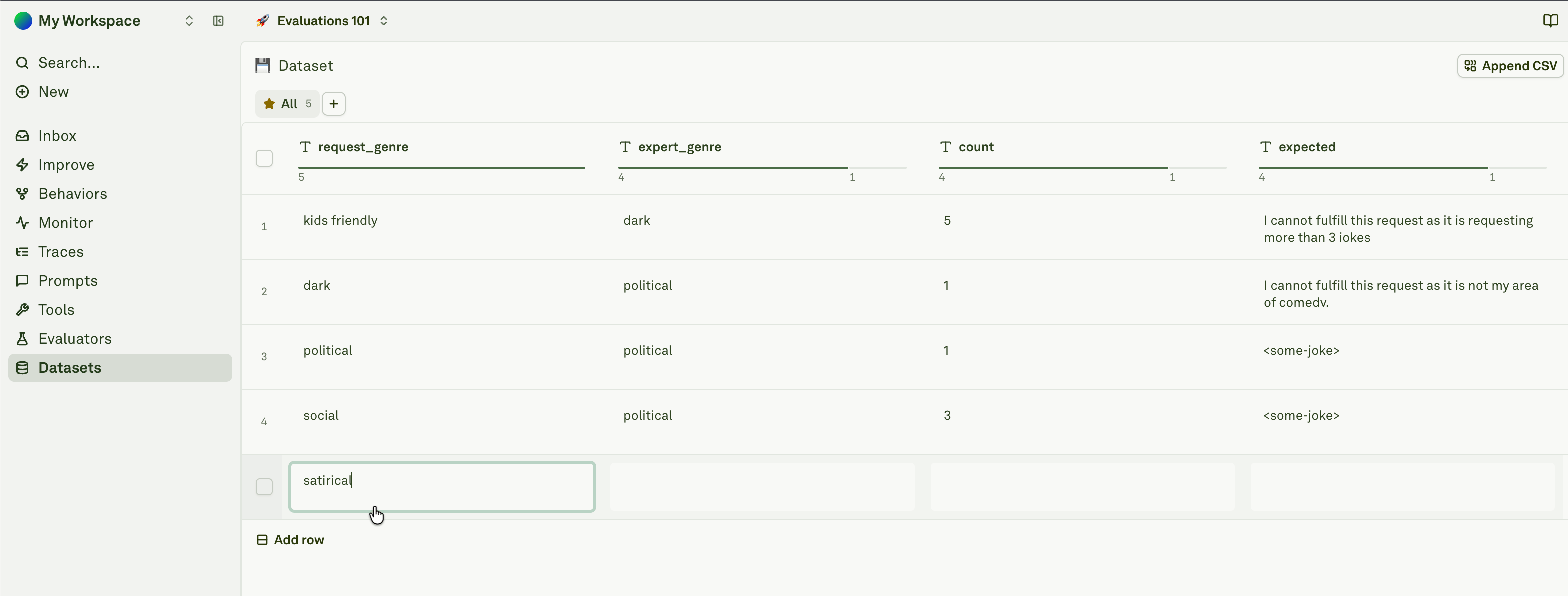 Type values directly into cells. This gives you precise control and is best for small datasets or when you need to craft specific edge cases. Each cell can hold text, images, or PDFs independently — see [Different Modalities in Dataset](/docs/evaluate/different-modalities-in-dataset) for how to work with multimodal data.
### Import from CSV
Type values directly into cells. This gives you precise control and is best for small datasets or when you need to craft specific edge cases. Each cell can hold text, images, or PDFs independently — see [Different Modalities in Dataset](/docs/evaluate/different-modalities-in-dataset) for how to work with multimodal data.
### Import from CSV
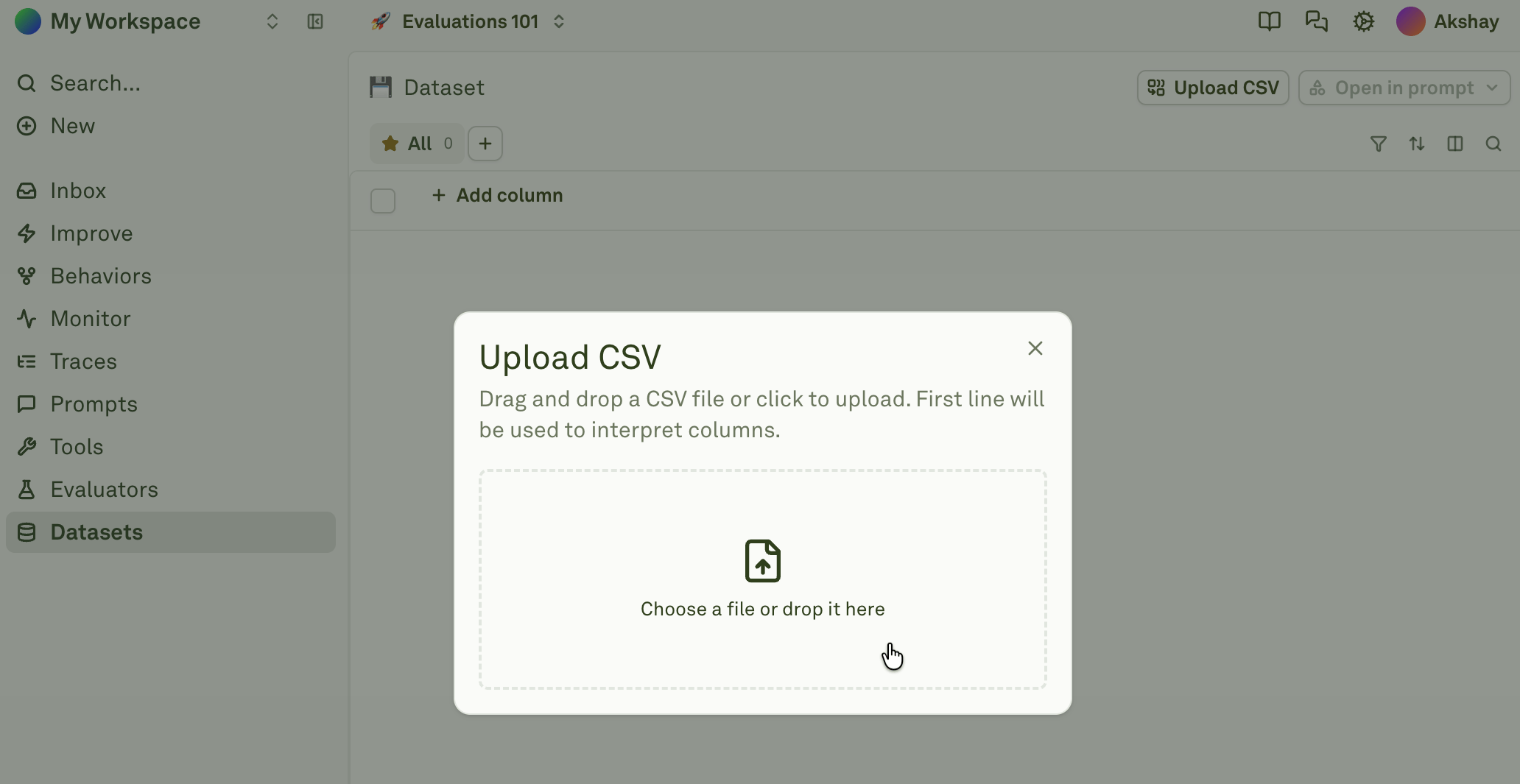 If you have test data in a spreadsheet or CSV file, you can bulk-import it into a dataset instead of adding rows manually. This is the fastest way to populate large datasets, and it supports multimodal data like image URLs and PDFs. See [Import CSV into Dataset](/docs/evaluate/import-csv-into-dataset) for the complete guide.
### Build from logs
If you have test data in a spreadsheet or CSV file, you can bulk-import it into a dataset instead of adding rows manually. This is the fastest way to populate large datasets, and it supports multimodal data like image URLs and PDFs. See [Import CSV into Dataset](/docs/evaluate/import-csv-into-dataset) for the complete guide.
### Build from logs
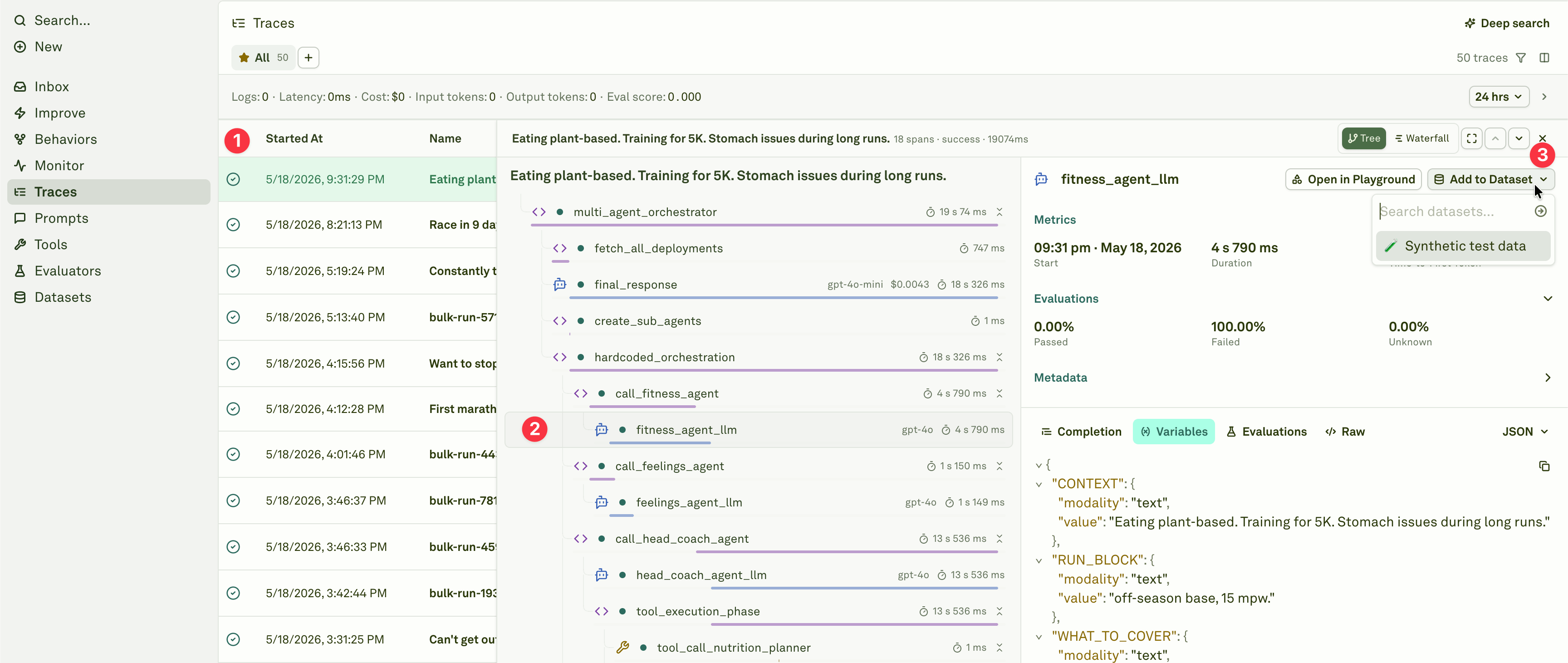 You can also build datasets directly from real production traffic captured in Monitor. This turns actual user interactions into test cases, creating a feedback loop that strengthens your evaluation suite over time. See [Build from Logs](/docs/monitor/build-logs-from-dataset) for details.
## Column types
Every column in a dataset is either **static** or **dynamic**:
* **Static columns** hold values exactly as they appear in the UI — you type or paste a value into a cell and it stays as-is. All the population methods described above (manual entry, CSV import, build from logs) create static columns.
* **Dynamic columns** fetch their values automatically from external sources at runtime — either from an HTTP API endpoint or by executing another prompt in your project. This transforms your dataset into a live data source that can pull fresh data on demand.
When you run an evaluation, dynamic columns are automatically resolved with fresh values before scoring begins, so you don't need to manually populate them beforehand. See [Dynamic Columns in Dataset](/docs/evaluate/dynamic-columns-in-dataset) for the full configuration guide.
## Link a dataset to evaluators
You can also build datasets directly from real production traffic captured in Monitor. This turns actual user interactions into test cases, creating a feedback loop that strengthens your evaluation suite over time. See [Build from Logs](/docs/monitor/build-logs-from-dataset) for details.
## Column types
Every column in a dataset is either **static** or **dynamic**:
* **Static columns** hold values exactly as they appear in the UI — you type or paste a value into a cell and it stays as-is. All the population methods described above (manual entry, CSV import, build from logs) create static columns.
* **Dynamic columns** fetch their values automatically from external sources at runtime — either from an HTTP API endpoint or by executing another prompt in your project. This transforms your dataset into a live data source that can pull fresh data on demand.
When you run an evaluation, dynamic columns are automatically resolved with fresh values before scoring begins, so you don't need to manually populate them beforehand. See [Dynamic Columns in Dataset](/docs/evaluate/dynamic-columns-in-dataset) for the full configuration guide.
## Link a dataset to evaluators
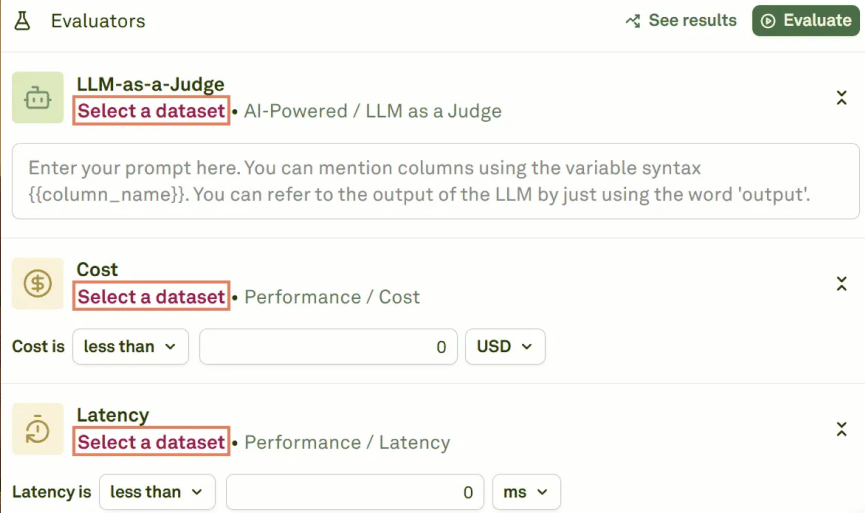 Each evaluator must be linked to a dataset before you can run evaluations. When configuring an evaluator (e.g., [LLM-as-a-Judge](/docs/evaluate/llm-as-a-judge), [JavaScript](/docs/evaluate/javascript), [Cost](/docs/evaluate/cost)), you'll see a **Select a dataset** dropdown where you choose which dataset provides the test cases.
Multiple evaluators can share the same dataset, or you can use different datasets for different evaluators depending on your testing needs.
## Best practices
* **Start small** — Begin with 5–10 diverse test cases covering your key scenarios, then expand as you discover edge cases during evaluation.
* **Cover edge cases** — Include test cases for unusual inputs, boundary conditions, empty values, long inputs, and common failure modes.
* **Use descriptive column names** — Match your prompt variable names exactly and keep names readable (e.g., `user_question` rather than `uq`).
* **Keep datasets focused** — Each dataset should target a specific evaluation scenario. Use multiple datasets rather than one massive dataset that tries to cover everything.
* **Test dynamic columns first** — Use "Run for First Row" to verify API and prompt configurations before populating all rows.
## Next steps
Bulk-import test cases from CSV files.
Configure columns that fetch live data at runtime.
Run your first evaluation with your dataset.
Each evaluator must be linked to a dataset before you can run evaluations. When configuring an evaluator (e.g., [LLM-as-a-Judge](/docs/evaluate/llm-as-a-judge), [JavaScript](/docs/evaluate/javascript), [Cost](/docs/evaluate/cost)), you'll see a **Select a dataset** dropdown where you choose which dataset provides the test cases.
Multiple evaluators can share the same dataset, or you can use different datasets for different evaluators depending on your testing needs.
## Best practices
* **Start small** — Begin with 5–10 diverse test cases covering your key scenarios, then expand as you discover edge cases during evaluation.
* **Cover edge cases** — Include test cases for unusual inputs, boundary conditions, empty values, long inputs, and common failure modes.
* **Use descriptive column names** — Match your prompt variable names exactly and keep names readable (e.g., `user_question` rather than `uq`).
* **Keep datasets focused** — Each dataset should target a specific evaluation scenario. Use multiple datasets rather than one massive dataset that tries to cover everything.
* **Test dynamic columns first** — Use "Run for First Row" to verify API and prompt configurations before populating all rows.
## Next steps
Bulk-import test cases from CSV files.
Configure columns that fetch live data at runtime.
Run your first evaluation with your dataset.