> ## Documentation Index
> Fetch the complete documentation index at: https://www.adaline.ai/docs/llms.txt
> Use this file to discover all available pages before exploring further.
# Response length
> Validate that prompt responses meet length requirements with flexible measurement units
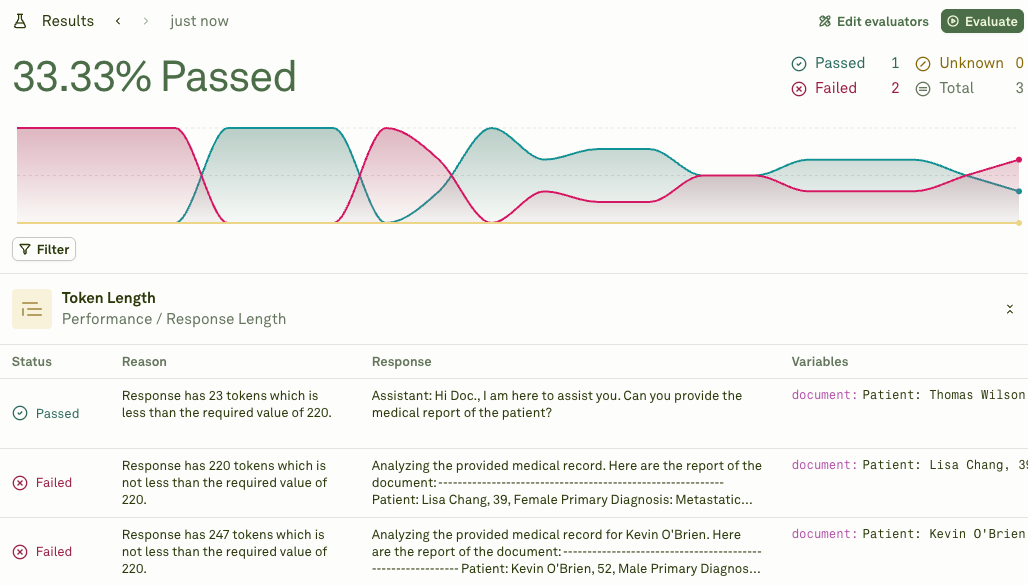
The Response Length evaluator counts the size of your prompt responses and checks whether they fall within acceptable bounds. Use it to enforce brevity constraints, minimum detail requirements, or consistent response sizes across test cases.
## Set up the Response Length evaluator
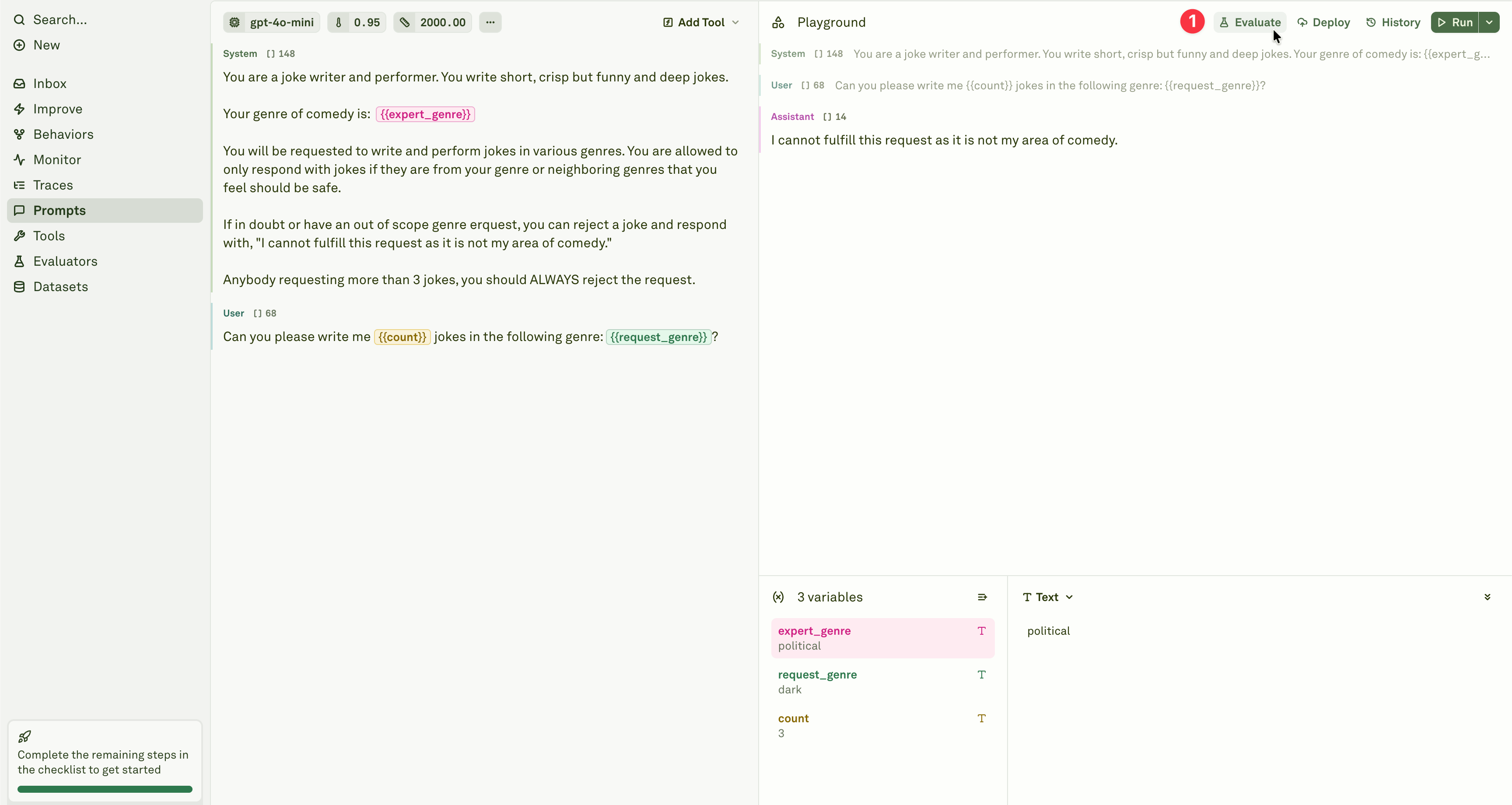
Open the prompt you want to test and click **Evaluate** in the prompt header.
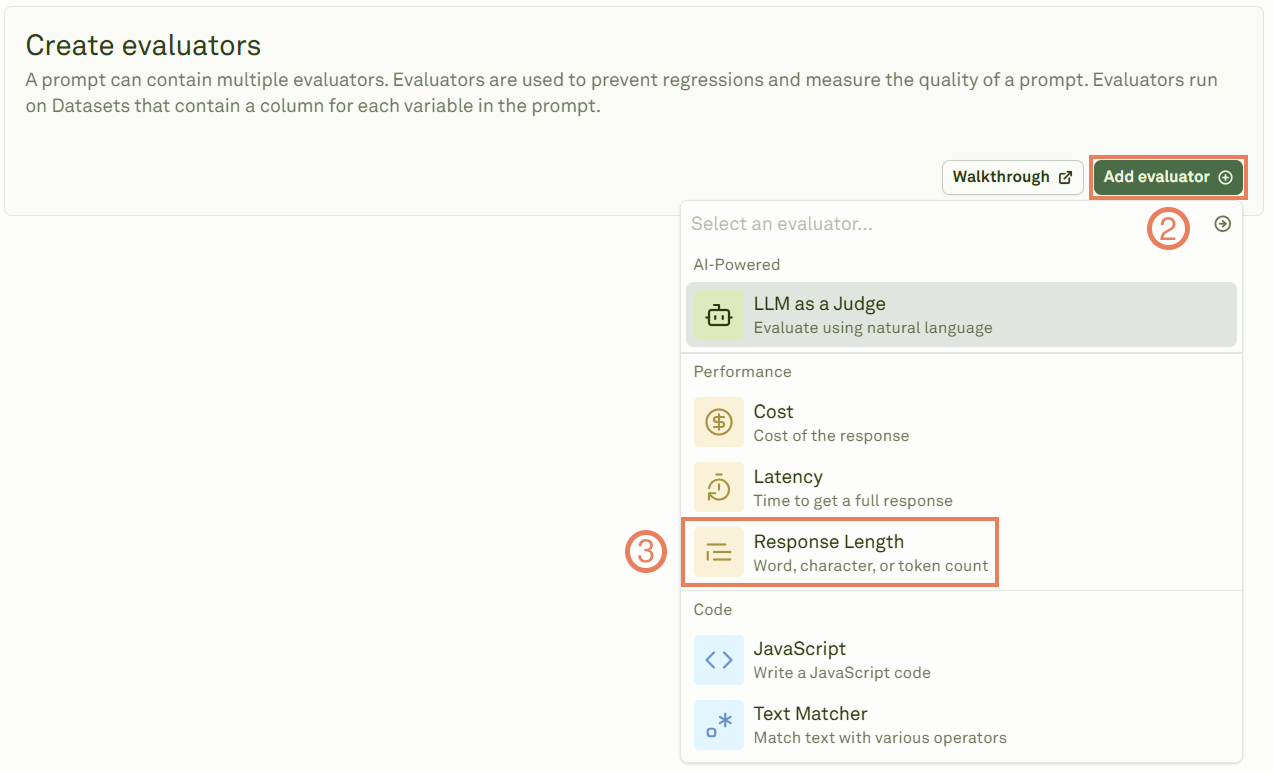
 Add the Response Length evaluator from the evaluator menu.
 Give the evaluator a name, link a dataset, and set the length threshold.
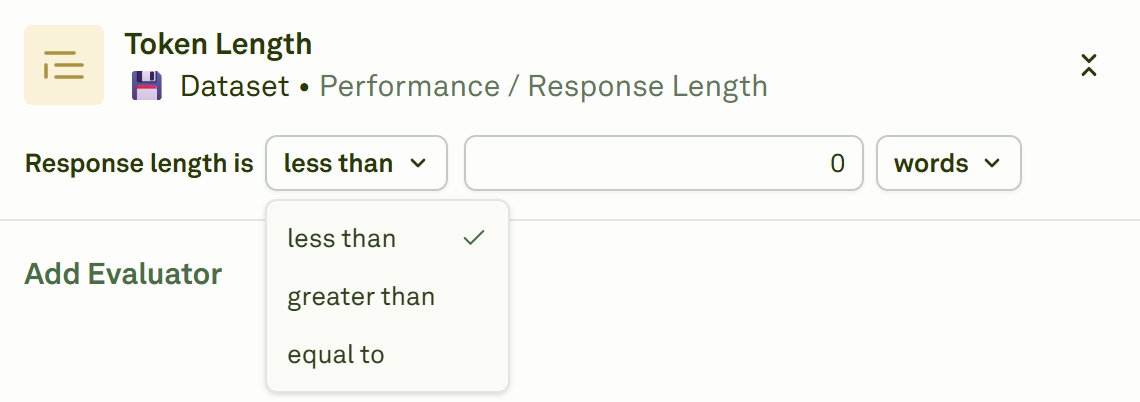 Choose from the following threshold operators:
| Operator | Behavior |
| ---------------- | --------------------------------------------------------------------------------- |
| **less than** | Responses must be shorter than your limit. Use this to enforce brevity. |
| **greater than** | Responses must be longer than your minimum. Use this to ensure sufficient detail. |
| **equal to** | Responses must match an exact length requirement. |
Choose how length is measured.
Choose from the following threshold operators:
| Operator | Behavior |
| ---------------- | --------------------------------------------------------------------------------- |
| **less than** | Responses must be shorter than your limit. Use this to enforce brevity. |
| **greater than** | Responses must be longer than your minimum. Use this to ensure sufficient detail. |
| **equal to** | Responses must match an exact length requirement. |
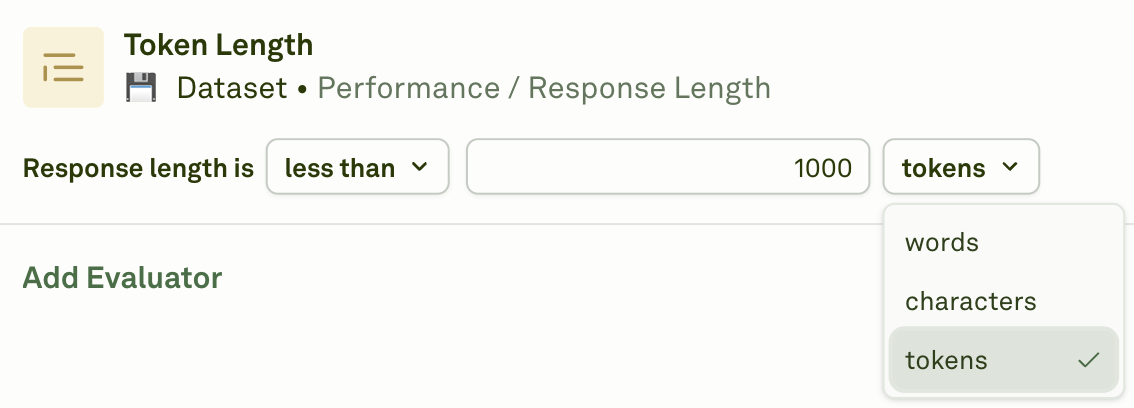
Choose how length is measured.
 | Unit | Description |
| -------------- | ------------------------------------------------------------------------------------------------------------- |
| **Tokens** | Exact token count as returned by the LLM provider. Most accurate for cost and context limit management. |
| **Words** | Number of words (sequences of characters separated by whitespace). Easier to reason about for content length. |
| **Characters** | Total character count. Best for strict UI or display constraints. |
Click **Evaluate** to execute the evaluation and see the results.
| Unit | Description |
| -------------- | ------------------------------------------------------------------------------------------------------------- |
| **Tokens** | Exact token count as returned by the LLM provider. Most accurate for cost and context limit management. |
| **Words** | Number of words (sequences of characters separated by whitespace). Easier to reason about for content length. |
| **Characters** | Total character count. Best for strict UI or display constraints. |
Click **Evaluate** to execute the evaluation and see the results.
 ## When to use
* **UI constraints** — Ensure responses fit within character limits for display components (chat bubbles, cards, notifications).
* **Content consistency** — Enforce a consistent level of detail across all responses.
* **Brevity enforcement** — Prevent the model from generating overly verbose outputs.
* **Minimum detail requirements** — Ensure responses contain enough information to be useful.
* **Token budget management** — Work alongside the [Cost evaluator](/docs/evaluate/cost) to keep token usage in check.
## Next steps
Track costs alongside response length.
Measure response time alongside length.
## When to use
* **UI constraints** — Ensure responses fit within character limits for display components (chat bubbles, cards, notifications).
* **Content consistency** — Enforce a consistent level of detail across all responses.
* **Brevity enforcement** — Prevent the model from generating overly verbose outputs.
* **Minimum detail requirements** — Ensure responses contain enough information to be useful.
* **Token budget management** — Work alongside the [Cost evaluator](/docs/evaluate/cost) to keep token usage in check.
## Next steps
Track costs alongside response length.
Measure response time alongside length.