> ## Documentation Index
> Fetch the complete documentation index at: https://www.adaline.ai/docs/llms.txt
> Use this file to discover all available pages before exploring further.
# JavaScript
> Write custom JavaScript code to programmatically validate prompt responses
The JavaScript evaluator lets you write custom validation logic to assess your prompt outputs programmatically. Use it to check data formats, enforce business rules, parse structured outputs, and implement any evaluation logic expressible in code.
Looking for Python runtime support in this evaluator? Reach out to us at [support@adaline.ai](mailto:support@adaline.ai) for a private preview.
## Set up the JavaScript evaluator
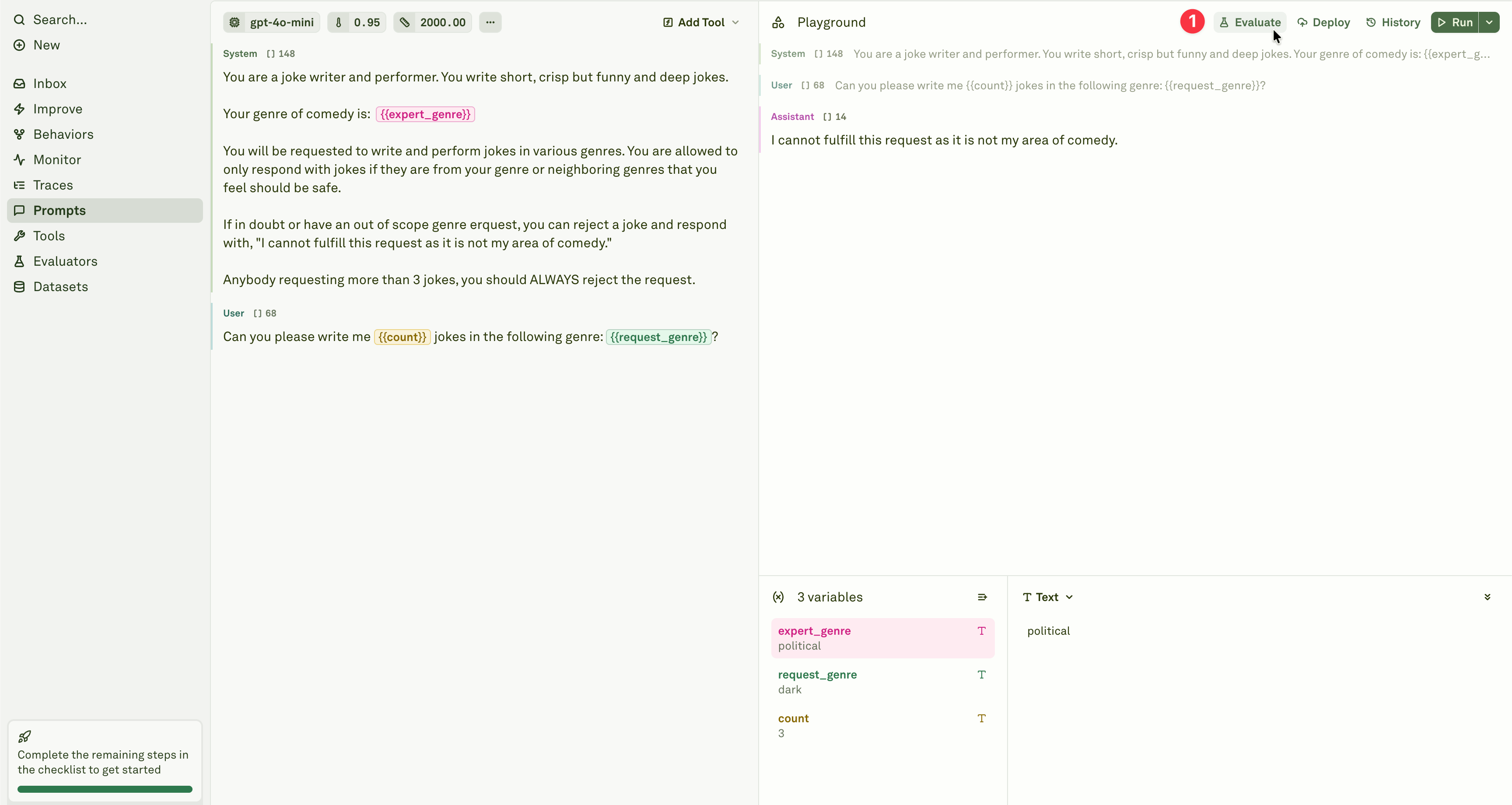
Open the prompt you want to test and click **Evaluate** in the prompt header.
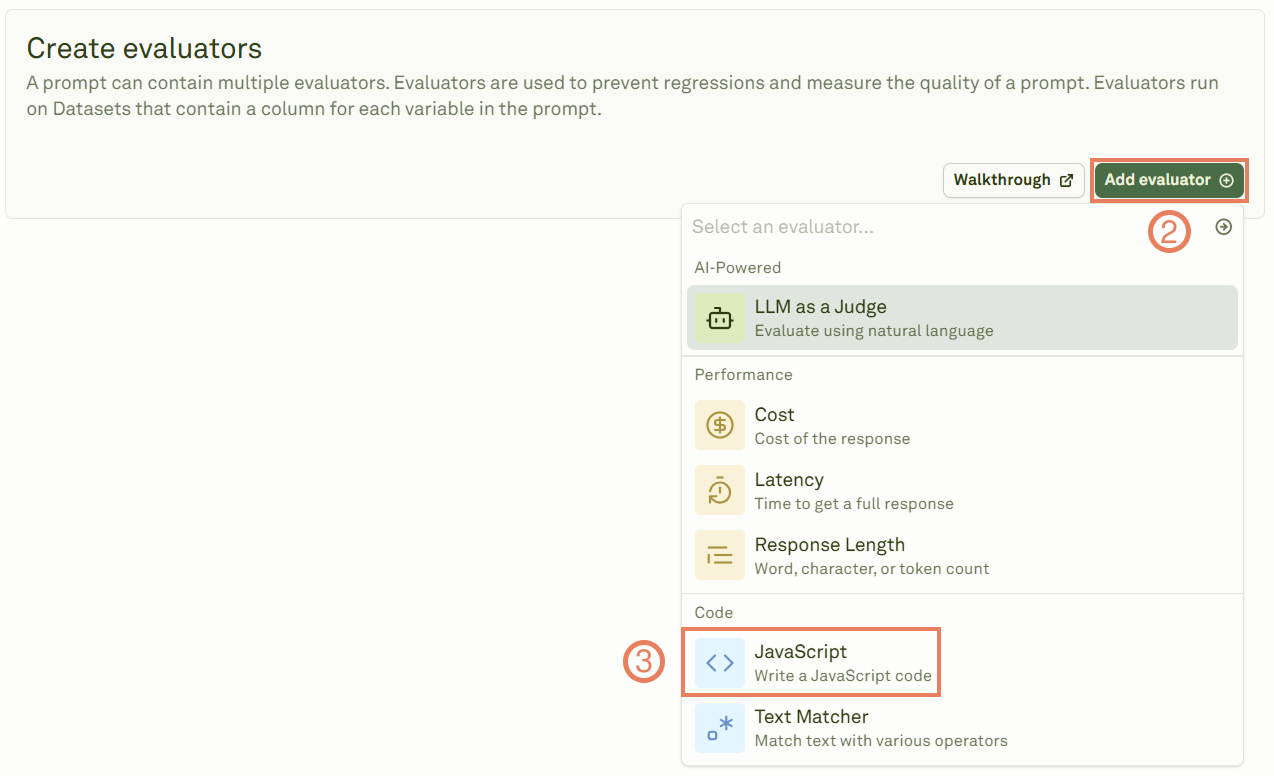
 Add the JavaScript evaluator from the evaluator menu.
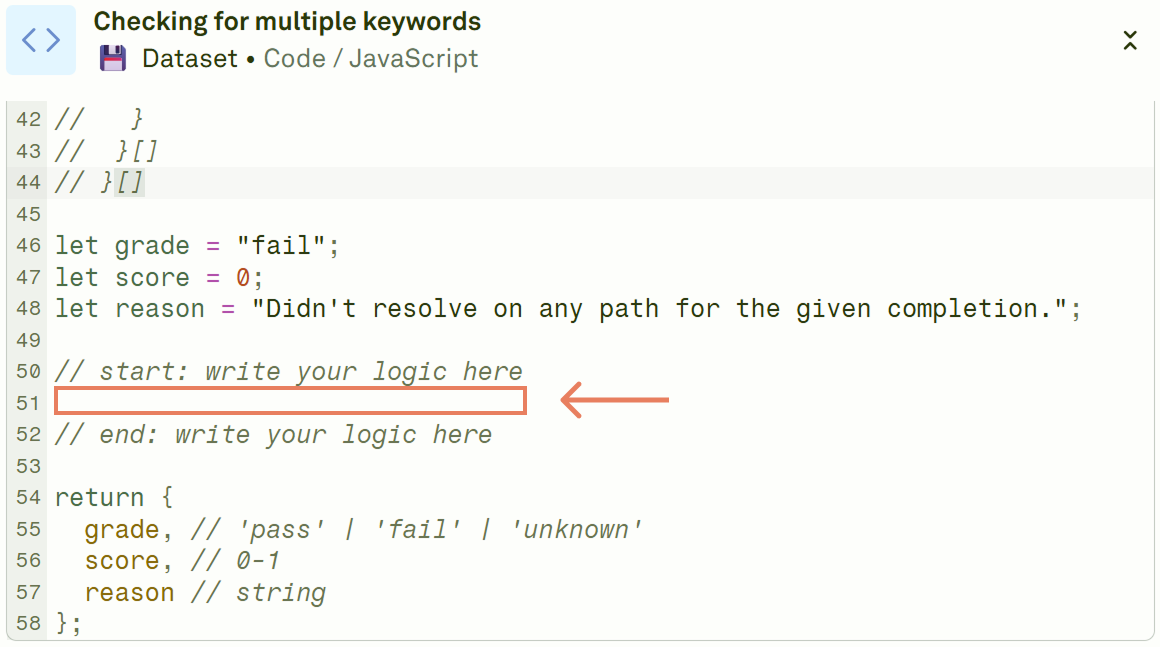
 Give the evaluator a name, link a dataset, and write your custom JavaScript code in the code editor. Write your logic between the `// start` and `// end` comments.
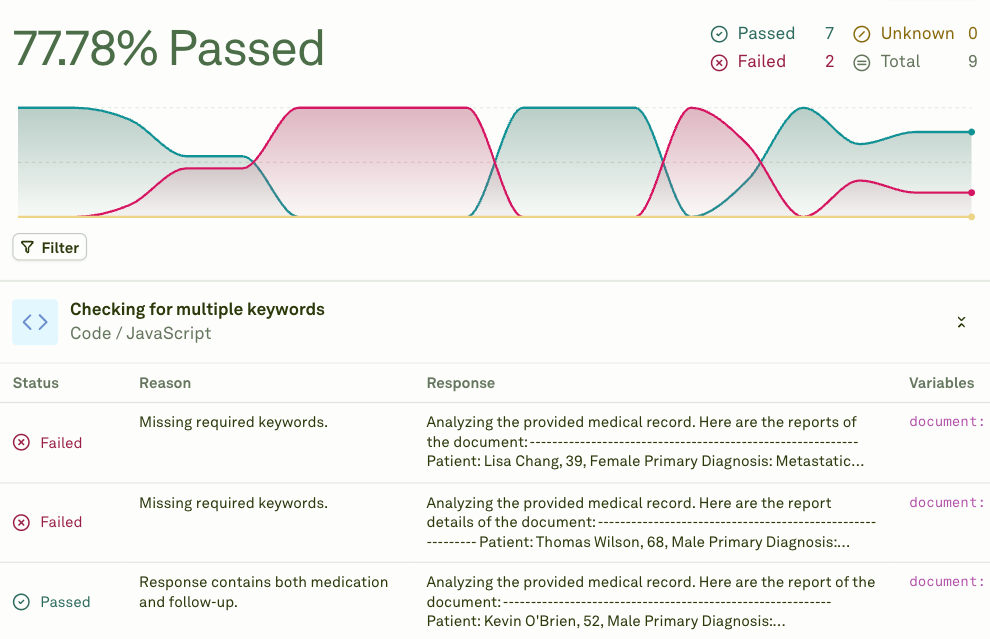
 Click **Evaluate** to execute the evaluation and see the results.
 ## The `data` object
Adaline provides a `data` object that contains the model's response and the variables used. Your code runs against this object for each test case.
```javascript theme={null}
// data.completion: string
// The full model output as a single string.
//
// data.variables: Record
// Key-value pairs of the prompt variables and their values.
//
// data.response: {
// role: string,
// content: {
// modality: "text",
// value: string
// } | {
// modality: "image",
// detail: "auto",
// value: { type: "url", url: string }
// | { type: "base64", base64: string, mediaType: "png" | "jpeg" | "webp" | "gif" }
// } | {
// modality: "tool-call",
// index: number, id: string, name: string, arguments: string
// } | {
// modality: "tool-response",
// index: number, id: string, name: string, data: string
// } | {
// modality: "reasoning",
// value: { type: "thinking", thinking: string, signature: string }
// }
// }[]
```
Key properties:
| Property | Type | Description |
| ----------------- | ------------------------ | -------------------------------------------------------------------------------------------------------------- |
| `data.completion` | `string` | The model's full output as a stringified value. |
| `data.variables` | `Record` | The variable values used for this test case. |
| `data.response` | `Array` | The structured response with role and typed content blocks (text, image, tool-call, tool-response, reasoning). |
## Return format
Your code must return an object with these three fields:
```javascript theme={null}
return {
grade, // 'pass' | 'fail' | 'unknown'
score, // 0-1 (numeric score)
reason // string (explanation for the result)
};
```
## Code template
When you create a new JavaScript evaluator, Adaline provides this template:
```javascript theme={null}
let grade = "fail";
let score = 0;
let reason = "Didn't resolve on any path for the given completion.";
// start: write your logic here
// end: write your logic here
return {
grade,
score,
reason
};
```
Write your custom logic between the `// start` and `// end` comments.
## Examples
### Check if the response contains specific text
```javascript theme={null}
// start: write your logic here
if (data.completion.includes('Analyzing the')) {
grade = 'pass';
score = 1;
reason = 'Response contains "Analyzing the".';
} else {
grade = 'fail';
score = 0;
reason = 'Response does not contain "Analyzing the".';
}
// end: write your logic here
```
### Validate variable values
```javascript theme={null}
// start: write your logic here
if (data.variables && Object.values(data.variables).includes("Python developer")) {
grade = 'pass';
score = 1;
reason = 'A variable with the value "Python developer" was found.';
} else {
grade = 'fail';
score = 0;
reason = 'No variable with the value "Python developer" was found.';
}
// end: write your logic here
```
### Check response modality
```javascript theme={null}
// start: write your logic here
if (data.response && data.response.some(res =>
res.content.some(cont => cont.modality === 'text')
)) {
grade = 'pass';
score = 1;
reason = 'A response with modality "text" was found.';
} else {
grade = 'fail';
score = 0;
reason = 'No response with modality "text" was found.';
}
// end: write your logic here
```
### Validate JSON structure
```javascript theme={null}
// start: write your logic here
try {
const parsed = JSON.parse(data.completion);
if (parsed.name && parsed.email && parsed.age) {
grade = 'pass';
score = 1;
reason = 'Response contains valid JSON with all required fields.';
} else {
grade = 'fail';
score = 0.5;
reason = 'JSON is valid but missing required fields.';
}
} catch (e) {
grade = 'fail';
score = 0;
reason = 'Response is not valid JSON: ' + e.message;
}
// end: write your logic here
```
## When to use
The JavaScript evaluator is ideal for:
* **Format validation** — Checking JSON structure, date formats, number ranges.
* **Business logic** — Enforcing rules specific to your domain (e.g., price ranges, allowed categories).
* **Structured output parsing** — Validating that the model returns data in the expected schema.
* **Complex conditional checks** — Multi-step validation that combines several criteria.
* **Tool call validation** — Verifying that the model makes correct tool calls with valid arguments.
For qualitative assessment, consider [LLM-as-a-Judge](/docs/evaluate/llm-as-a-judge) instead.
## Next steps
Match patterns and keywords without writing code.
Use an LLM for qualitative assessment.
## The `data` object
Adaline provides a `data` object that contains the model's response and the variables used. Your code runs against this object for each test case.
```javascript theme={null}
// data.completion: string
// The full model output as a single string.
//
// data.variables: Record
// Key-value pairs of the prompt variables and their values.
//
// data.response: {
// role: string,
// content: {
// modality: "text",
// value: string
// } | {
// modality: "image",
// detail: "auto",
// value: { type: "url", url: string }
// | { type: "base64", base64: string, mediaType: "png" | "jpeg" | "webp" | "gif" }
// } | {
// modality: "tool-call",
// index: number, id: string, name: string, arguments: string
// } | {
// modality: "tool-response",
// index: number, id: string, name: string, data: string
// } | {
// modality: "reasoning",
// value: { type: "thinking", thinking: string, signature: string }
// }
// }[]
```
Key properties:
| Property | Type | Description |
| ----------------- | ------------------------ | -------------------------------------------------------------------------------------------------------------- |
| `data.completion` | `string` | The model's full output as a stringified value. |
| `data.variables` | `Record` | The variable values used for this test case. |
| `data.response` | `Array` | The structured response with role and typed content blocks (text, image, tool-call, tool-response, reasoning). |
## Return format
Your code must return an object with these three fields:
```javascript theme={null}
return {
grade, // 'pass' | 'fail' | 'unknown'
score, // 0-1 (numeric score)
reason // string (explanation for the result)
};
```
## Code template
When you create a new JavaScript evaluator, Adaline provides this template:
```javascript theme={null}
let grade = "fail";
let score = 0;
let reason = "Didn't resolve on any path for the given completion.";
// start: write your logic here
// end: write your logic here
return {
grade,
score,
reason
};
```
Write your custom logic between the `// start` and `// end` comments.
## Examples
### Check if the response contains specific text
```javascript theme={null}
// start: write your logic here
if (data.completion.includes('Analyzing the')) {
grade = 'pass';
score = 1;
reason = 'Response contains "Analyzing the".';
} else {
grade = 'fail';
score = 0;
reason = 'Response does not contain "Analyzing the".';
}
// end: write your logic here
```
### Validate variable values
```javascript theme={null}
// start: write your logic here
if (data.variables && Object.values(data.variables).includes("Python developer")) {
grade = 'pass';
score = 1;
reason = 'A variable with the value "Python developer" was found.';
} else {
grade = 'fail';
score = 0;
reason = 'No variable with the value "Python developer" was found.';
}
// end: write your logic here
```
### Check response modality
```javascript theme={null}
// start: write your logic here
if (data.response && data.response.some(res =>
res.content.some(cont => cont.modality === 'text')
)) {
grade = 'pass';
score = 1;
reason = 'A response with modality "text" was found.';
} else {
grade = 'fail';
score = 0;
reason = 'No response with modality "text" was found.';
}
// end: write your logic here
```
### Validate JSON structure
```javascript theme={null}
// start: write your logic here
try {
const parsed = JSON.parse(data.completion);
if (parsed.name && parsed.email && parsed.age) {
grade = 'pass';
score = 1;
reason = 'Response contains valid JSON with all required fields.';
} else {
grade = 'fail';
score = 0.5;
reason = 'JSON is valid but missing required fields.';
}
} catch (e) {
grade = 'fail';
score = 0;
reason = 'Response is not valid JSON: ' + e.message;
}
// end: write your logic here
```
## When to use
The JavaScript evaluator is ideal for:
* **Format validation** — Checking JSON structure, date formats, number ranges.
* **Business logic** — Enforcing rules specific to your domain (e.g., price ranges, allowed categories).
* **Structured output parsing** — Validating that the model returns data in the expected schema.
* **Complex conditional checks** — Multi-step validation that combines several criteria.
* **Tool call validation** — Verifying that the model makes correct tool calls with valid arguments.
For qualitative assessment, consider [LLM-as-a-Judge](/docs/evaluate/llm-as-a-judge) instead.
## Next steps
Match patterns and keywords without writing code.
Use an LLM for qualitative assessment.