> ## Documentation Index
> Fetch the complete documentation index at: https://www.adaline.ai/docs/llms.txt
> Use this file to discover all available pages before exploring further.
# Dynamic columns in dataset
> Configure columns that fetch live data from APIs or execute other prompts at runtime
Every column in a dataset is either **static** or **dynamic**. Static columns hold values you enter manually — this is the default. Dynamic columns fetch their values automatically, either from an external API or by executing another prompt in your project. This transforms a static table of test cases into a live data source that can pull fresh data on demand.
When you run evaluations or use the dataset in the [Playground](/docs/iterate/run-prompts-in-playground), dynamic columns are automatically populated with fresh data before execution begins.
## Column types
| Type | Description |
| ------------------- | ----------------------------------------------------------------------------------------- |
| **Static** | Regular columns where you manually enter values. This is the default for all new columns. |
| **API Variable** | Fetches data from an external HTTP endpoint at runtime. |
| **Prompt Variable** | Executes another prompt from your project and uses its output as the cell value. |
## Set up a dynamic column
Click the icon next to the column name to convert it from static to dynamic:
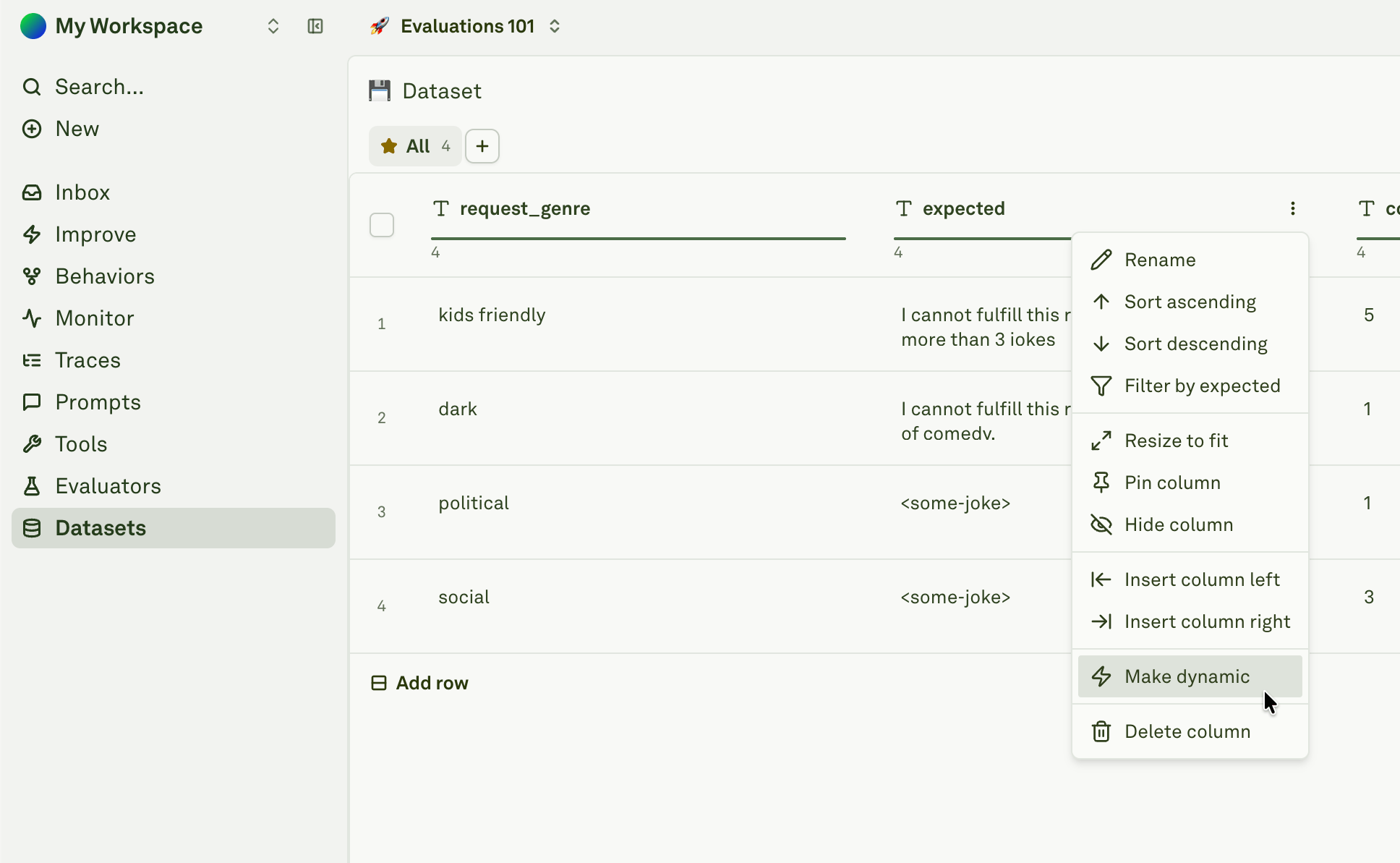 Choose the source type from the dropdown:
* **API Variable** — Fetch from an external HTTP endpoint
* **Prompt Variable** — Execute another prompt and use its output
Configure the selected source type (see detailed sections below).
## API Variable columns
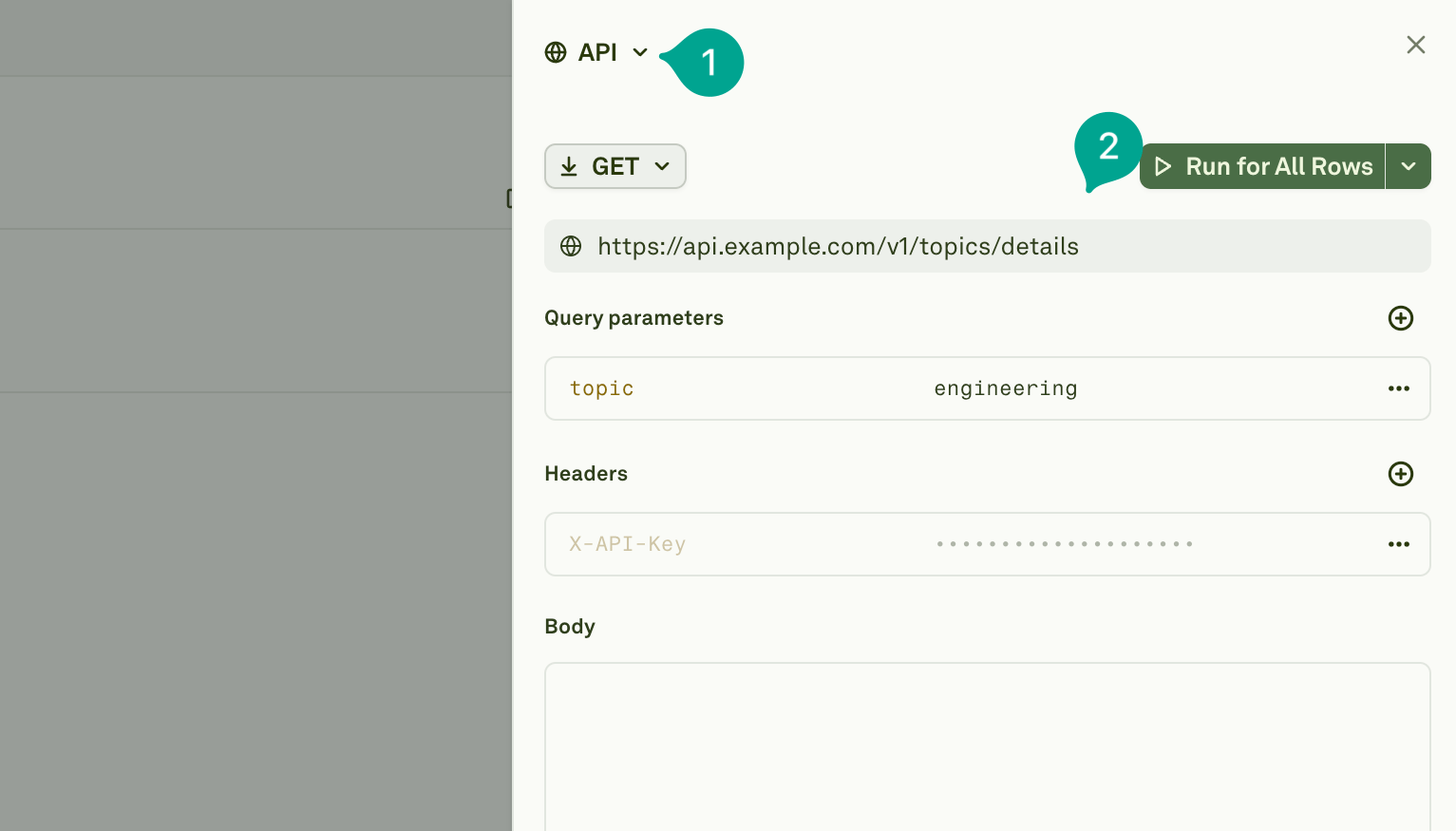
API variable columns fetch data from external HTTP endpoints. You can configure the full request — URL, HTTP method, query parameters, headers, and body:
Choose the source type from the dropdown:
* **API Variable** — Fetch from an external HTTP endpoint
* **Prompt Variable** — Execute another prompt and use its output
Configure the selected source type (see detailed sections below).
## API Variable columns
API variable columns fetch data from external HTTP endpoints. You can configure the full request — URL, HTTP method, query parameters, headers, and body:
 ### How it works
When an API variable column is executed for a row:
1. **Placeholder resolution** — Placeholders in the API configuration (like `{{user_id}}` in the URL or query parameters) are replaced with values from other columns in the same row.
2. **HTTP request** — The system makes the HTTP request with the fully resolved configuration.
3. **Response storage** — The API response is stored in the column cell for that row.
4. **Persistence** — The fetched value remains in the dataset until you refresh it.
### Referencing other columns
You can use `{{column_name}}` placeholders anywhere in your API configuration — in the URL, query parameters, headers, or request body. These are resolved per-row using the values from other columns in the same dataset row.
Use placeholders like `{{otherColumn}}` to make API calls data-driven. For example, `https://api.example.com/users/{{user_id}}/profile` fetches different user profiles for each test case based on the `user_id` column value.
### Example: fetching user data from an API
Suppose your dataset has a `user_id` column with static values, and you want a `user_profile` column that fetches the full profile from your API:
| Configuration | Value |
| --------------- | ---------------------------------------------- |
| **HTTP Method** | GET |
| **URL** | `https://api.example.com/v1/users/{{user_id}}` |
| **Headers** | `X-API-Key: your-api-key` |
For each row, `{{user_id}}` is replaced with that row's value, and the API response is stored in the `user_profile` cell.
### Example: sending data in a POST body
You can also construct POST requests with data from multiple columns:
| Configuration | Value |
| --------------- | --------------------------------------------------------- |
| **HTTP Method** | POST |
| **URL** | `https://api.example.com/v1/search` |
| **Headers** | `Content-Type: application/json` |
| **Body** | `{"query": "{{user_question}}", "category": "{{topic}}"}` |
## Prompt Variable columns
Prompt variable columns execute another prompt from your project and store its output as the cell value. This enables prompt chaining — where one prompt's output feeds into the prompt you're evaluating.
### How it works
When an API variable column is executed for a row:
1. **Placeholder resolution** — Placeholders in the API configuration (like `{{user_id}}` in the URL or query parameters) are replaced with values from other columns in the same row.
2. **HTTP request** — The system makes the HTTP request with the fully resolved configuration.
3. **Response storage** — The API response is stored in the column cell for that row.
4. **Persistence** — The fetched value remains in the dataset until you refresh it.
### Referencing other columns
You can use `{{column_name}}` placeholders anywhere in your API configuration — in the URL, query parameters, headers, or request body. These are resolved per-row using the values from other columns in the same dataset row.
Use placeholders like `{{otherColumn}}` to make API calls data-driven. For example, `https://api.example.com/users/{{user_id}}/profile` fetches different user profiles for each test case based on the `user_id` column value.
### Example: fetching user data from an API
Suppose your dataset has a `user_id` column with static values, and you want a `user_profile` column that fetches the full profile from your API:
| Configuration | Value |
| --------------- | ---------------------------------------------- |
| **HTTP Method** | GET |
| **URL** | `https://api.example.com/v1/users/{{user_id}}` |
| **Headers** | `X-API-Key: your-api-key` |
For each row, `{{user_id}}` is replaced with that row's value, and the API response is stored in the `user_profile` cell.
### Example: sending data in a POST body
You can also construct POST requests with data from multiple columns:
| Configuration | Value |
| --------------- | --------------------------------------------------------- |
| **HTTP Method** | POST |
| **URL** | `https://api.example.com/v1/search` |
| **Headers** | `Content-Type: application/json` |
| **Body** | `{"query": "{{user_question}}", "category": "{{topic}}"}` |
## Prompt Variable columns
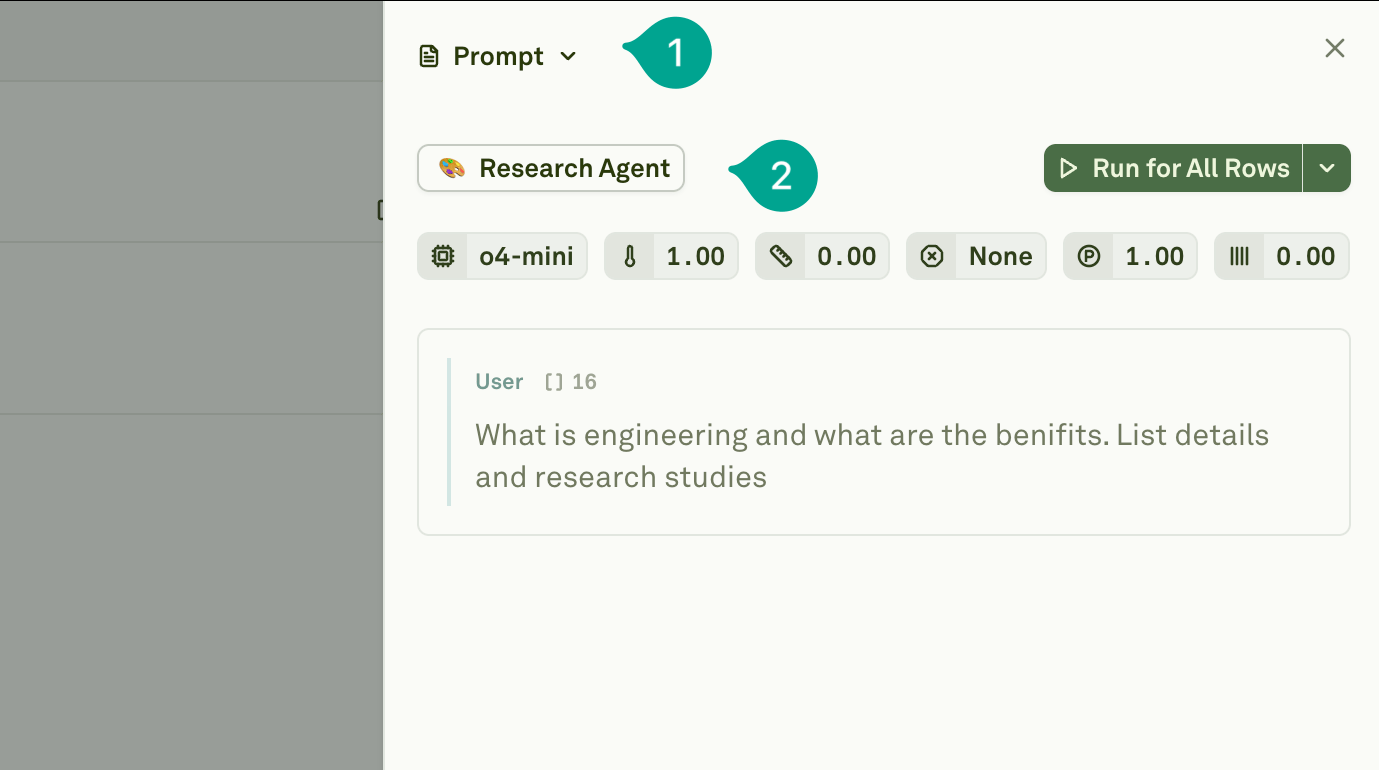
Prompt variable columns execute another prompt from your project and store its output as the cell value. This enables prompt chaining — where one prompt's output feeds into the prompt you're evaluating.
 ### How it works
When a prompt variable column is executed for a row:
1. **Data inheritance** — All columns from the current dataset row are available to the referenced prompt as variable values.
2. **Prompt execution** — The system executes the selected prompt with the row's data.
3. **Output storage** — The prompt's output is stored in the column cell for that row.
4. **Persistence** — The result remains in the dataset until you refresh it.
### Example: generating summaries for evaluation
Suppose you're evaluating a Q\&A prompt and want each test case to include a summary of a research article. You could:
1. Create a `research` prompt that takes a `{{topic}}` variable and generates a research summary.
2. In your dataset, add a `topic` column with static values like "machine learning", "quantum computing", etc.
3. Convert a `research_summary` column to a **Prompt Variable** and link it to your `research` prompt.
4. When executed, each row's `topic` value is passed to the `research` prompt, and the generated summary is stored in `research_summary`.
Your evaluation prompt can then use both `{{topic}}` and `{{research_summary}}` as variables.
Child prompts' linked datasets are ignored during dynamic column execution. All variables referenced by the child prompt must be present as columns in the current dataset. See [Evaluate Chained Prompts](/docs/evaluate/evaluate-prompts#evaluate-chained-prompts) for details on how prompt chaining works during evaluations.
## Running dynamic columns
After configuring dynamic columns, you need to fetch their values. Click the **Run** dropdown on the dynamic column to choose an execution mode:
### How it works
When a prompt variable column is executed for a row:
1. **Data inheritance** — All columns from the current dataset row are available to the referenced prompt as variable values.
2. **Prompt execution** — The system executes the selected prompt with the row's data.
3. **Output storage** — The prompt's output is stored in the column cell for that row.
4. **Persistence** — The result remains in the dataset until you refresh it.
### Example: generating summaries for evaluation
Suppose you're evaluating a Q\&A prompt and want each test case to include a summary of a research article. You could:
1. Create a `research` prompt that takes a `{{topic}}` variable and generates a research summary.
2. In your dataset, add a `topic` column with static values like "machine learning", "quantum computing", etc.
3. Convert a `research_summary` column to a **Prompt Variable** and link it to your `research` prompt.
4. When executed, each row's `topic` value is passed to the `research` prompt, and the generated summary is stored in `research_summary`.
Your evaluation prompt can then use both `{{topic}}` and `{{research_summary}}` as variables.
Child prompts' linked datasets are ignored during dynamic column execution. All variables referenced by the child prompt must be present as columns in the current dataset. See [Evaluate Chained Prompts](/docs/evaluate/evaluate-prompts#evaluate-chained-prompts) for details on how prompt chaining works during evaluations.
## Running dynamic columns
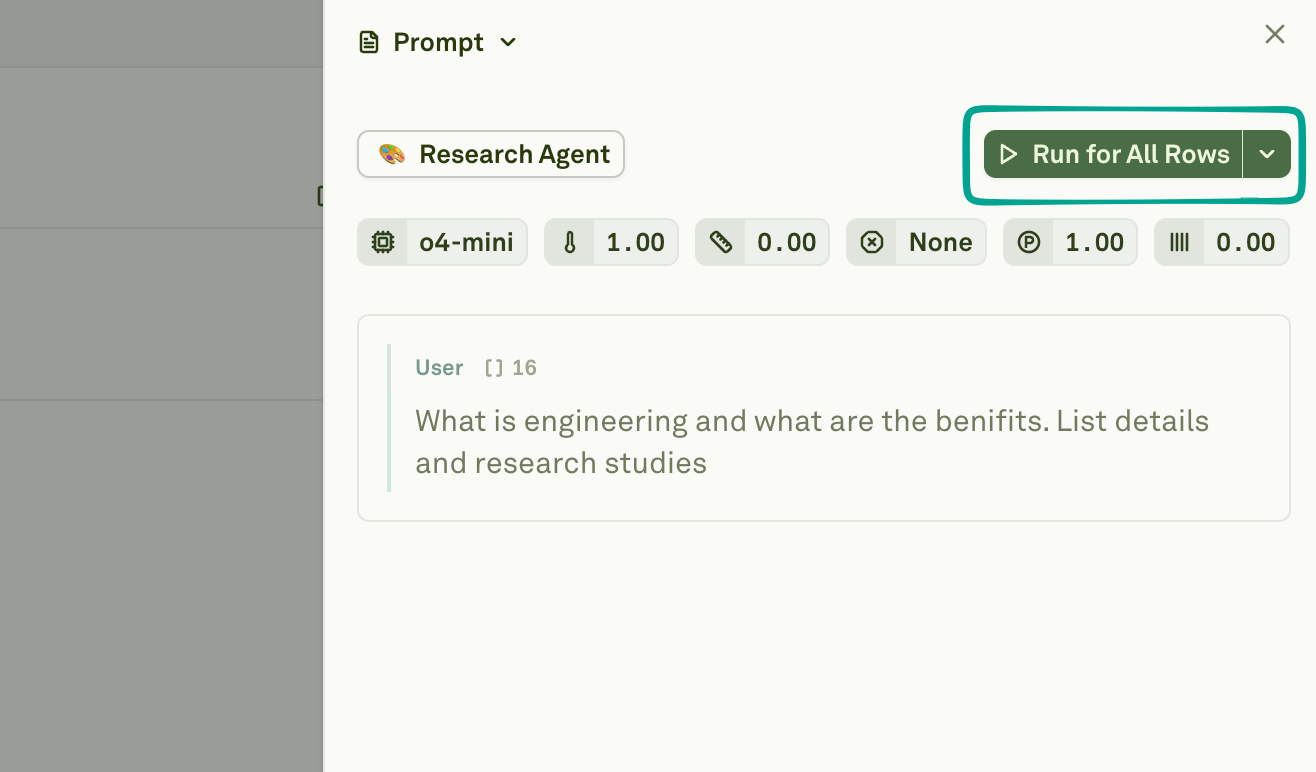
After configuring dynamic columns, you need to fetch their values. Click the **Run** dropdown on the dynamic column to choose an execution mode:
 | Mode | Description |
| ----------------------- | ------------------------------------------------------------------------------------------------------- |
| **Run for All Rows** | Executes for every row in the dataset. Best for initial setup or when you need fresh data everywhere. |
| **Run for Failed Rows** | Retries only rows where previous attempts failed (timeouts, errors), skipping successful ones. |
| **Run for First Row** | Executes for just the first row. Use this to verify your configuration before committing to a full run. |
## Execution behavior
* **Row-level execution** — Each row triggers its own independent API request or prompt execution.
* **Parallel vs. sequential** — Independent dynamic columns run in parallel. Dependent columns (where one dynamic column references another) run sequentially in the correct order.
* **Error handling** — Failed executions are marked, allowing you to retry only failed rows with "Run for Failed Rows".
* **Caching** — Fetched values are stored in the dataset. Subsequent evaluations use cached values unless you explicitly refresh them.
## Integration with evaluations
Dynamic columns work seamlessly with the evaluation workflow:
* **Auto-resolution** — When you run an evaluation, dynamic columns are automatically resolved with fresh values before the evaluation begins. You do not need to manually run dynamic columns before starting an evaluation.
* **Fresh data** — Use API variables to fetch real-time data for each evaluation run, ensuring your test cases use up-to-date information.
* **Prompt chaining** — Use prompt variables to build multi-step workflows where one prompt's output feeds into the prompt being evaluated.
## Best practices
* **Test first** — Always use "Run for First Row" to verify your configuration before running on all rows.
* **Handle failures gracefully** — Use "Run for Failed Rows" to retry failed executions instead of re-running everything.
* **Mind rate limits** — Consider the number of API calls or prompt executions when running on large datasets. If your external API has rate limits, stagger your runs.
* **Use descriptive column names** — Name dynamic columns clearly (e.g., `user_profile_data` rather than `api_result`) so their purpose is obvious in the dataset.
* **Keep dependencies simple** — Avoid deeply nested chains of dynamic columns that reference each other. Keep the dependency graph shallow for easier debugging.
## Next steps
Create and configure datasets for evaluation.
Run evaluations with your dynamic dataset.
Learn how APIs work in prompts.
| Mode | Description |
| ----------------------- | ------------------------------------------------------------------------------------------------------- |
| **Run for All Rows** | Executes for every row in the dataset. Best for initial setup or when you need fresh data everywhere. |
| **Run for Failed Rows** | Retries only rows where previous attempts failed (timeouts, errors), skipping successful ones. |
| **Run for First Row** | Executes for just the first row. Use this to verify your configuration before committing to a full run. |
## Execution behavior
* **Row-level execution** — Each row triggers its own independent API request or prompt execution.
* **Parallel vs. sequential** — Independent dynamic columns run in parallel. Dependent columns (where one dynamic column references another) run sequentially in the correct order.
* **Error handling** — Failed executions are marked, allowing you to retry only failed rows with "Run for Failed Rows".
* **Caching** — Fetched values are stored in the dataset. Subsequent evaluations use cached values unless you explicitly refresh them.
## Integration with evaluations
Dynamic columns work seamlessly with the evaluation workflow:
* **Auto-resolution** — When you run an evaluation, dynamic columns are automatically resolved with fresh values before the evaluation begins. You do not need to manually run dynamic columns before starting an evaluation.
* **Fresh data** — Use API variables to fetch real-time data for each evaluation run, ensuring your test cases use up-to-date information.
* **Prompt chaining** — Use prompt variables to build multi-step workflows where one prompt's output feeds into the prompt being evaluated.
## Best practices
* **Test first** — Always use "Run for First Row" to verify your configuration before running on all rows.
* **Handle failures gracefully** — Use "Run for Failed Rows" to retry failed executions instead of re-running everything.
* **Mind rate limits** — Consider the number of API calls or prompt executions when running on large datasets. If your external API has rate limits, stagger your runs.
* **Use descriptive column names** — Name dynamic columns clearly (e.g., `user_profile_data` rather than `api_result`) so their purpose is obvious in the dataset.
* **Keep dependencies simple** — Avoid deeply nested chains of dynamic columns that reference each other. Keep the dependency graph shallow for easier debugging.
## Next steps
Create and configure datasets for evaluation.
Run evaluations with your dynamic dataset.
Learn how APIs work in prompts.