> ## Documentation Index
> Fetch the complete documentation index at: https://www.adaline.ai/docs/llms.txt
> Use this file to discover all available pages before exploring further.
# Different modalities in dataset
> Use text, images, and PDFs in your dataset cells to evaluate multimodal prompts
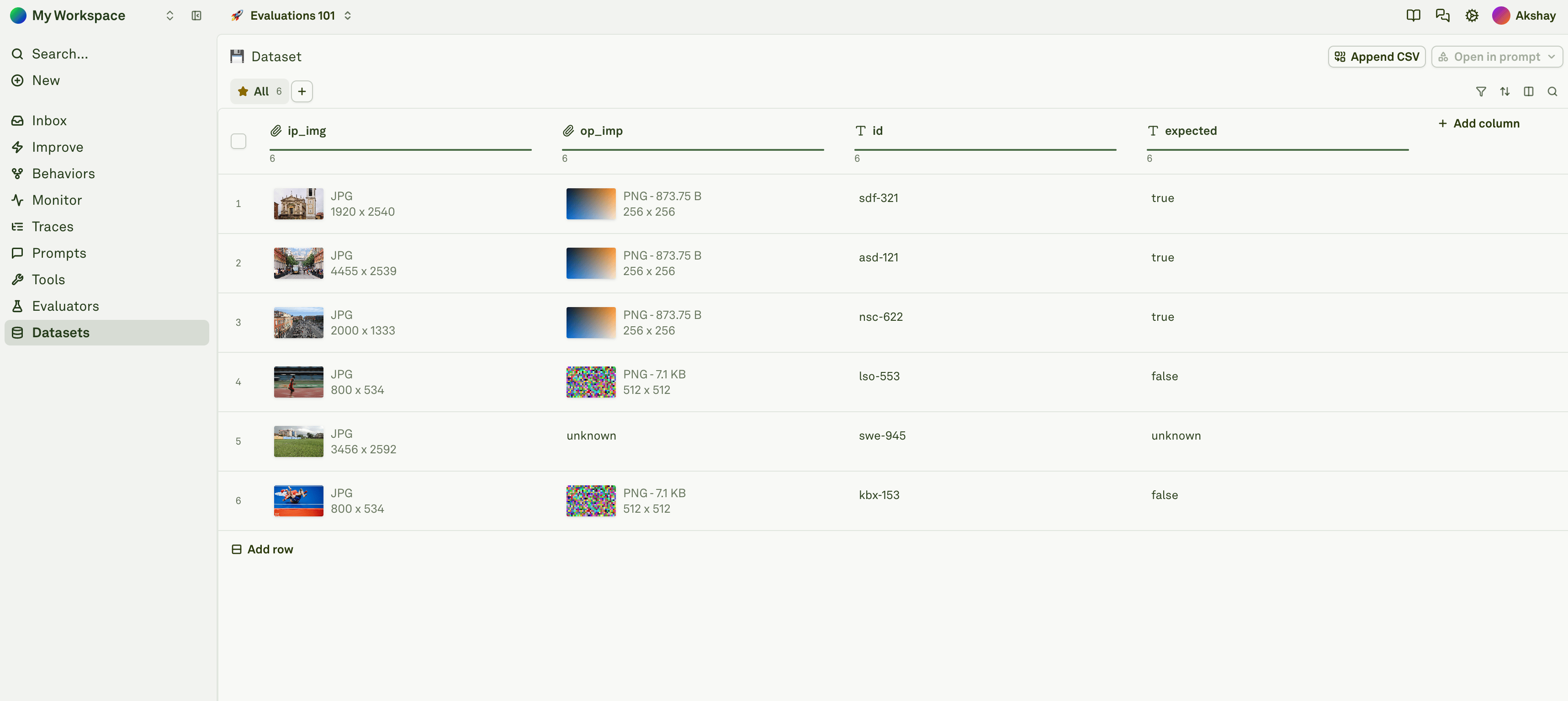
Adaline datasets are structured as tables where **columns** represent the variables in your prompt, **rows** represent individual test cases, and **cells** hold the value for each variable in a given test case. Since Adaline supports multimodal prompts, each cell in a dataset can hold its own modality — text, image, or PDF — independently of any other cell in the same row or column.
This means a single row can mix a text question in one column, an image in another, and a PDF in a third — matching exactly how your multimodal prompt consumes different input types.
 ## Supported modalities
| Modality | Input methods | Supported formats |
| --------- | ---------------------------------------------------------- | ------------------------ |
| **Text** | Type or paste directly into the cell | Plain text |
| **Image** | Paste a publicly accessible URL or a base64-encoded string | PNG, JPEG/JPG, GIF, WebP |
| **PDF** | Paste a publicly accessible URL or a base64-encoded string | PDF (up to 10 MB) |
Each cell is independent — you can have a text cell next to an image cell next to a PDF cell in the same row. You can also have different modalities across rows within the same column.
## Text
Text is the default modality. Simply click on a cell and type or paste your content. There is no additional configuration needed.
For example, if your prompt has a `{{user_question}}` variable, you would add a `user_question` column and type the question directly into each cell:
| user\_question |
| --------------------------------------------------------- |
| What is the capital of France? |
| Summarize this article in three sentences. |
| Translate the following to Spanish: "Hello, how are you?" |
## Images
To add an image to a cell, paste one of the following:
* **A publicly accessible image URL** — e.g., `https://example.com/photos/front.png`
* **A base64-encoded image string** — e.g., `data:image/png;base64,iVBORw0KGgo...`
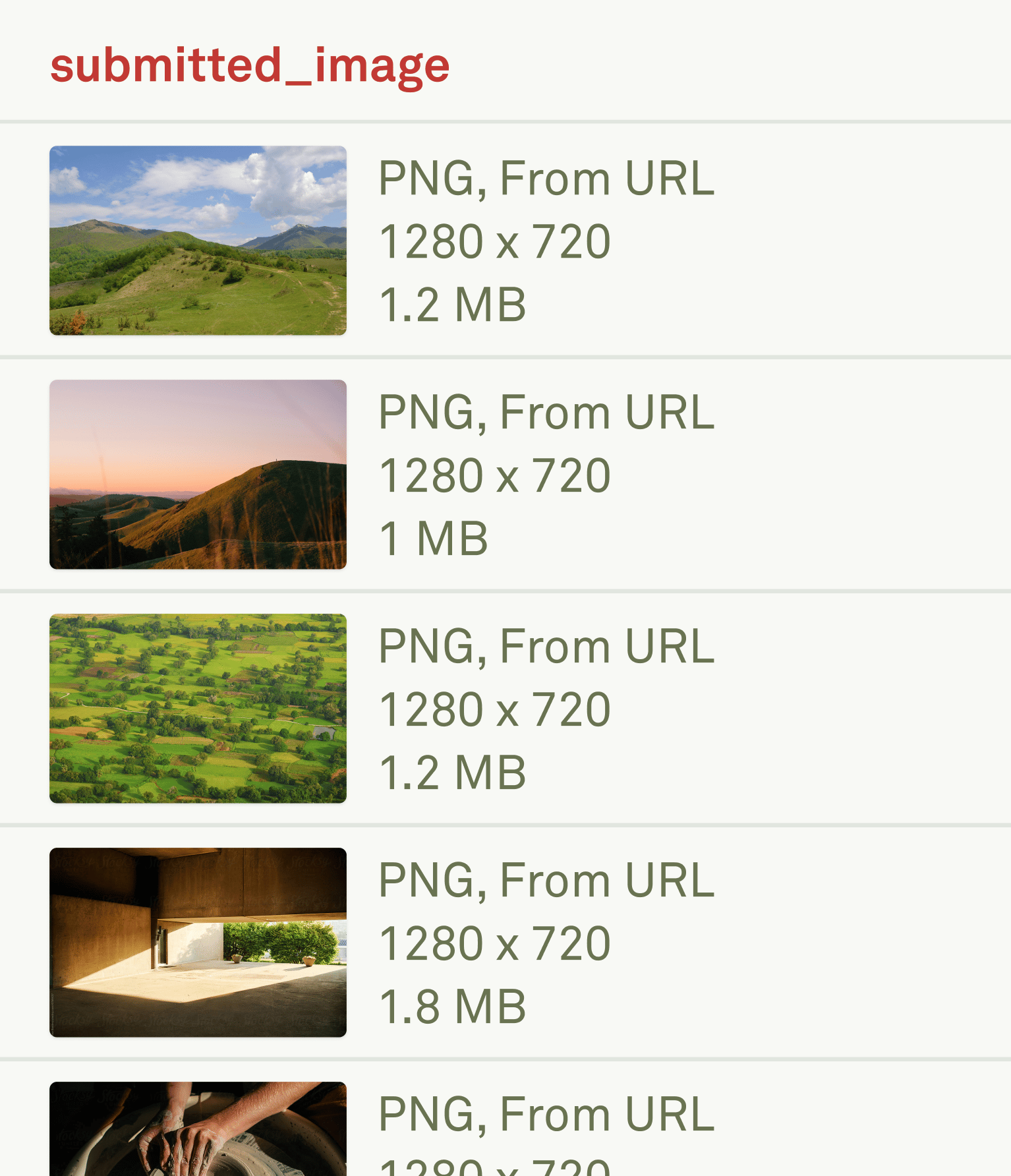
Adaline automatically detects the image and renders a preview in the cell.
**Supported image formats:** PNG, JPEG/JPG, GIF, and WebP.
## Supported modalities
| Modality | Input methods | Supported formats |
| --------- | ---------------------------------------------------------- | ------------------------ |
| **Text** | Type or paste directly into the cell | Plain text |
| **Image** | Paste a publicly accessible URL or a base64-encoded string | PNG, JPEG/JPG, GIF, WebP |
| **PDF** | Paste a publicly accessible URL or a base64-encoded string | PDF (up to 10 MB) |
Each cell is independent — you can have a text cell next to an image cell next to a PDF cell in the same row. You can also have different modalities across rows within the same column.
## Text
Text is the default modality. Simply click on a cell and type or paste your content. There is no additional configuration needed.
For example, if your prompt has a `{{user_question}}` variable, you would add a `user_question` column and type the question directly into each cell:
| user\_question |
| --------------------------------------------------------- |
| What is the capital of France? |
| Summarize this article in three sentences. |
| Translate the following to Spanish: "Hello, how are you?" |
## Images
To add an image to a cell, paste one of the following:
* **A publicly accessible image URL** — e.g., `https://example.com/photos/front.png`
* **A base64-encoded image string** — e.g., `data:image/png;base64,iVBORw0KGgo...`
Adaline automatically detects the image and renders a preview in the cell.
**Supported image formats:** PNG, JPEG/JPG, GIF, and WebP.
 ### Example: image via URL
Paste a direct link to a publicly hosted image into the cell:
```
https://upload.wikimedia.org/wikipedia/commons/thumb/0/02/Knobby_ADALINE.jpg/960px-Knobby_ADALINE.jpg
```
Adaline fetches the image and displays a thumbnail.
### Example: image via base64
Paste a base64-encoded image string with the data URI prefix:
**Maximum image size:** 5 MB.
```
data:image/jpeg;base64,/9j/4AAQSkZJRgABAQAAAQABAAD...
```
Base64 images in datasets are hosted on Adaline storage and can be accessed through the Dataset API.
## PDFs
To add a PDF to a cell, paste one of the following:
* **A publicly accessible PDF URL** — e.g., `https://example.com/docs/report.pdf`
* **A base64-encoded PDF string** — e.g., `data:application/pdf;base64,JVBERjQK...`
### Example: PDF via URL
Paste a direct link to a publicly hosted PDF into the cell:
```
https://example.com/docs/quarterly-report.pdf
```
### Example: PDF via base64
Paste a base64-encoded PDF string with the data URI prefix:
**Maximum PDF size:** 10 MB.
```
data:application/pdf;base64,JVBERi0xLjQKMSAwIG9iago8PA...
```
Base64 PDFs in datasets are hosted on Adaline storage and can be accessed through the Dataset API.
## Importing multimodal data via CSV
You can bulk-import multimodal datasets using CSV files. In the CSV, text values are entered as-is, and image or PDF values are entered as their publicly accessible URLs or base64 strings. Adaline automatically detects the modality of each cell based on the value.
### Text-only CSV
A standard CSV where every cell contains plain text:
```csv theme={null}
user_question,context
What is the capital of France?,"France is a country in Western Europe."
Summarize this article.,"The article discusses the impact of AI on healthcare."
```
### Mixed modalities CSV (text + images)
A CSV that combines text and image URLs in different columns:
```csv theme={null}
user_question,product_image
Describe this product.,https://example.com/images/product-a.png
What color is this item?,https://example.com/images/product-b.jpeg
Is this item suitable for outdoor use?,https://example.com/images/product-c.webp
```
### Mixed modalities CSV (text + images + PDFs)
A CSV that combines text, image URLs, and PDF URLs across columns:
```csv theme={null}
user_question,reference_image,supporting_document
Describe what you see in the image.,https://example.com/images/storefront.png,https://example.com/docs/brand-guidelines.pdf
Compare this image to the brand guidelines.,https://example.com/images/new-design.jpeg,https://example.com/docs/brand-guidelines.pdf
Summarize the key findings from this report.,https://example.com/images/chart.png,https://example.com/docs/q4-report.pdf
```
### Mixed modalities CSV with base64
You can also include base64-encoded content directly in the CSV. This is useful when your images or PDFs are not publicly hosted:
```csv theme={null}
user_question,product_image
Describe this product.,data:image/png;base64,iVBORw0KGgoAAAANSUhEUgAA...
What color is this item?,https://example.com/images/product-b.jpeg
```
When mixing URLs and base64 strings in the same column, Adaline handles each cell independently. You can freely mix both formats within a single column.
### Importing the CSV
Once your CSV is ready, click **Upload CSV** in the dataset editor to import it. Adaline parses each cell value and automatically detects the modality:
* Plain text values are treated as **text**.
* Values starting with `http://` or `https://` pointing to image or PDF files are treated as the corresponding modality.
* Values starting with `data:image/` or `data:application/pdf;base64,` are treated as base64-encoded images or PDFs.
See [Import CSV into Dataset](/docs/evaluate/import-csv-into-dataset) for the full import guide.
## Size limits and storage
| Content type | Maximum size |
| ---------------- | ----------------------------- |
| **Text** | Up to 1 MB |
| **Image URL** | No limit (fetched at runtime) |
| **Image base64** | Up to 5 MB |
| **PDF URL** | No limit (fetched at runtime) |
| **PDF base64** | Up to 10 MB |
## Next steps
Create datasets and configure columns for evaluation.
Bulk-import test cases including multimodal data.
Run evaluations on your multimodal dataset.
Learn how to use images in your prompts.
### Example: image via URL
Paste a direct link to a publicly hosted image into the cell:
```
https://upload.wikimedia.org/wikipedia/commons/thumb/0/02/Knobby_ADALINE.jpg/960px-Knobby_ADALINE.jpg
```
Adaline fetches the image and displays a thumbnail.
### Example: image via base64
Paste a base64-encoded image string with the data URI prefix:
**Maximum image size:** 5 MB.
```
data:image/jpeg;base64,/9j/4AAQSkZJRgABAQAAAQABAAD...
```
Base64 images in datasets are hosted on Adaline storage and can be accessed through the Dataset API.
## PDFs
To add a PDF to a cell, paste one of the following:
* **A publicly accessible PDF URL** — e.g., `https://example.com/docs/report.pdf`
* **A base64-encoded PDF string** — e.g., `data:application/pdf;base64,JVBERjQK...`
### Example: PDF via URL
Paste a direct link to a publicly hosted PDF into the cell:
```
https://example.com/docs/quarterly-report.pdf
```
### Example: PDF via base64
Paste a base64-encoded PDF string with the data URI prefix:
**Maximum PDF size:** 10 MB.
```
data:application/pdf;base64,JVBERi0xLjQKMSAwIG9iago8PA...
```
Base64 PDFs in datasets are hosted on Adaline storage and can be accessed through the Dataset API.
## Importing multimodal data via CSV
You can bulk-import multimodal datasets using CSV files. In the CSV, text values are entered as-is, and image or PDF values are entered as their publicly accessible URLs or base64 strings. Adaline automatically detects the modality of each cell based on the value.
### Text-only CSV
A standard CSV where every cell contains plain text:
```csv theme={null}
user_question,context
What is the capital of France?,"France is a country in Western Europe."
Summarize this article.,"The article discusses the impact of AI on healthcare."
```
### Mixed modalities CSV (text + images)
A CSV that combines text and image URLs in different columns:
```csv theme={null}
user_question,product_image
Describe this product.,https://example.com/images/product-a.png
What color is this item?,https://example.com/images/product-b.jpeg
Is this item suitable for outdoor use?,https://example.com/images/product-c.webp
```
### Mixed modalities CSV (text + images + PDFs)
A CSV that combines text, image URLs, and PDF URLs across columns:
```csv theme={null}
user_question,reference_image,supporting_document
Describe what you see in the image.,https://example.com/images/storefront.png,https://example.com/docs/brand-guidelines.pdf
Compare this image to the brand guidelines.,https://example.com/images/new-design.jpeg,https://example.com/docs/brand-guidelines.pdf
Summarize the key findings from this report.,https://example.com/images/chart.png,https://example.com/docs/q4-report.pdf
```
### Mixed modalities CSV with base64
You can also include base64-encoded content directly in the CSV. This is useful when your images or PDFs are not publicly hosted:
```csv theme={null}
user_question,product_image
Describe this product.,data:image/png;base64,iVBORw0KGgoAAAANSUhEUgAA...
What color is this item?,https://example.com/images/product-b.jpeg
```
When mixing URLs and base64 strings in the same column, Adaline handles each cell independently. You can freely mix both formats within a single column.
### Importing the CSV
Once your CSV is ready, click **Upload CSV** in the dataset editor to import it. Adaline parses each cell value and automatically detects the modality:
* Plain text values are treated as **text**.
* Values starting with `http://` or `https://` pointing to image or PDF files are treated as the corresponding modality.
* Values starting with `data:image/` or `data:application/pdf;base64,` are treated as base64-encoded images or PDFs.
See [Import CSV into Dataset](/docs/evaluate/import-csv-into-dataset) for the full import guide.
## Size limits and storage
| Content type | Maximum size |
| ---------------- | ----------------------------- |
| **Text** | Up to 1 MB |
| **Image URL** | No limit (fetched at runtime) |
| **Image base64** | Up to 5 MB |
| **PDF URL** | No limit (fetched at runtime) |
| **PDF base64** | Up to 10 MB |
## Next steps
Create datasets and configure columns for evaluation.
Bulk-import test cases including multimodal data.
Run evaluations on your multimodal dataset.
Learn how to use images in your prompts.