> ## Documentation Index
> Fetch the complete documentation index at: https://www.adaline.ai/docs/llms.txt
> Use this file to discover all available pages before exploring further.
# Cost
> Track and evaluate token costs to keep your prompts within budget
The Cost evaluator calculates the cost of each prompt response based on actual token usage returned by the LLM provider and its public pricing. Use it to monitor spending, enforce budget thresholds, and optimize prompts for cost efficiency.
Adaline automatically calculates costs using the token usage reported by the AI provider. Internally, Adaline maintains the public pricing for each model and uses that to compute the cost per response.
Cost evaluators are not supported for some AI providers (such as OpenRouter, TogetherAI, Custom, etc.) where available models are set by the user.
Want to use custom pricing for your models? Reach out to us at [support@adaline.ai](mailto:support@adaline.ai) to set up a private preview.
## Set up the Cost evaluator
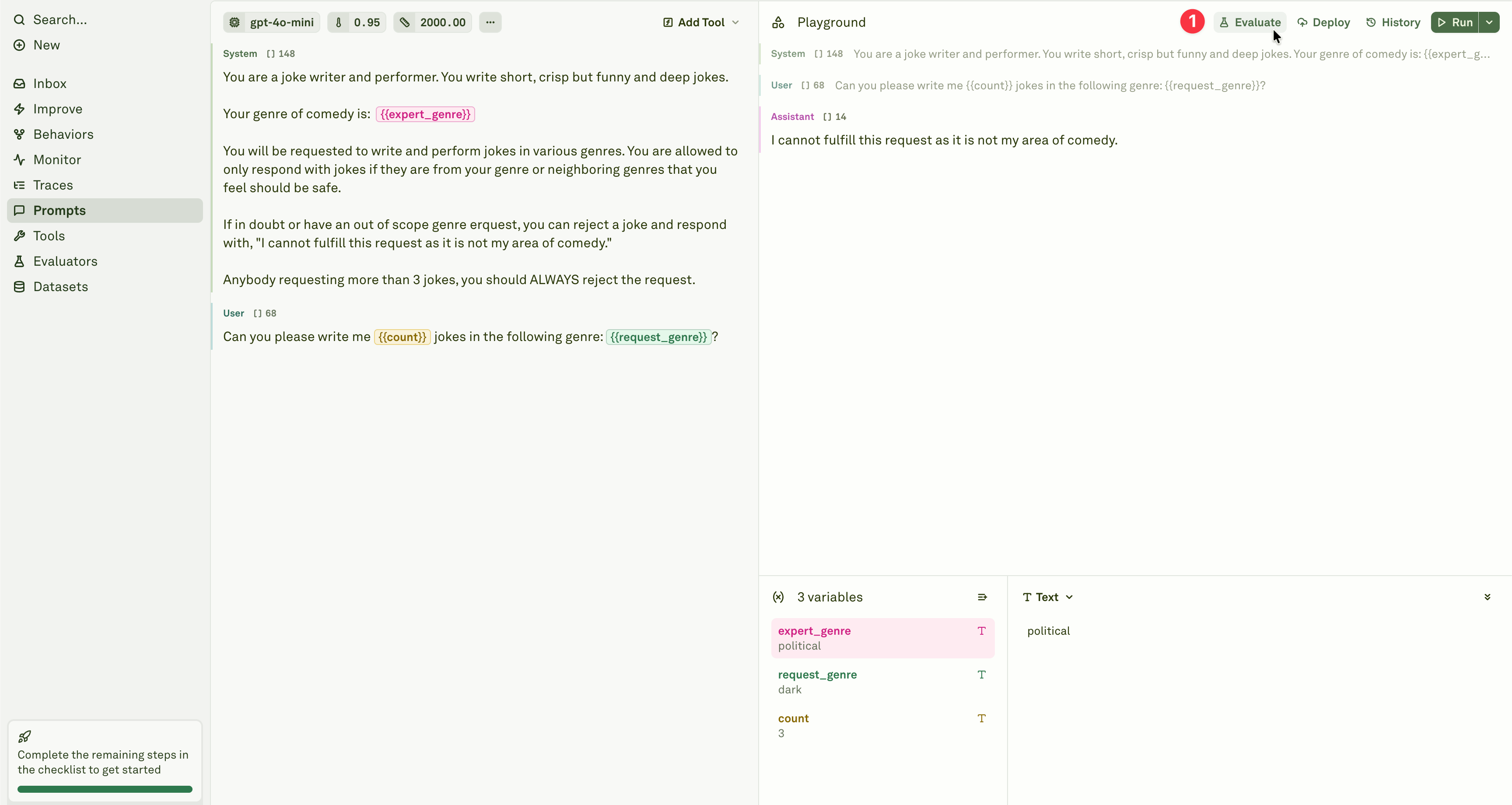
Open the prompt you want to test and click **Evaluate** in the prompt header.
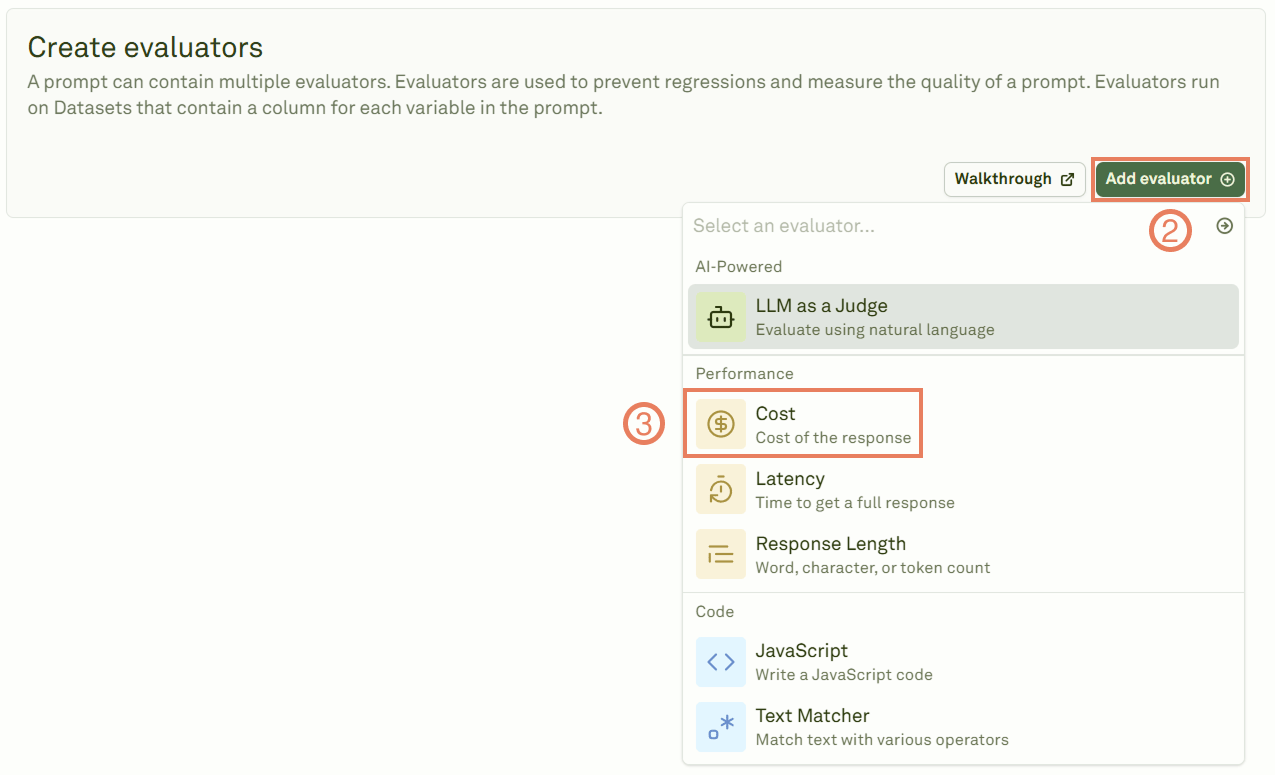
 Add the Cost evaluator from the evaluator menu.
 Give the evaluator a name, link a dataset, and set the cost threshold that determines pass/fail.
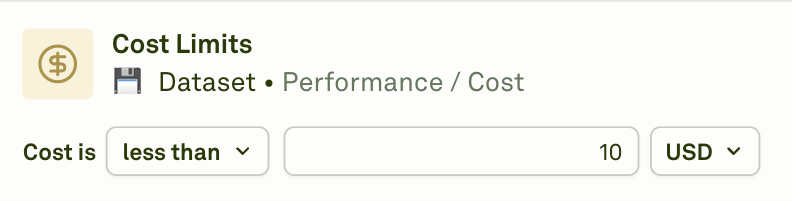 Choose from the following threshold operators:
| Operator | Behavior |
| ---------------- | ---------------------------------------------------------------------------------------------------------------------------- |
| **less than** | The response passes if its cost is below your threshold. Use this to enforce budget caps. |
| **greater than** | The response passes if its cost exceeds your threshold. Use this to flag unusually cheap (potentially incomplete) responses. |
| **equal to** | The response passes if its cost matches the exact threshold. |
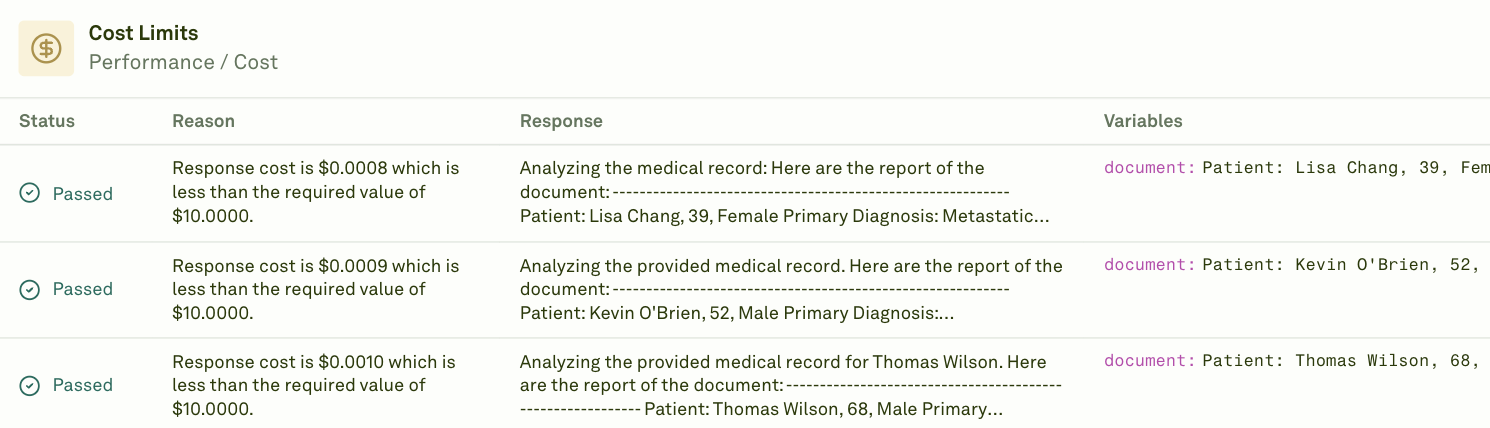
Click **Evaluate** to execute the evaluation and see the results.
Choose from the following threshold operators:
| Operator | Behavior |
| ---------------- | ---------------------------------------------------------------------------------------------------------------------------- |
| **less than** | The response passes if its cost is below your threshold. Use this to enforce budget caps. |
| **greater than** | The response passes if its cost exceeds your threshold. Use this to flag unusually cheap (potentially incomplete) responses. |
| **equal to** | The response passes if its cost matches the exact threshold. |
Click **Evaluate** to execute the evaluation and see the results.
 **Prompt chaining**: When your prompt uses [prompt variables](/docs/iterate/use-other-prompts-in-prompt) (child prompts), the Cost evaluator reports the **cumulative cost** of the entire prompt chain — including the parent prompt and all child prompts executed during the evaluation.
## When to use
* **Budget enforcement** — Set a maximum cost per response to prevent runaway spending.
* **Model comparison** — Compare cost efficiency across different models handling the same test cases.
* **Prompt optimization** — Identify prompts that are more expensive than expected and refine them to reduce token usage.
* **Cost forecasting** — Use evaluation results to estimate production costs at scale.
## Next steps
Measure response time alongside cost.
Control output size to manage costs.
**Prompt chaining**: When your prompt uses [prompt variables](/docs/iterate/use-other-prompts-in-prompt) (child prompts), the Cost evaluator reports the **cumulative cost** of the entire prompt chain — including the parent prompt and all child prompts executed during the evaluation.
## When to use
* **Budget enforcement** — Set a maximum cost per response to prevent runaway spending.
* **Model comparison** — Compare cost efficiency across different models handling the same test cases.
* **Prompt optimization** — Identify prompts that are more expensive than expected and refine them to reduce token usage.
* **Cost forecasting** — Use evaluation results to estimate production costs at scale.
## Next steps
Measure response time alongside cost.
Control output size to manage costs.