> ## Documentation Index
> Fetch the complete documentation index at: https://www.adaline.ai/docs/llms.txt
> Use this file to discover all available pages before exploring further.
# Rollback your prompt
> Instantly revert to any previous prompt deployment when issues arise
Rollback lets you quickly restore a previous version of your deployed prompt. Instead of manually recreating old configurations, you can instantly return to any earlier deployment — giving you a safety net for every production change.
## View deployment history
The left panel of the deployment view shows the complete history of all deployments:
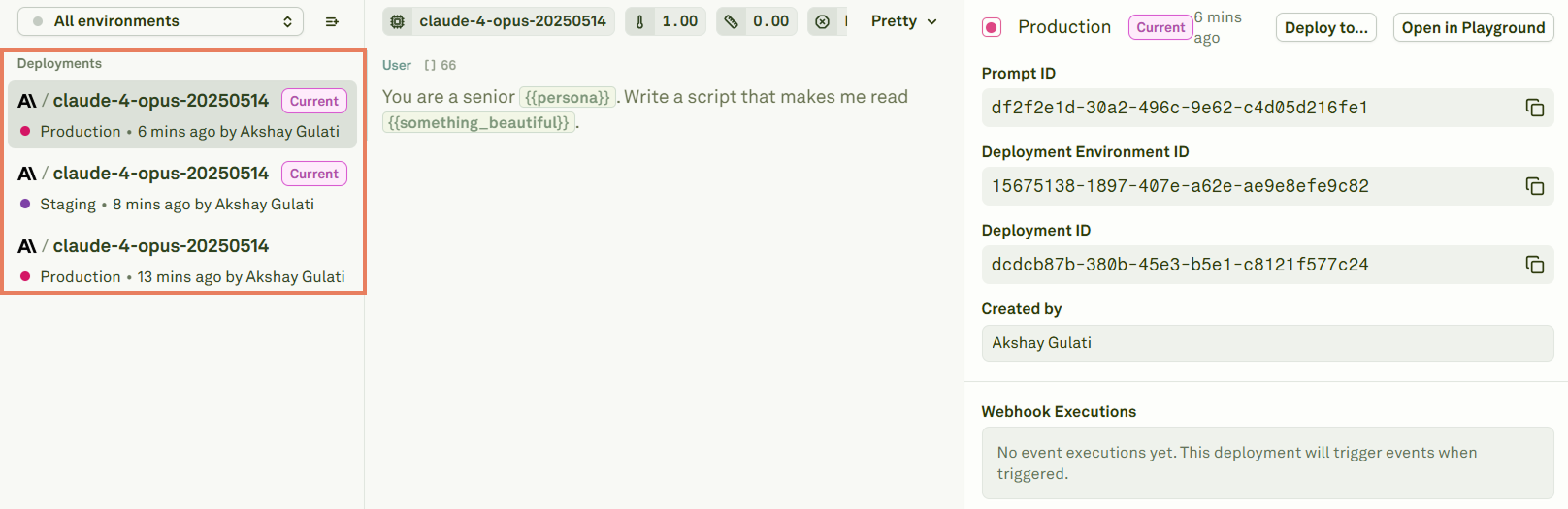 The history shows:
* **Currently deployed prompts** — The top entries indicate which prompt version is active in each environment (e.g., the latest is deployed to production, the next to staging).
* **Previously deployed prompts** — Older entries that are no longer deployed to any environment but can be restored at any time.
## Perform a rollback
To rollback to a previous prompt version, select an undeployed prompt from the history and click **Rollback**:
The history shows:
* **Currently deployed prompts** — The top entries indicate which prompt version is active in each environment (e.g., the latest is deployed to production, the next to staging).
* **Previously deployed prompts** — Older entries that are no longer deployed to any environment but can be restored at any time.
## Perform a rollback
To rollback to a previous prompt version, select an undeployed prompt from the history and click **Rollback**:
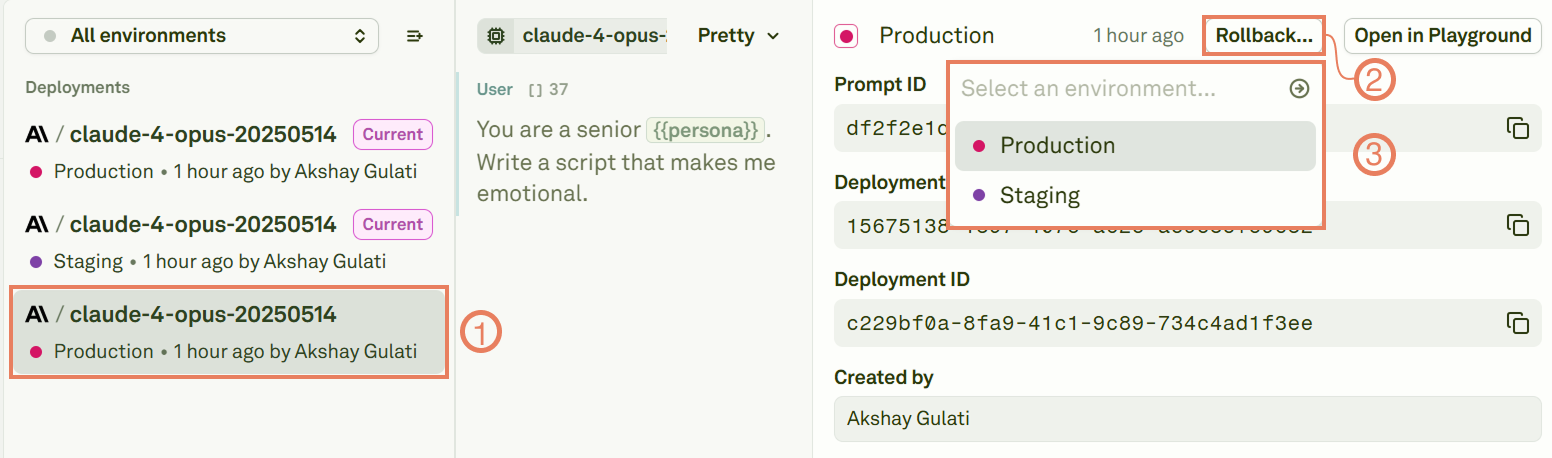 Select the environment you want to rollback to from the available options. The rollback takes effect immediately.
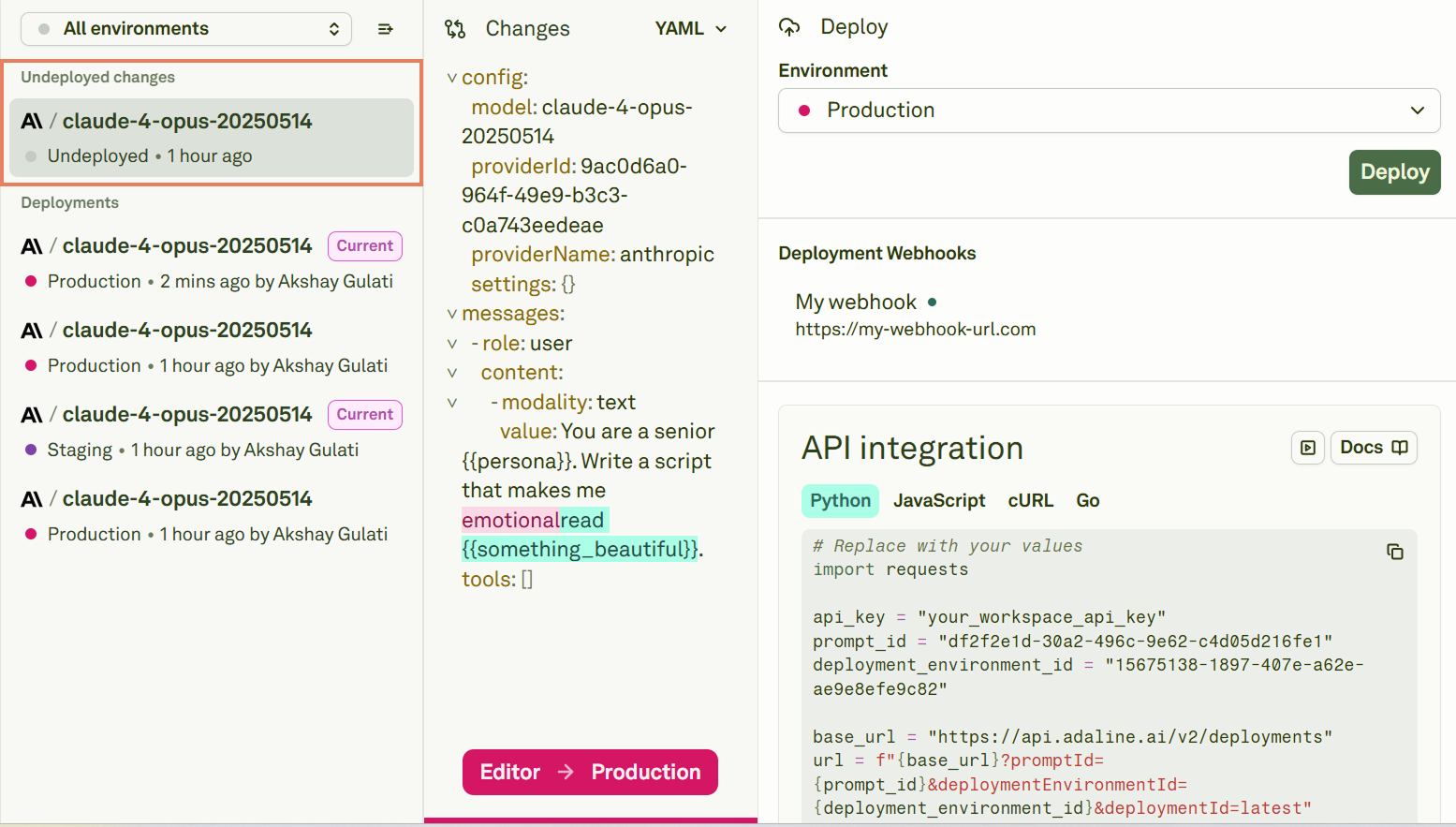
After the rollback, Adaline creates a new undeployed entry in the history. This entry contains the prompt that was previously deployed to the target environment — so it's preserved and can be re-deployed later if needed:
Select the environment you want to rollback to from the available options. The rollback takes effect immediately.
After the rollback, Adaline creates a new undeployed entry in the history. This entry contains the prompt that was previously deployed to the target environment — so it's preserved and can be re-deployed later if needed:
 ## When to rollback
* **Unexpected behavior** — A deployed prompt produces incorrect or unexpected outputs in production.
* **Quick recovery** — You need to restore a working version while you investigate and fix the issue in the [Editor](/docs/iterate/overview).
* **A/B comparison** — You want to switch between versions to compare their behavior in a live environment.
* **Failed evaluation** — Post-deployment monitoring (via the [Monitor pillar](/docs/monitor/overview)) reveals a quality regression.
## Next steps
Review diffs between versions before rolling back.
Deploy a new prompt version after fixing issues.
## When to rollback
* **Unexpected behavior** — A deployed prompt produces incorrect or unexpected outputs in production.
* **Quick recovery** — You need to restore a working version while you investigate and fix the issue in the [Editor](/docs/iterate/overview).
* **A/B comparison** — You want to switch between versions to compare their behavior in a live environment.
* **Failed evaluation** — Post-deployment monitoring (via the [Monitor pillar](/docs/monitor/overview)) reveals a quality regression.
## Next steps
Review diffs between versions before rolling back.
Deploy a new prompt version after fixing issues.