> ## Documentation Index
> Fetch the complete documentation index at: https://www.adaline.ai/docs/llms.txt
> Use this file to discover all available pages before exploring further.
# Deploy your prompt
> Ship your prompts from Adaline to your AI applications in real time
Deploying a prompt makes it available to your AI applications via the Adaline API or SDK. You can deploy directly to any deployment environment — and promote prompts across environments as they progress through your pipeline.
## Deploy to an environment
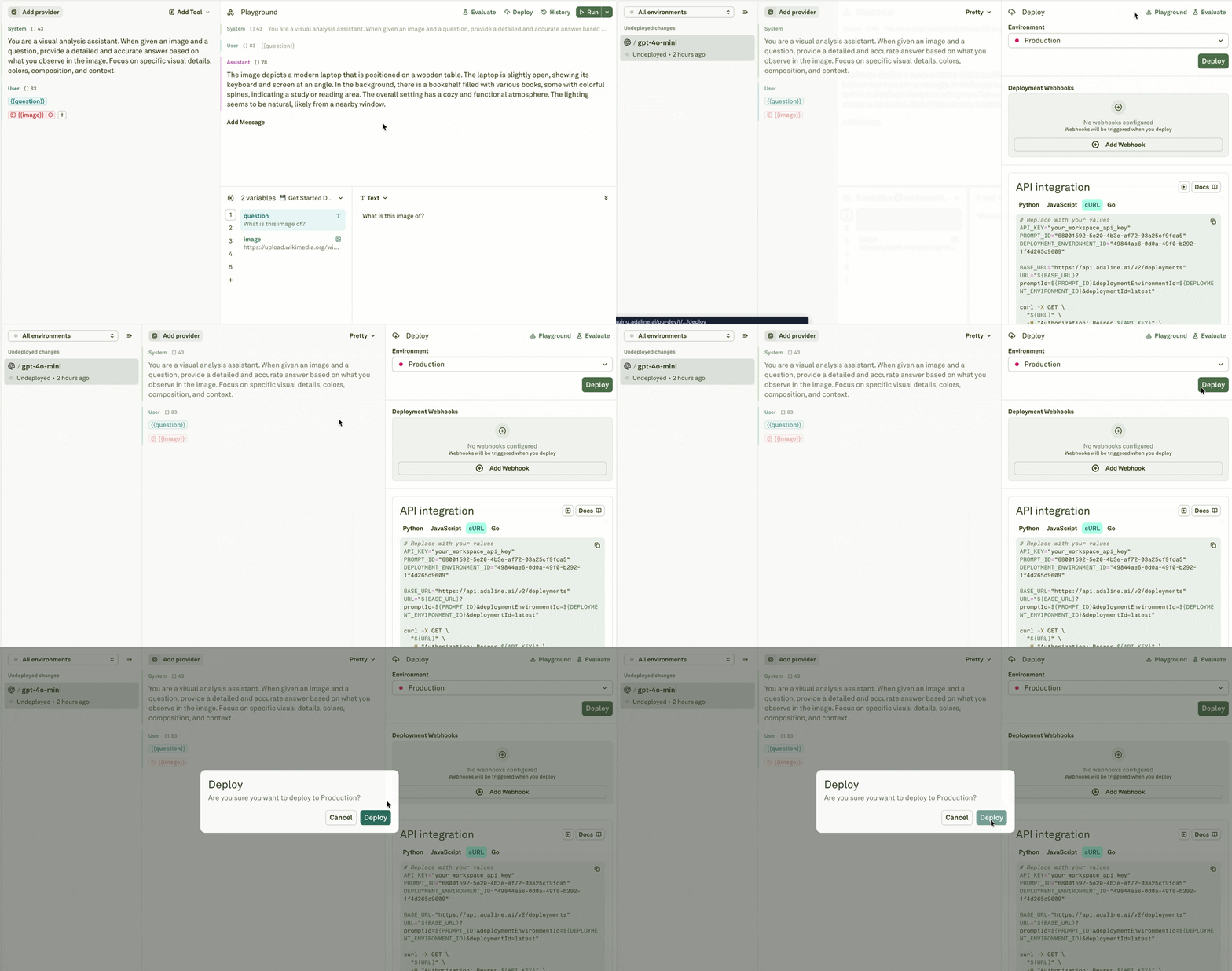
The deployment environment view is the central space for managing deployments. It is divided into three zones:
 The banner at the bottom shows the deployment direction (e.g., **Editor -> Production**). This is a visual indicator of what you are about to deploy — it is not clickable.
| Zone | What it shows |
| ---------- | -------------------------------------------------------------------------------------------------------------------------------------------------------------------------------------------------------- |
| **Left** | Deployment history — all previously deployed prompt versions across environments. From here you can [rollback](/docs/deploy/rollback-your-prompt) to any previous version. |
| **Center** | The diff view — blue-highlighted content shows what will change when you deploy. This includes changes to `config` (model and settings), `messages`, `role`, `modality` (text, image, PDF), and `tools`. |
| **Right** | Environment selector, [webhooks](/docs/deploy/configure-webhooks), and API/SDK integration code for the deployed prompt. |
### Confirm the deployment
When you are ready, click **Deploy** to push the prompt to the selected environment:
The banner at the bottom shows the deployment direction (e.g., **Editor -> Production**). This is a visual indicator of what you are about to deploy — it is not clickable.
| Zone | What it shows |
| ---------- | -------------------------------------------------------------------------------------------------------------------------------------------------------------------------------------------------------- |
| **Left** | Deployment history — all previously deployed prompt versions across environments. From here you can [rollback](/docs/deploy/rollback-your-prompt) to any previous version. |
| **Center** | The diff view — blue-highlighted content shows what will change when you deploy. This includes changes to `config` (model and settings), `messages`, `role`, `modality` (text, image, PDF), and `tools`. |
| **Right** | Environment selector, [webhooks](/docs/deploy/configure-webhooks), and API/SDK integration code for the deployed prompt. |
### Confirm the deployment
When you are ready, click **Deploy** to push the prompt to the selected environment:
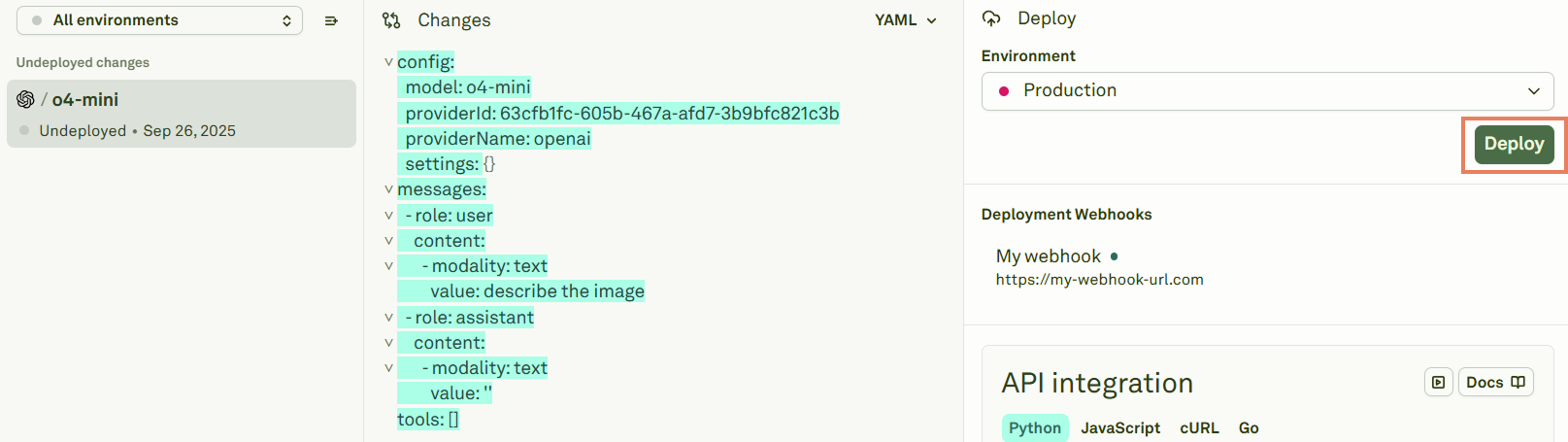 After deployment completes, Adaline shows the deployed state:
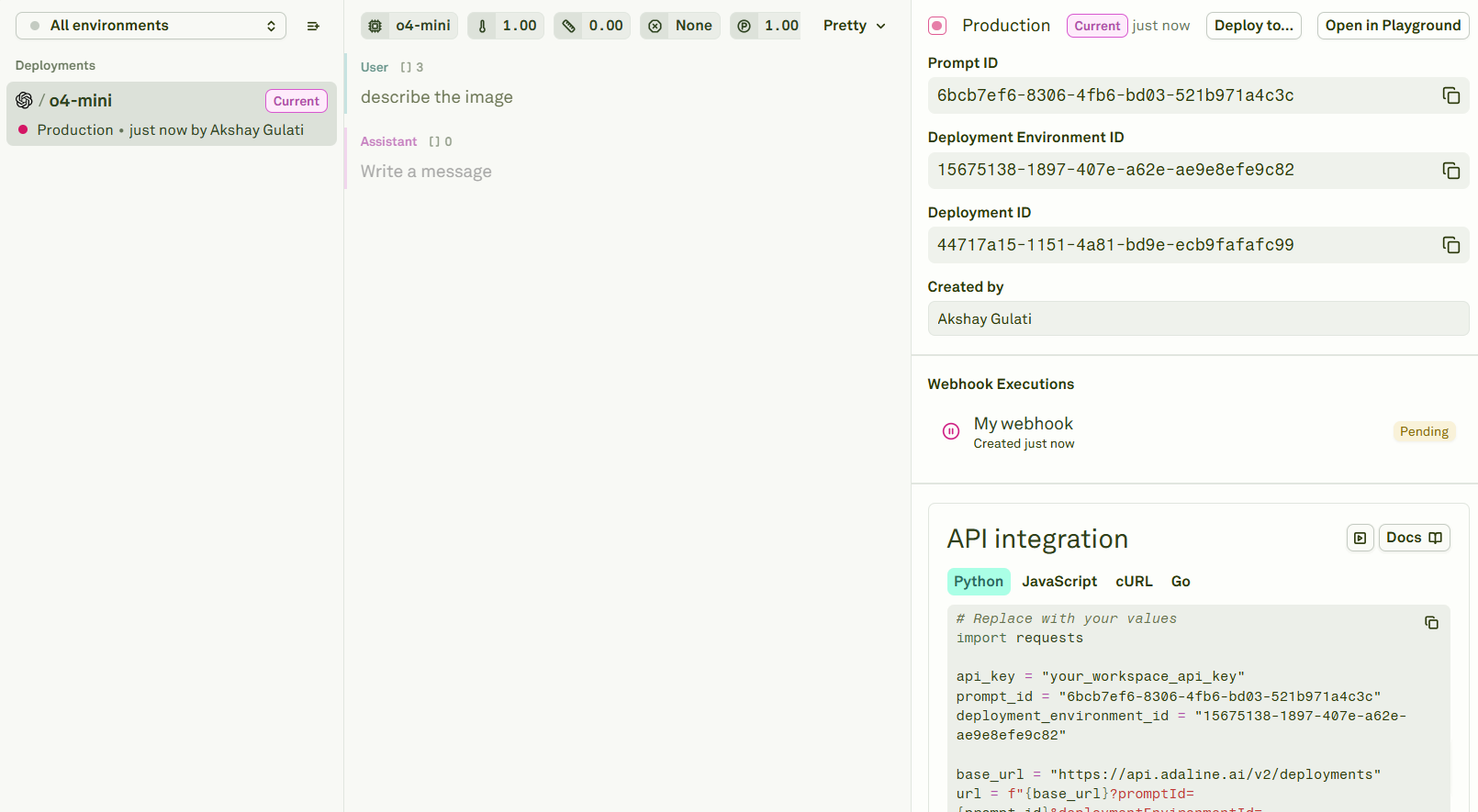 The right panel now displays:
* **Integration IDs** — Deployment snapshot ID, environment ID, and prompt bench ID for use in your API/SDK calls. Adaline auto-fills the code snippets in the **API Integration** section.
* **Webhook executions** — Status of any [webhook](/docs/deploy/configure-webhooks) deliveries triggered by the deployment.
## Deploy to another environment
To promote a prompt from one environment to another (e.g., staging to production), select the prompt and click **Deploy to...**:
The right panel now displays:
* **Integration IDs** — Deployment snapshot ID, environment ID, and prompt bench ID for use in your API/SDK calls. Adaline auto-fills the code snippets in the **API Integration** section.
* **Webhook executions** — Status of any [webhook](/docs/deploy/configure-webhooks) deliveries triggered by the deployment.
## Deploy to another environment
To promote a prompt from one environment to another (e.g., staging to production), select the prompt and click **Deploy to...**:
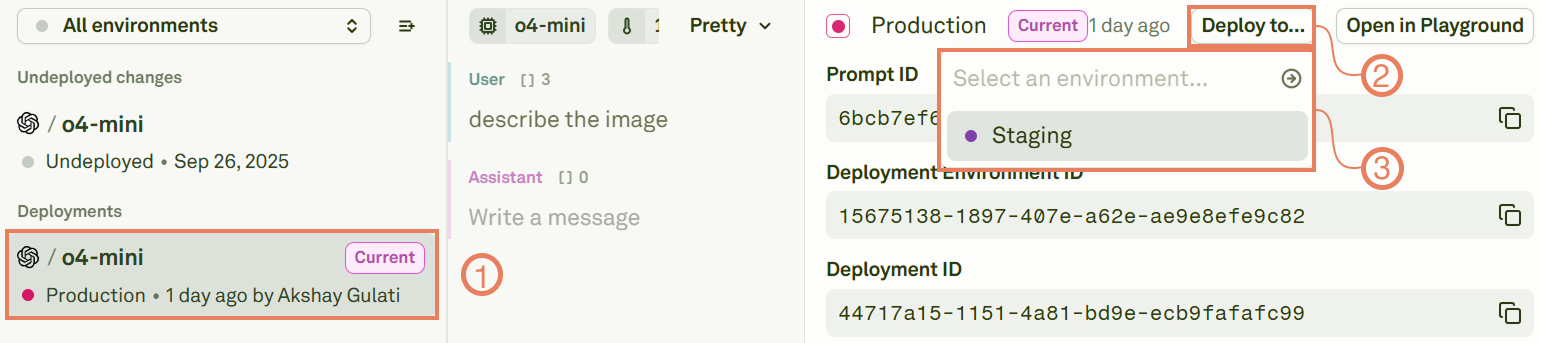 This lets you move prompts forward or backward through your deployment pipeline. For example:
* **Staging -> Production** — Promote a tested prompt to your live application.
* **Production -> Staging** — Pull a production prompt back to staging for further testing or iteration.
Before deploying to production, [compare the deployments](/docs/deploy/compare-your-deployments) between environments to review exactly what will change.
## Access deployed prompts
After deployment, your AI application can access the prompt via:
* **API** — Use the Adaline [REST API](/docs/reference/api/v2/openapi/get-deployment) with your environment key and deployment IDs.
* **SDK** — Use the [TypeScript](/docs/reference/sdk/v2/typescript/overview) or [Python](/docs/reference/sdk/v2/python/overview) SDK to fetch and execute deployed prompts.
* **Webhooks** — [Configure webhooks](/docs/deploy/configure-webhooks) to receive real-time notifications whenever a deployment is created or rolled back.
## What gets deployed
A deployment captures a complete snapshot of your prompt, including:
| Component | Description |
| --------------- | --------------------------------------------------------------------------------------------------- |
| **Config** | The selected model and all its parameter settings (temperature, max tokens, response format, etc.). |
| **Messages** | All message templates — system, user, assistant, and tool messages. |
| **Variables** | All variable definitions and their configured sources. |
| **Tools** | Tool definitions, schemas, and request configurations. |
| **MCP servers** | Any connected MCP server configurations. |
Here is a sample deployment object returned by the [API](/docs/reference/api/v2/openapi/get-deployment) and [SDK](/docs/reference/sdk/v2/typescript/types/deployment):
```json theme={null}
{
"id": "deploy_abc123",
"createdAt": 1704067200000,
"updatedAt": 1704153600000,
"projectId": "proj_789",
"promptId": "prompt_abc123",
"deploymentEnvironmentId": "env_production",
"prompt": {
"config": {
"providerName": "openai",
"providerId": "provider_abc123",
"model": "gpt-4o",
"settings": {
"temperature": 0.7,
"maxTokens": 1000,
"topP": 0.9
}
},
"messages": [
{
"role": "system",
"content": [
{
"modality": "text",
"value": "You are a helpful customer support agent for {{company_name}}. Answer questions about our products and services."
}
]
},
{
"role": "user",
"content": [
{
"modality": "text",
"value": "{{user_message}}"
}
]
}
],
"tools": [
{
"type": "function",
"definition": {
"schema": {
"name": "search_knowledge_base",
"description": "Search the company knowledge base for relevant articles",
"parameters": {
"type": "object",
"properties": {
"query": {
"type": "string",
"description": "The search query"
}
},
"required": ["query"]
}
}
}
}
],
"variables": [
{ "name": "company_name", "modality": "text" },
{ "name": "user_message", "modality": "text" }
]
}
}
```
Deployments return prompt messages with `{{variable_name}}` placeholders intact. Replace them with runtime values before sending to your AI provider — see [Use variables in a prompt](/docs/iterate/use-variables-in-prompt#injecting-variables-at-runtime) for the pattern in TypeScript and Python.
## Next steps
Revert to a previous deployment instantly.
Review diffs between deployment versions.
This lets you move prompts forward or backward through your deployment pipeline. For example:
* **Staging -> Production** — Promote a tested prompt to your live application.
* **Production -> Staging** — Pull a production prompt back to staging for further testing or iteration.
Before deploying to production, [compare the deployments](/docs/deploy/compare-your-deployments) between environments to review exactly what will change.
## Access deployed prompts
After deployment, your AI application can access the prompt via:
* **API** — Use the Adaline [REST API](/docs/reference/api/v2/openapi/get-deployment) with your environment key and deployment IDs.
* **SDK** — Use the [TypeScript](/docs/reference/sdk/v2/typescript/overview) or [Python](/docs/reference/sdk/v2/python/overview) SDK to fetch and execute deployed prompts.
* **Webhooks** — [Configure webhooks](/docs/deploy/configure-webhooks) to receive real-time notifications whenever a deployment is created or rolled back.
## What gets deployed
A deployment captures a complete snapshot of your prompt, including:
| Component | Description |
| --------------- | --------------------------------------------------------------------------------------------------- |
| **Config** | The selected model and all its parameter settings (temperature, max tokens, response format, etc.). |
| **Messages** | All message templates — system, user, assistant, and tool messages. |
| **Variables** | All variable definitions and their configured sources. |
| **Tools** | Tool definitions, schemas, and request configurations. |
| **MCP servers** | Any connected MCP server configurations. |
Here is a sample deployment object returned by the [API](/docs/reference/api/v2/openapi/get-deployment) and [SDK](/docs/reference/sdk/v2/typescript/types/deployment):
```json theme={null}
{
"id": "deploy_abc123",
"createdAt": 1704067200000,
"updatedAt": 1704153600000,
"projectId": "proj_789",
"promptId": "prompt_abc123",
"deploymentEnvironmentId": "env_production",
"prompt": {
"config": {
"providerName": "openai",
"providerId": "provider_abc123",
"model": "gpt-4o",
"settings": {
"temperature": 0.7,
"maxTokens": 1000,
"topP": 0.9
}
},
"messages": [
{
"role": "system",
"content": [
{
"modality": "text",
"value": "You are a helpful customer support agent for {{company_name}}. Answer questions about our products and services."
}
]
},
{
"role": "user",
"content": [
{
"modality": "text",
"value": "{{user_message}}"
}
]
}
],
"tools": [
{
"type": "function",
"definition": {
"schema": {
"name": "search_knowledge_base",
"description": "Search the company knowledge base for relevant articles",
"parameters": {
"type": "object",
"properties": {
"query": {
"type": "string",
"description": "The search query"
}
},
"required": ["query"]
}
}
}
}
],
"variables": [
{ "name": "company_name", "modality": "text" },
{ "name": "user_message", "modality": "text" }
]
}
}
```
Deployments return prompt messages with `{{variable_name}}` placeholders intact. Replace them with runtime values before sending to your AI provider — see [Use variables in a prompt](/docs/iterate/use-variables-in-prompt#injecting-variables-at-runtime) for the pattern in TypeScript and Python.
## Next steps
Revert to a previous deployment instantly.
Review diffs between deployment versions.