> ## Documentation Index
> Fetch the complete documentation index at: https://www.adaline.ai/docs/llms.txt
> Use this file to discover all available pages before exploring further.
# Configure webhooks
> Receive real-time deployment events via signed webhooks to update your AI applications
Webhooks let you receive real-time events when a new deployment is created. Use them to trigger CI/CD steps, purge caches, notify downstream systems, or kick off analytics pipelines — all automatically when a prompt is deployed or rolled back.
## Create a webhook
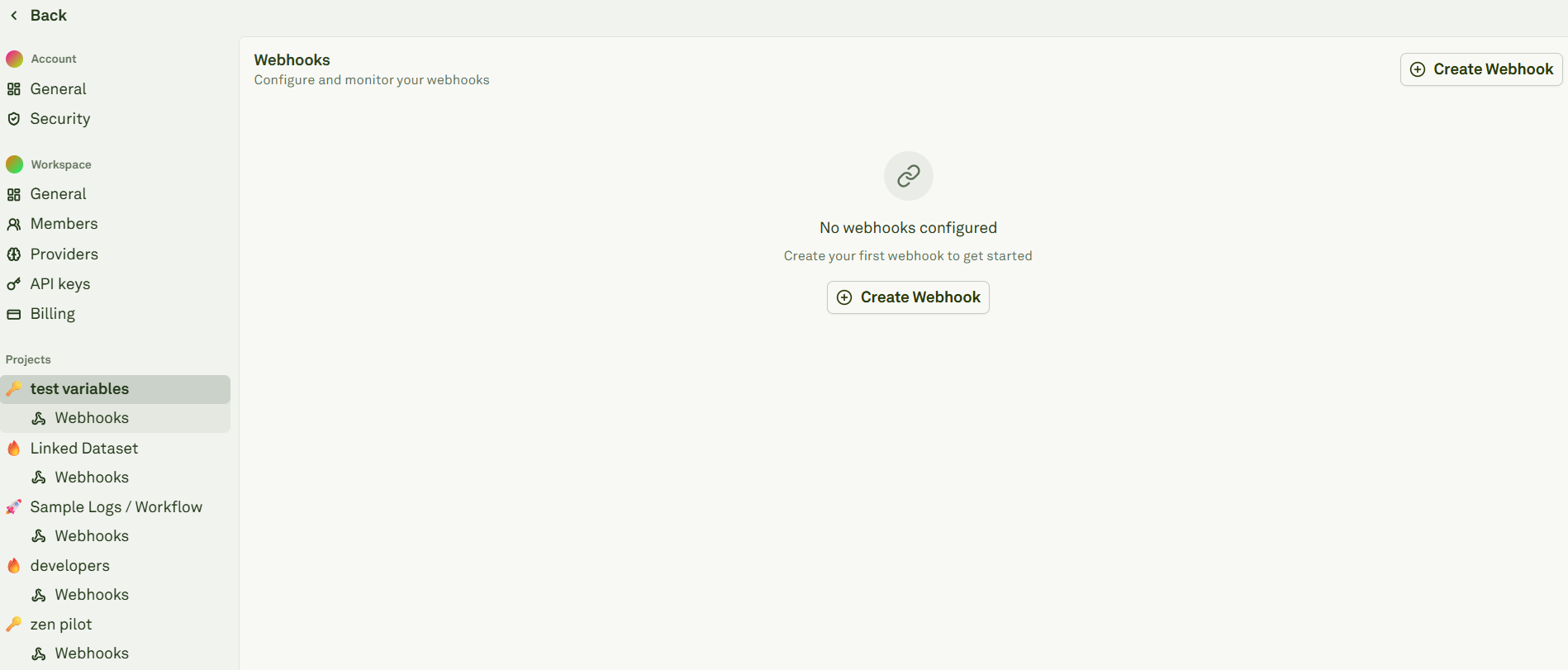
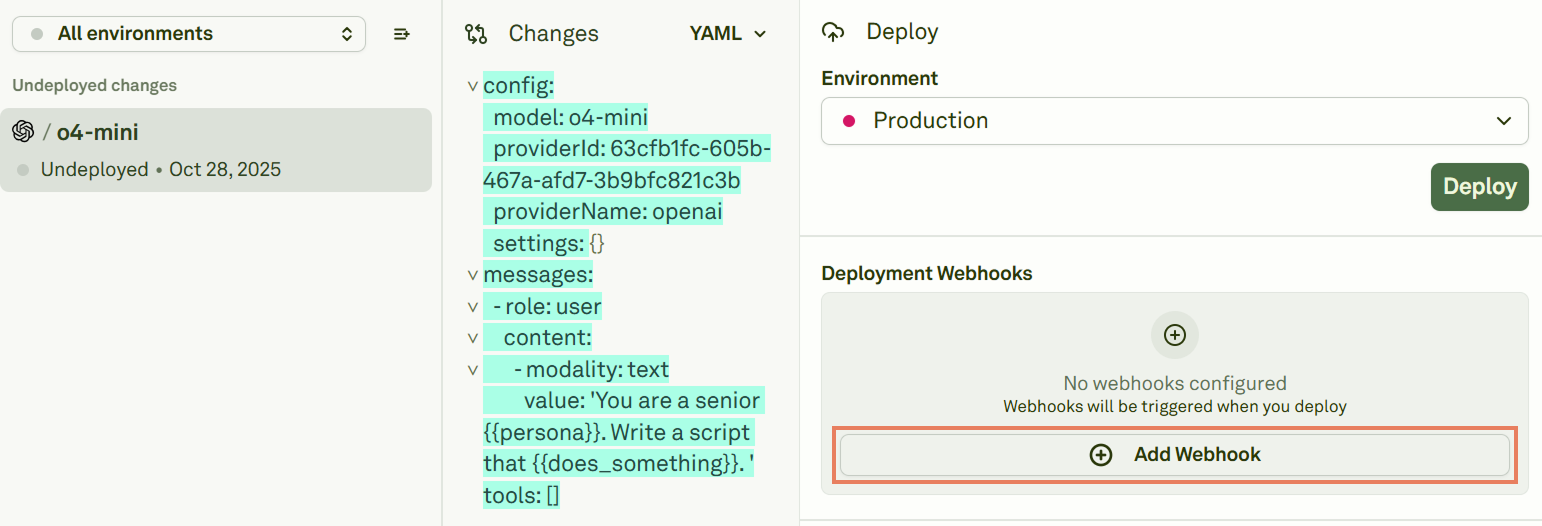
You can create webhooks from two places:
Navigate to **Workspace Settings** and find the **Webhooks** section under your project.
 **From the deployment view** — When viewing an undeployed prompt, click the webhook option in the right panel:
 ## Configure a webhook
When creating a new webhook, fill in the following fields:
## Configure a webhook
When creating a new webhook, fill in the following fields:
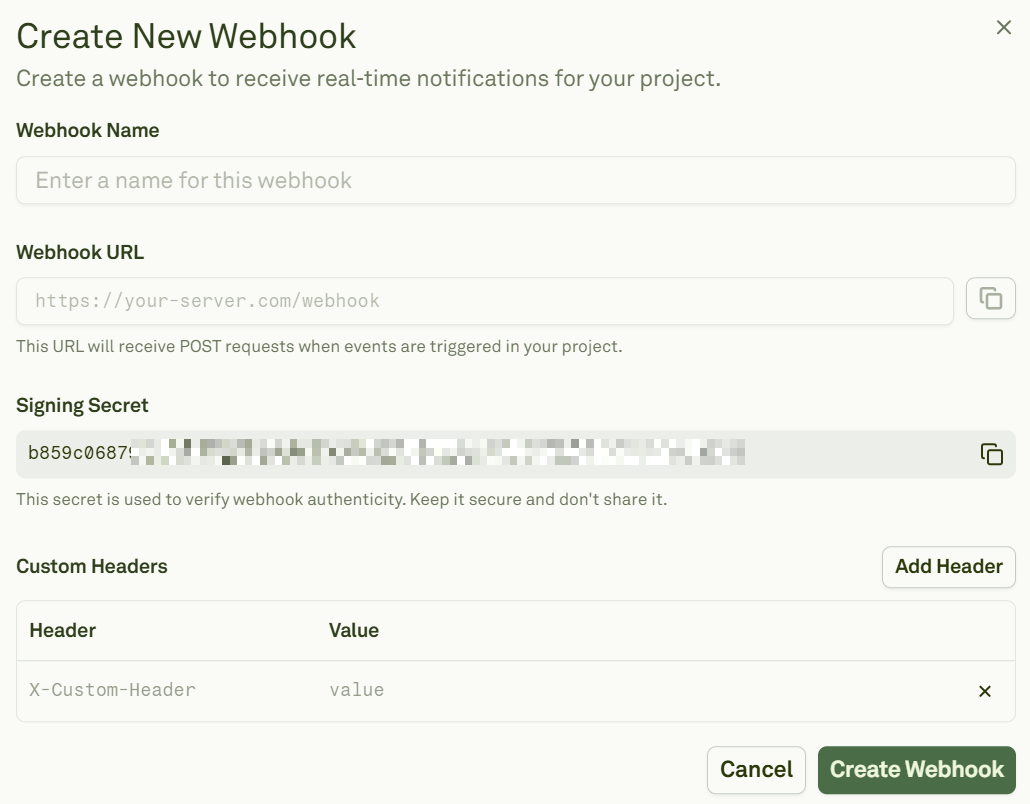 | Field | Description |
| ------------------ | ------------------------------------------------------------------------------------------- |
| **Webhook Name** | A short, descriptive name for the destination. |
| **Webhook URL** | The HTTPS endpoint that will receive events. |
| **Signing Secret** | Auto-generated by Adaline. Copy and store it securely — you'll use it to verify signatures. |
| **Custom Headers** | Add any custom headers your endpoint expects (e.g., authorization tokens). |
Webhooks automatically subscribe to the `create-deployment` event.
## Event format
Currently, Adaline emits a single project event: `create-deployment`. This event fires whenever a new deployment snapshot is created for a prompt and environment.
```json theme={null}
{
"type": "create-deployment",
"eventId": "ev_01J...",
"createdAt": 1731024000000,
"payload": {
"deploymentSnapshotId": "ds_01J...",
"deploymentEnvironmentId": "env_01J...",
"promptBenchId": "pb_01J...",
"editorSnapshotId": "es_01J..."
}
}
```
### Request details
| Setting | Value |
| -------------------- | --------------------- |
| **Method** | POST (JSON body) |
| **Content-Type** | `application/json` |
| **Signature header** | `X-Webhook-Signature` |
## Verify signatures
When a payload is present, Adaline attaches an `X-Webhook-Signature` header. The value contains a timestamp and one or more signatures (to support secret rotation):
```plaintext theme={null}
t={timestamp}&v1={sig1},{sig2}
```
Each signature is an HMAC-SHA256 over the message:
```plaintext theme={null}
"{timestamp}.{json_string}"
```
Here is a TypeScript example that parses the header and verifies the signature:
```ts theme={null}
import crypto from "node:crypto";
// Header format: "t={timestampMs}&v1={sig1},{sig2}"
export function parseSignatureHeader(signatureHeader: string): {
timestampMs: number;
signatures: string[];
} {
let timestampMs = 0;
let signatures: string[] = [];
for (const pair of signatureHeader.split("&")) {
const [key, value = ""] = pair.split("=", 2);
if (key === "t") timestampMs = Number(value) || 0;
if (key === "v1") signatures = value.split(",").filter(Boolean);
}
return { timestampMs, signatures };
}
export function isValidWebhookSignature(
rawBody: string,
signatureHeader: string,
secret: string,
options?: { toleranceMs?: number }
): boolean {
const { timestampMs, signatures } = parseSignatureHeader(signatureHeader);
if (!timestampMs || signatures.length === 0) return false;
const message = `${timestampMs}.${rawBody}`;
const expected = crypto
.createHmac("sha256", secret)
.update(message)
.digest("hex");
return signatures.includes(expected);
}
```
Inputs:
* `rawBody` — The exact request body string.
* `signatureHeader` — The `X-Webhook-Signature` header value.
* `secret` — Your signing secret from the webhook configuration.
You may optionally enforce your own timestamp tolerance. Adaline does not mandate one.
## Test webhooks
From the webhook details page, click **Send Test Event** to confirm connectivity and signature validation:
| Field | Description |
| ------------------ | ------------------------------------------------------------------------------------------- |
| **Webhook Name** | A short, descriptive name for the destination. |
| **Webhook URL** | The HTTPS endpoint that will receive events. |
| **Signing Secret** | Auto-generated by Adaline. Copy and store it securely — you'll use it to verify signatures. |
| **Custom Headers** | Add any custom headers your endpoint expects (e.g., authorization tokens). |
Webhooks automatically subscribe to the `create-deployment` event.
## Event format
Currently, Adaline emits a single project event: `create-deployment`. This event fires whenever a new deployment snapshot is created for a prompt and environment.
```json theme={null}
{
"type": "create-deployment",
"eventId": "ev_01J...",
"createdAt": 1731024000000,
"payload": {
"deploymentSnapshotId": "ds_01J...",
"deploymentEnvironmentId": "env_01J...",
"promptBenchId": "pb_01J...",
"editorSnapshotId": "es_01J..."
}
}
```
### Request details
| Setting | Value |
| -------------------- | --------------------- |
| **Method** | POST (JSON body) |
| **Content-Type** | `application/json` |
| **Signature header** | `X-Webhook-Signature` |
## Verify signatures
When a payload is present, Adaline attaches an `X-Webhook-Signature` header. The value contains a timestamp and one or more signatures (to support secret rotation):
```plaintext theme={null}
t={timestamp}&v1={sig1},{sig2}
```
Each signature is an HMAC-SHA256 over the message:
```plaintext theme={null}
"{timestamp}.{json_string}"
```
Here is a TypeScript example that parses the header and verifies the signature:
```ts theme={null}
import crypto from "node:crypto";
// Header format: "t={timestampMs}&v1={sig1},{sig2}"
export function parseSignatureHeader(signatureHeader: string): {
timestampMs: number;
signatures: string[];
} {
let timestampMs = 0;
let signatures: string[] = [];
for (const pair of signatureHeader.split("&")) {
const [key, value = ""] = pair.split("=", 2);
if (key === "t") timestampMs = Number(value) || 0;
if (key === "v1") signatures = value.split(",").filter(Boolean);
}
return { timestampMs, signatures };
}
export function isValidWebhookSignature(
rawBody: string,
signatureHeader: string,
secret: string,
options?: { toleranceMs?: number }
): boolean {
const { timestampMs, signatures } = parseSignatureHeader(signatureHeader);
if (!timestampMs || signatures.length === 0) return false;
const message = `${timestampMs}.${rawBody}`;
const expected = crypto
.createHmac("sha256", secret)
.update(message)
.digest("hex");
return signatures.includes(expected);
}
```
Inputs:
* `rawBody` — The exact request body string.
* `signatureHeader` — The `X-Webhook-Signature` header value.
* `secret` — Your signing secret from the webhook configuration.
You may optionally enforce your own timestamp tolerance. Adaline does not mandate one.
## Test webhooks
From the webhook details page, click **Send Test Event** to confirm connectivity and signature validation:
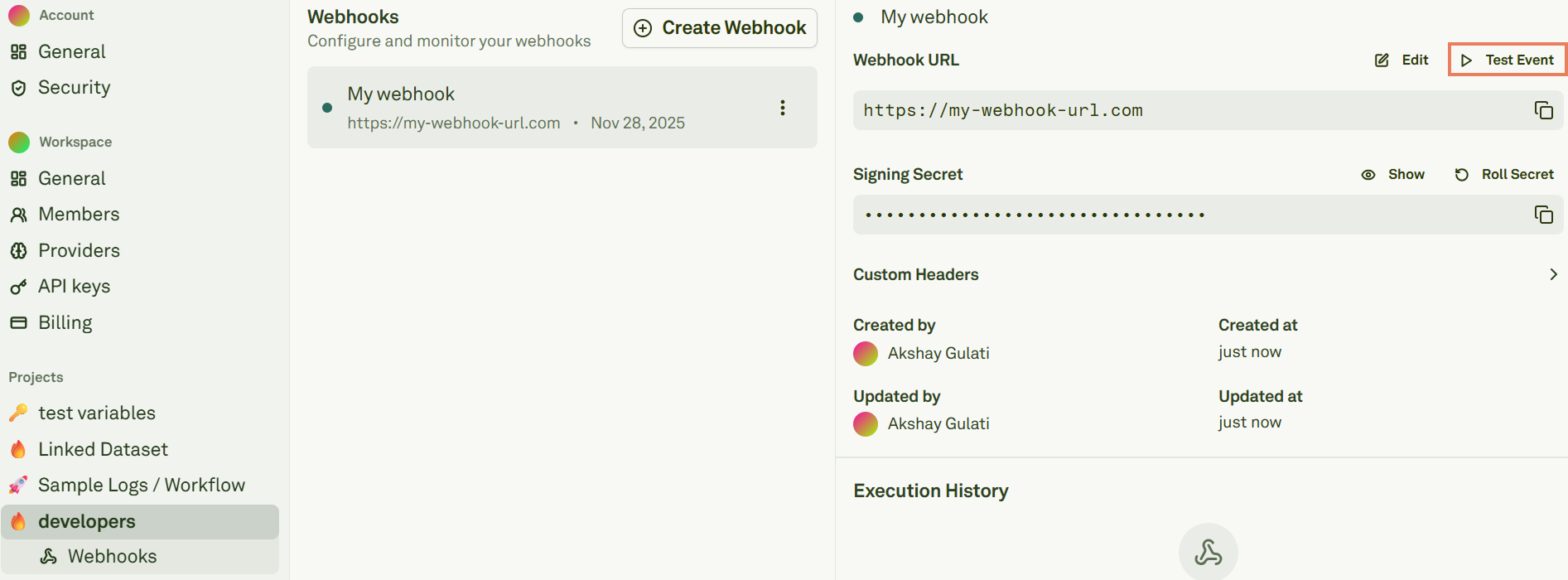 Review the delivery attempts in **Execution History**:
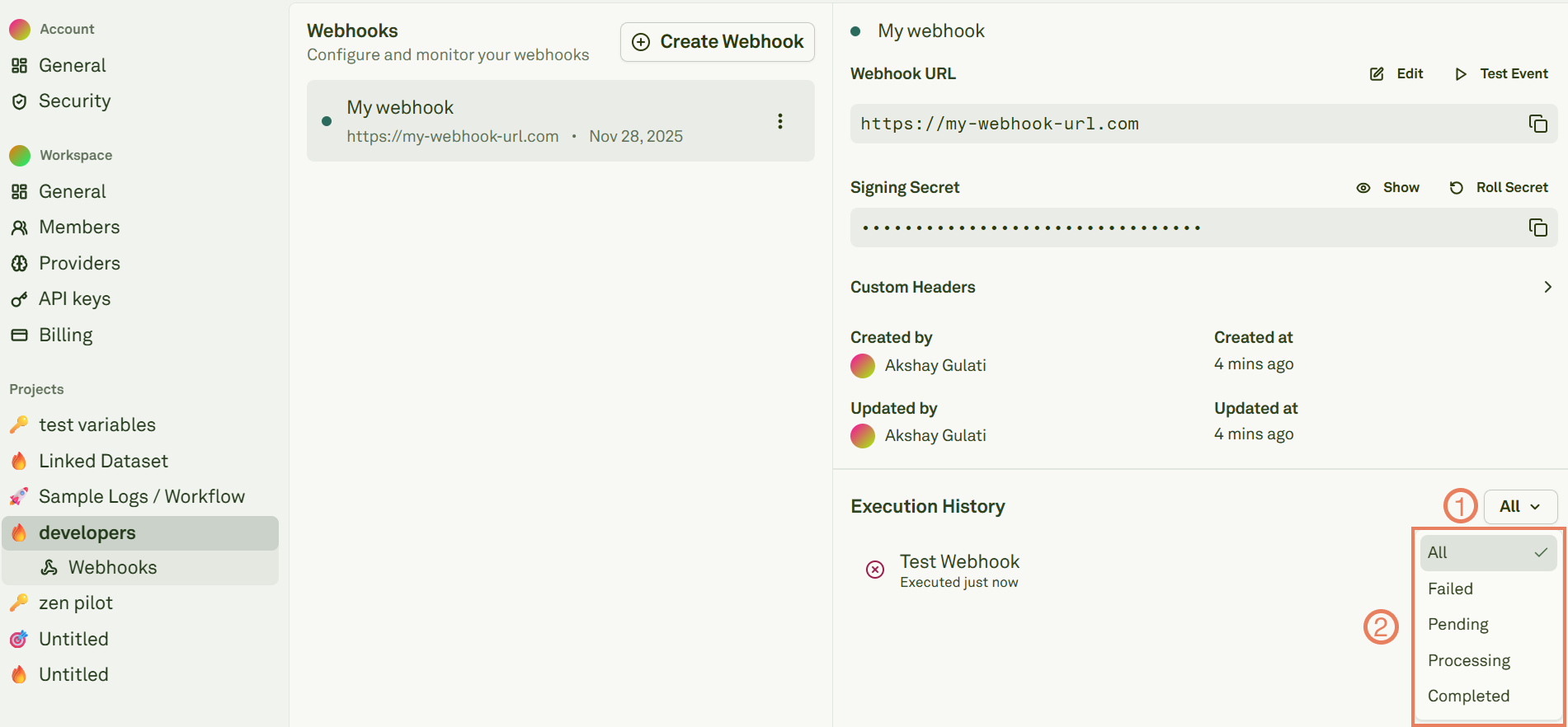 Your endpoint should return `200 OK` after verifying the signature.
## Roll secrets
Roll the signing secret from the webhook details page:
Your endpoint should return `200 OK` after verifying the signature.
## Roll secrets
Roll the signing secret from the webhook details page:
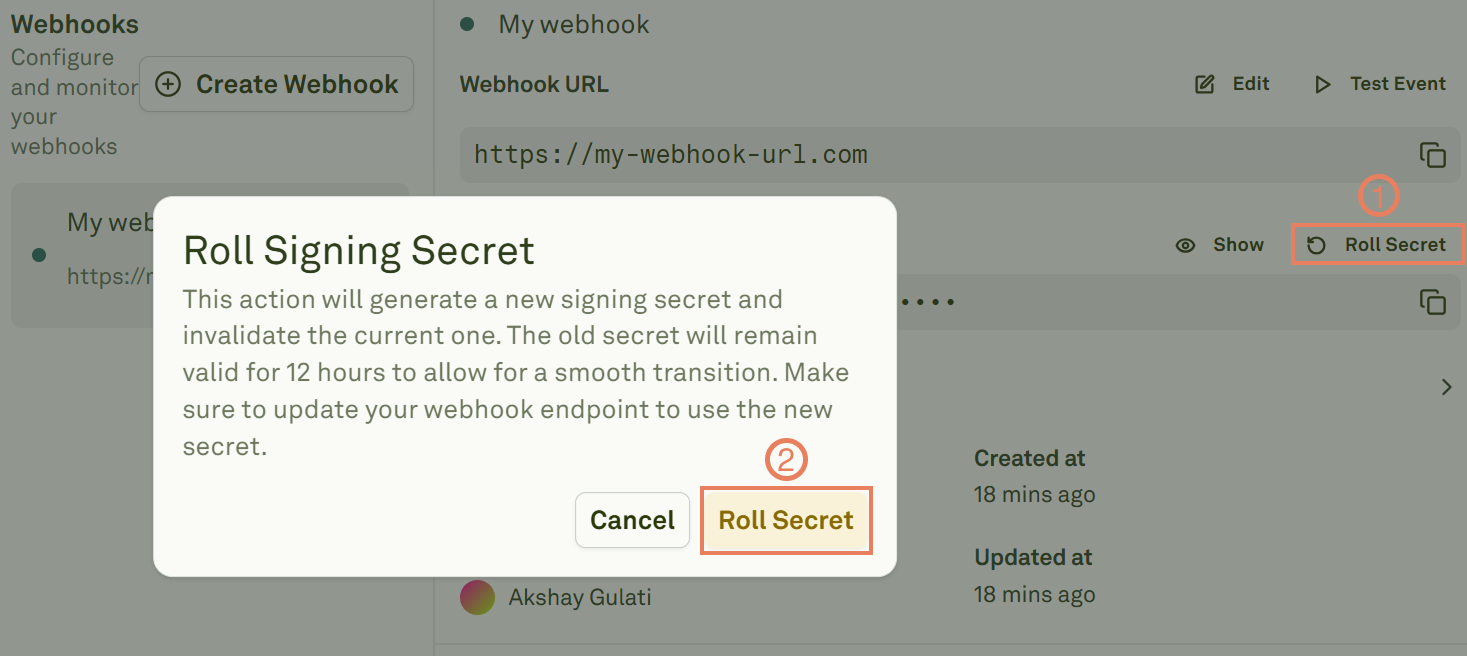 When you roll a secret:
1. Adaline creates a **new primary secret** immediately.
2. The previous secret is retained as a **rolled secret** and remains valid for **12 hours**.
3. During this window, `X-Webhook-Signature` may include multiple signatures so your server can accept either secret.
This allows you to rotate secrets without any downtime — update your server to use the new secret within the 12-hour window.
## Troubleshooting
| Issue | Possible cause | Resolution |
| ------------------------------- | --------------------------------------------------------------- | -------------------------------------------------------------------------- |
| Endpoint returns `400` or `401` | Request body was parsed/modified before signature verification. | Verify against the raw request body, not a parsed/re-serialized version. |
| Signature mismatch | Clock skew or incorrect message format. | Ensure you use the exact `{timestamp}.{payload}` concatenation format. |
| No signature header | Signing secret not configured or event has no body. | Confirm a signing secret is set in the webhook configuration. |
| Webhook not firing | Wrong event subscription or endpoint unreachable. | Check that the endpoint is accessible via HTTPS and the webhook is active. |
## Next steps
Ship prompts and see webhooks in action.
Set up environments for your deployment pipeline.
When you roll a secret:
1. Adaline creates a **new primary secret** immediately.
2. The previous secret is retained as a **rolled secret** and remains valid for **12 hours**.
3. During this window, `X-Webhook-Signature` may include multiple signatures so your server can accept either secret.
This allows you to rotate secrets without any downtime — update your server to use the new secret within the 12-hour window.
## Troubleshooting
| Issue | Possible cause | Resolution |
| ------------------------------- | --------------------------------------------------------------- | -------------------------------------------------------------------------- |
| Endpoint returns `400` or `401` | Request body was parsed/modified before signature verification. | Verify against the raw request body, not a parsed/re-serialized version. |
| Signature mismatch | Clock skew or incorrect message format. | Ensure you use the exact `{timestamp}.{payload}` concatenation format. |
| No signature header | Signing secret not configured or event has no body. | Confirm a signing secret is set in the webhook configuration. |
| Webhook not firing | Wrong event subscription or endpoint unreachable. | Check that the endpoint is accessible via HTTPS and the webhook is active. |
## Next steps
Ship prompts and see webhooks in action.
Set up environments for your deployment pipeline.