> ## Documentation Index
> Fetch the complete documentation index at: https://www.adaline.ai/docs/llms.txt
> Use this file to discover all available pages before exploring further.
# Compare your deployments
> Review diffs between deployment versions and sync environments with confidence
Before promoting a prompt to production or rolling back to a previous version, you can compare deployments to see exactly what changed.
### 1. Select a source deployment from the history
The left panel shows the full deployment history for all environments.
Each entry represents a deployment aka a prompt version that has been deployed.
Click your source deployment to load it into the center panel for comparison with the target deployment.
### 2. Activate the Diff Mode
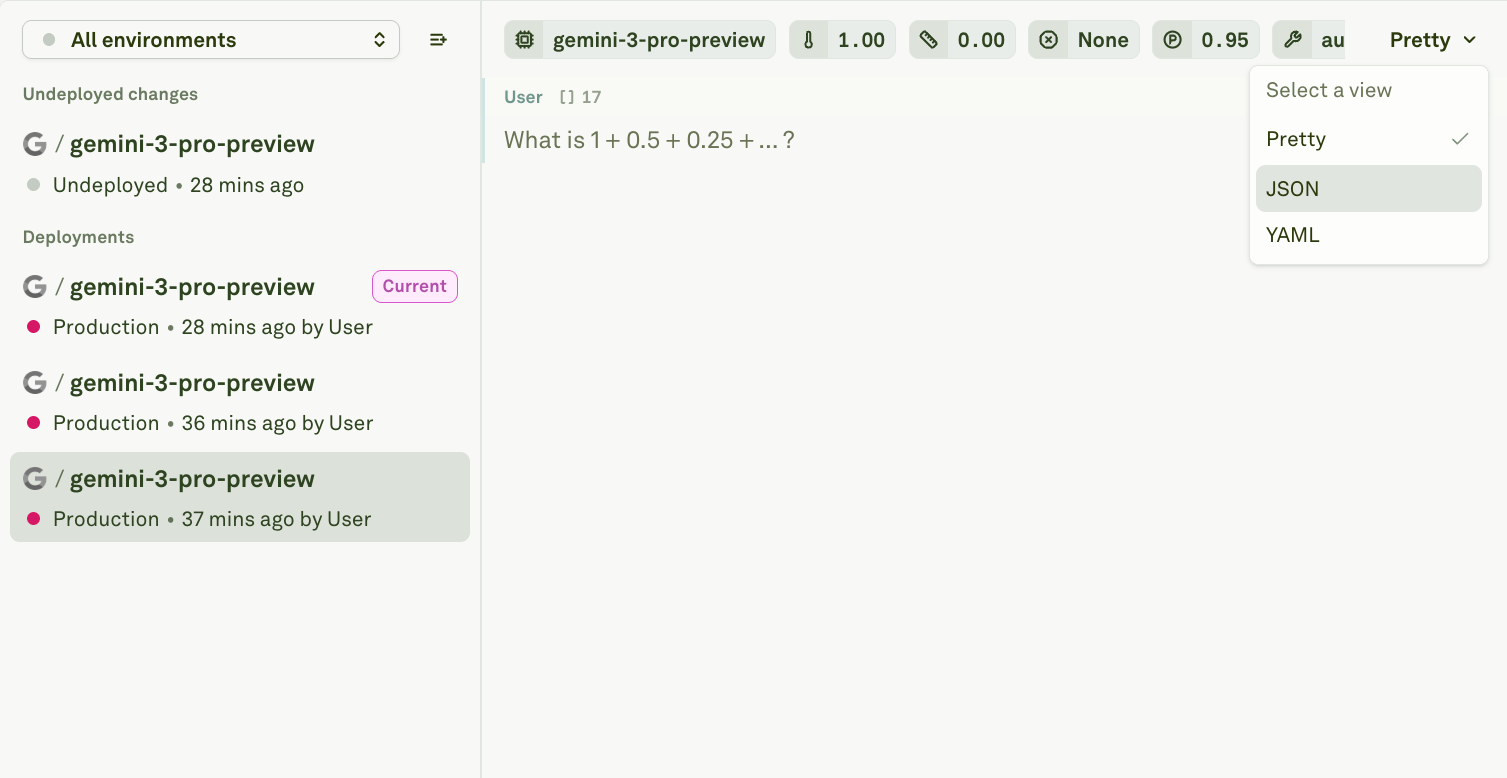
Switch to the JSON / YAML view to the raw deployment object by clicking the dropdown on the top right.
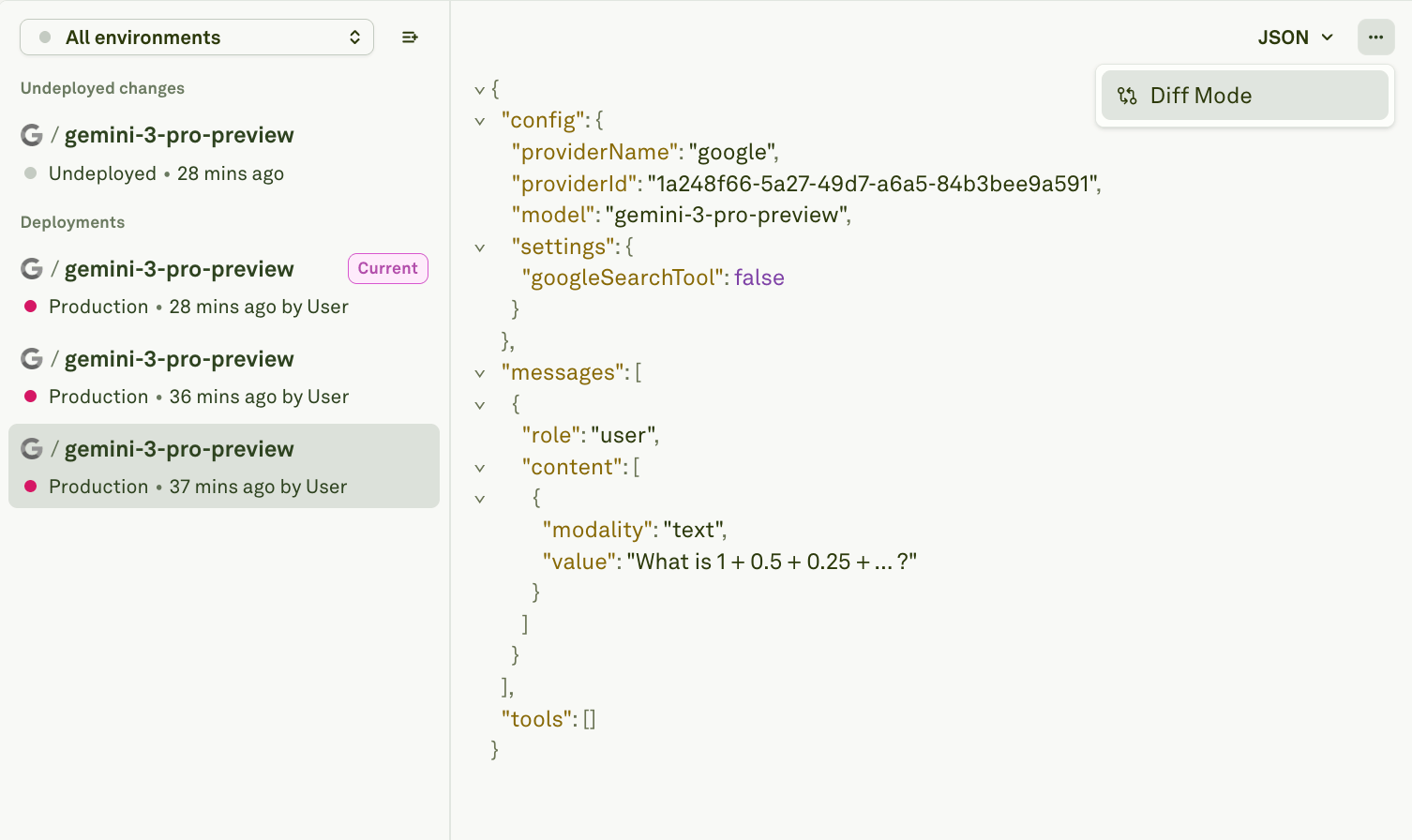
 Turn on the Diff Mode by click on the ellipsis (three dots) on the top right and select **Diff Mode**.
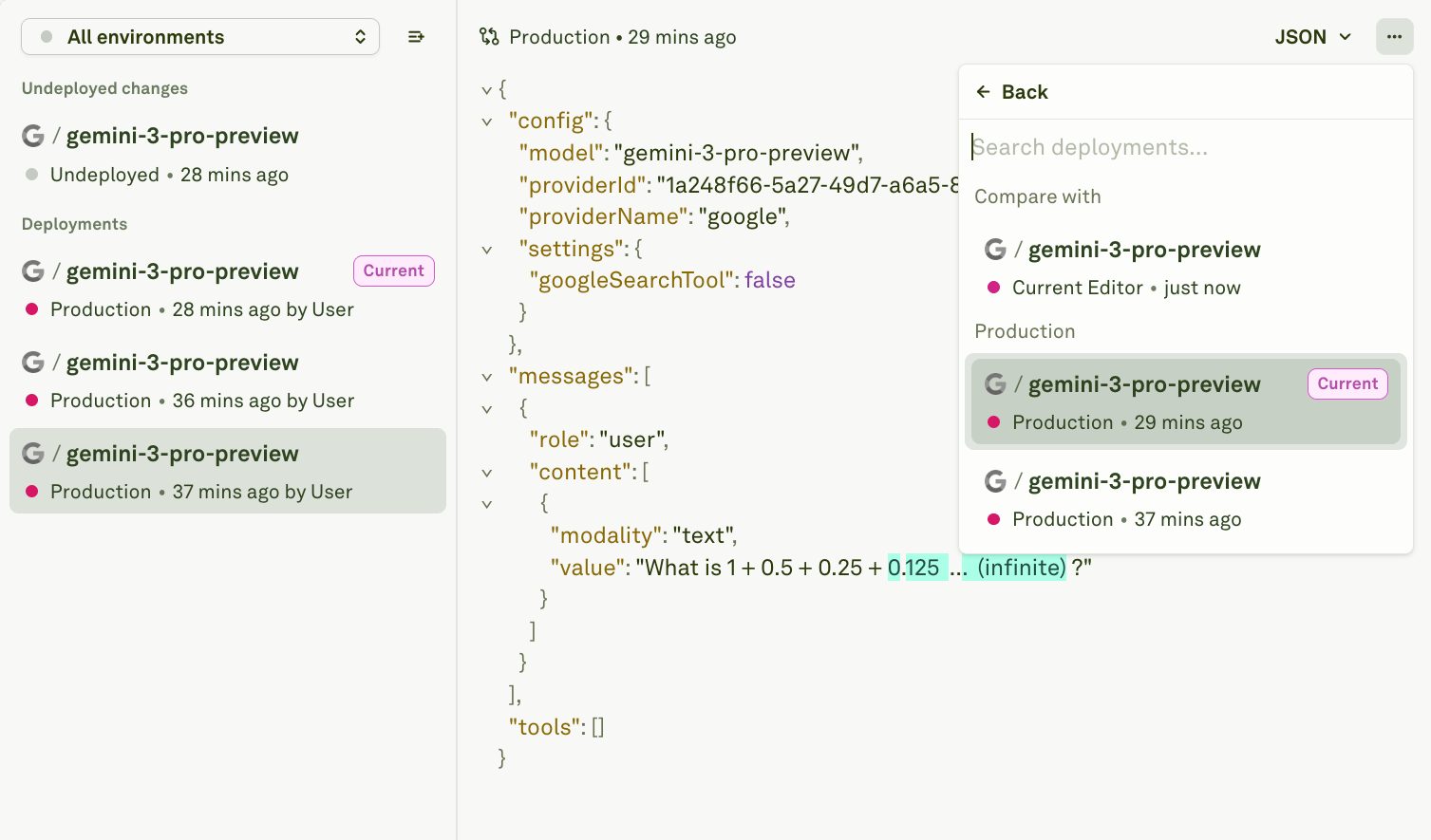
 Select the target deployment from the history dropdown.
You can choose any deployment across all environments and the current editor.
Select the target deployment from the history dropdown.
You can choose any deployment across all environments and the current editor.
 ### 3. Review the differences
The center panel highlights every difference between the selected version and what is currently deployed to the target environment.
Blue and red-highlighted content shows what will change if you confirm the deployment. The diff covers:
| Component | What's compared |
| ------------ | --------------------------------------------------------------------------------------- |
| **config** | Model selection and parameter changes (temperature, max tokens, response format, etc.). |
| **messages** | Changes to system, user, assistant, and tool message content. |
| **role** | Changes to message roles. |
| **modality** | Changes to content types (text, image, PDF). |
| **tools** | Added, removed, or modified tool definitions and schemas. |
## Next steps
Ship the compared version to your target environment.
Revert if the promoted version causes issues.
### 3. Review the differences
The center panel highlights every difference between the selected version and what is currently deployed to the target environment.
Blue and red-highlighted content shows what will change if you confirm the deployment. The diff covers:
| Component | What's compared |
| ------------ | --------------------------------------------------------------------------------------- |
| **config** | Model selection and parameter changes (temperature, max tokens, response format, etc.). |
| **messages** | Changes to system, user, assistant, and tool message content. |
| **role** | Changes to message roles. |
| **modality** | Changes to content types (text, image, PDF). |
| **tools** | Added, removed, or modified tool definitions and schemas. |
## Next steps
Ship the compared version to your target environment.
Revert if the promoted version causes issues.