> ## Documentation Index
> Fetch the complete documentation index at: https://www.adaline.ai/docs/llms.txt
> Use this file to discover all available pages before exploring further.
# Overview
> Configure and manage API credentials for AI model providers at the workspace level.
The Providers page serves as Adaline's workspace-level credential management system, allowing teams to configure and manage API credentials for various AI model providers.
This centralized approach lets users store multiple credentials per provider and use the right model configuration across Prompts, Playground, Evaluators, Monitor, Traces, and deployed prompt workflows.
Provider setup is part of production readiness. If model access is missing or misconfigured, playground runs, evaluations, continuous evaluations, and deployed prompt execution can fail in places that look like prompt problems.
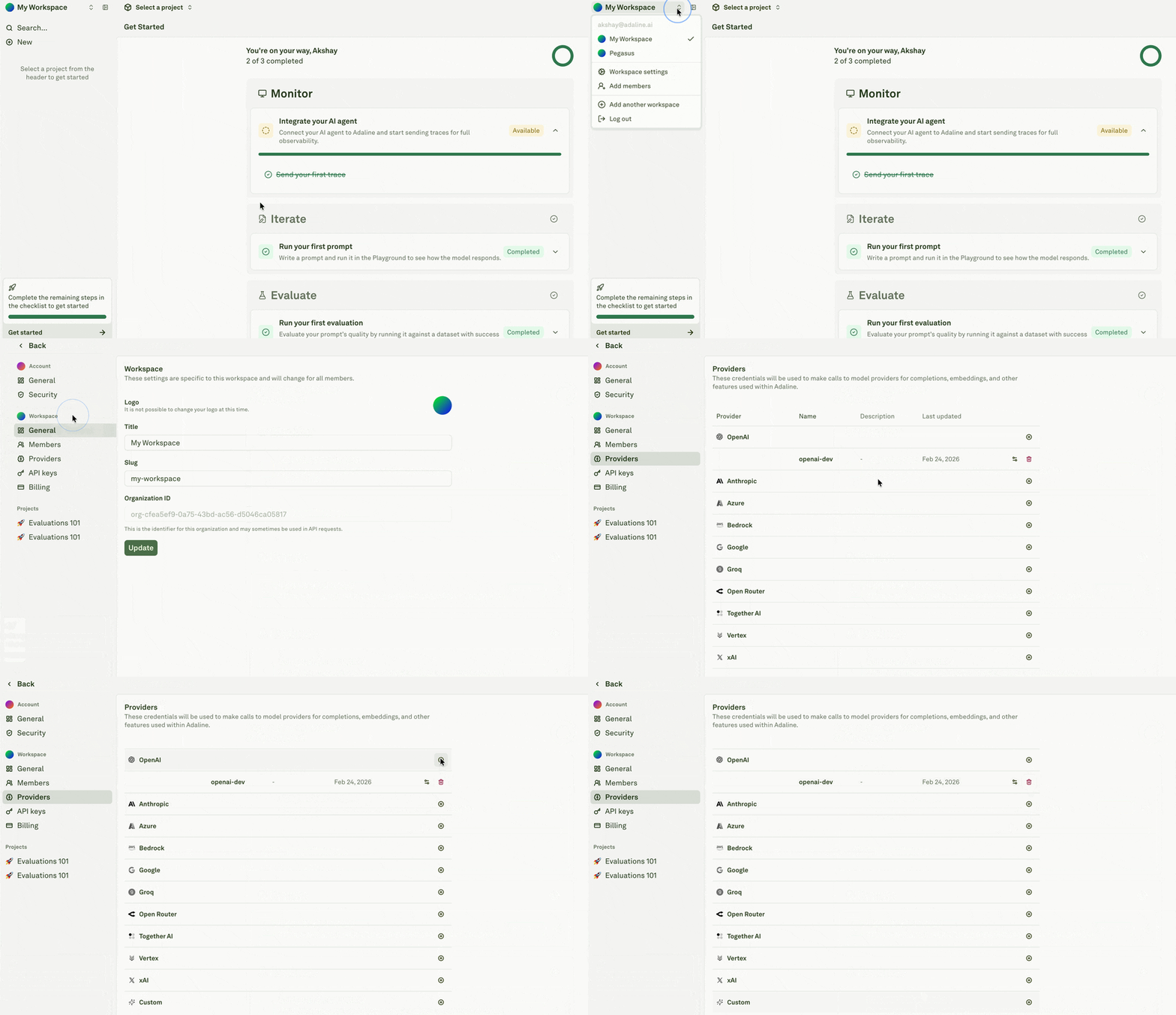 ## Supported Providers
Adaline supports a wide range of AI providers out of the box:
| Provider | Setup Guide |
| ----------------------------------------------------------------------------------------------------------------------------------------------------------------------------------------------------------------------------------------------------------------------------------------------------------------------------------------------------------------------------------------------------------------------------------------------------------------------------------------------------------------------------------------------------------------------------------------------------------------------------------------------------------------------------------------------------------------------------------------------------------------------------------------------------------------------------------------------------------------------------------------------------------------------------------------------------------------------------------------------------------------------------------------------------------------------------------------------------------------------------------------------------------------------------------------------------------------------------------------------------------------------------------------------------------------------------------------------------------------------------------------------------------------------- | ----------------------------------------------------- |
|
## Supported Providers
Adaline supports a wide range of AI providers out of the box:
| Provider | Setup Guide |
| ----------------------------------------------------------------------------------------------------------------------------------------------------------------------------------------------------------------------------------------------------------------------------------------------------------------------------------------------------------------------------------------------------------------------------------------------------------------------------------------------------------------------------------------------------------------------------------------------------------------------------------------------------------------------------------------------------------------------------------------------------------------------------------------------------------------------------------------------------------------------------------------------------------------------------------------------------------------------------------------------------------------------------------------------------------------------------------------------------------------------------------------------------------------------------------------------------------------------------------------------------------------------------------------------------------------------------------------------------------------------------------------------------------------------- | ----------------------------------------------------- |
|  OpenAI | [Configure](/docs/admin/configure-ai-provider/openai) |
|
OpenAI | [Configure](/docs/admin/configure-ai-provider/openai) |
|  Anthropic | [Configure](/docs/admin/configure-ai-provider/anthropic) |
|
Anthropic | [Configure](/docs/admin/configure-ai-provider/anthropic) |
|  Google | [Configure](/docs/admin/configure-ai-provider/google) |
|
Google | [Configure](/docs/admin/configure-ai-provider/google) |
|  xAI | [Configure](/docs/admin/configure-ai-provider/xai) |
|
xAI | [Configure](/docs/admin/configure-ai-provider/xai) |
|  Azure | [Configure](/docs/admin/configure-ai-provider/azure) |
|
Azure | [Configure](/docs/admin/configure-ai-provider/azure) |
|  Bedrock | [Configure](/docs/admin/configure-ai-provider/bedrock) |
| Vertex | [Configure](/docs/admin/configure-ai-provider/vertex) |
|
Bedrock | [Configure](/docs/admin/configure-ai-provider/bedrock) |
| Vertex | [Configure](/docs/admin/configure-ai-provider/vertex) |
|  Groq | [Configure](/docs/admin/configure-ai-provider/groq) |
|
Groq | [Configure](/docs/admin/configure-ai-provider/groq) |
|  Open Router | [Configure](/docs/admin/configure-ai-provider/open-router) |
|
Open Router | [Configure](/docs/admin/configure-ai-provider/open-router) |
|  Together AI | [Configure](/docs/admin/configure-ai-provider/togetherai) |
| Custom | [Configure](/docs/admin/configure-ai-provider/custom) |
## Adding Multiple Configurations
You can add multiple provider configurations for the same AI provider to support different use cases, such as separate development and production environments, different billing accounts, or varying rate limits. Simply add each set of credentials the same way you would add a single one.
Each configuration will have its own prefix in the model dropdown, making it easy to choose the right combination of model and account for your specific needs. For example, you might have "OpenAI (dev)::" and "OpenAI (prod)::" appearing as distinct options.
Together AI | [Configure](/docs/admin/configure-ai-provider/togetherai) |
| Custom | [Configure](/docs/admin/configure-ai-provider/custom) |
## Adding Multiple Configurations
You can add multiple provider configurations for the same AI provider to support different use cases, such as separate development and production environments, different billing accounts, or varying rate limits. Simply add each set of credentials the same way you would add a single one.
Each configuration will have its own prefix in the model dropdown, making it easy to choose the right combination of model and account for your specific needs. For example, you might have "OpenAI (dev)::" and "OpenAI (prod)::" appearing as distinct options.